ContentStudio API plan is now available. Create automations using Claude, Zapier, n8n, make, etc. Explore plan!

ContentStudio
Product

Platform

Publish

Plan and schedule content

AI Studio

AI-generated captions, images

Analyze

Measure social media KPIs

Engage

Social media customer care

Social Listening

New

Follow every conversation

Discover

Manage and read feeds

Top features

Workspaces

Clip maker

Calendar/Planner

Smart scheduling

Content library

White-label

New

AI Library

Bulk scheduling

Approval workflow

Client management

White-label reseller

New

AI video generator

Competitor analytics

Automation

Google Ads Analytics

New

Meta Ads Analytics

New

See all features

right-arrow-icon
contentstudio-tour

ContentStudio overview tour

Discover how ContentStudio simplifies workflows, helps in scaling up and delivers the results you need.

Solutions

By Business Type

For solo creators

For agencies

For small business

For marketing teams

For enterprise

By network

Facebook

Facebook

Instagram

Instagram

X (Twitter)

X (Twitter)

Google Business Profile

Google Business Profile

LinkedIn

LinkedIn

TikTok

TikTok

Bluesky

Bluesky

Meta Threads

Meta Threads

YouTube

YouTube

Pinterest

Pinterest

Telegram

Telegram

CUSTOMER STORYnew-tab-icon

How Webeing scaled client results using smarter workflows with ContentStudio

40%

increase in productivity with ContentStudio

Resources

Info Hub

Blog

Help docs

Glossary

Integrations

Case studies

n8n templates

Free Tools

Facebook video downloader

New

X (Twitter) video downloader

New

AI caption generator

Facebook post generator

LinkedIn video downloader

TikTok hashtag generator

YouTube title generator

TikTok caption generator

X (Twitter) hashtag generator

See All

right-arrow-icon
Video libraryContentStudio academy
video library

Access our complete collection of step-by-step tutorials covering all ContentStudio features.

APIPricing

Book a demo


Sign in

  1. Home
  2. ›Blog
  3. ›How To Add The First Comment To Your Scheduled Posts

How to add the first comment to your scheduled posts

Abdullah Mansoor

Written by

Abdullah Mansoor

Published

Oct 7, 2024
6 minutes

Share this post

X logoLinkedIn logoFacebook logo
ContentStudio Google Preferred Sources badge
How to add the first comment to your scheduled posts

When it comes to social media, timing and engagement are key. One powerful yet often overlooked strategy is adding the first comment to your scheduled posts. Whether you want to extend your message, add relevant hashtags, or spark a conversation, the first comment can make a significant difference.

With ContentStudio, you can easily add the first comment to your scheduled posts across various platforms, including Facebook pages, YouTube videos, LinkedIn profiles and pages, and Instagram business profiles.

Let’s explore why this feature is essential and how to use it effectively.

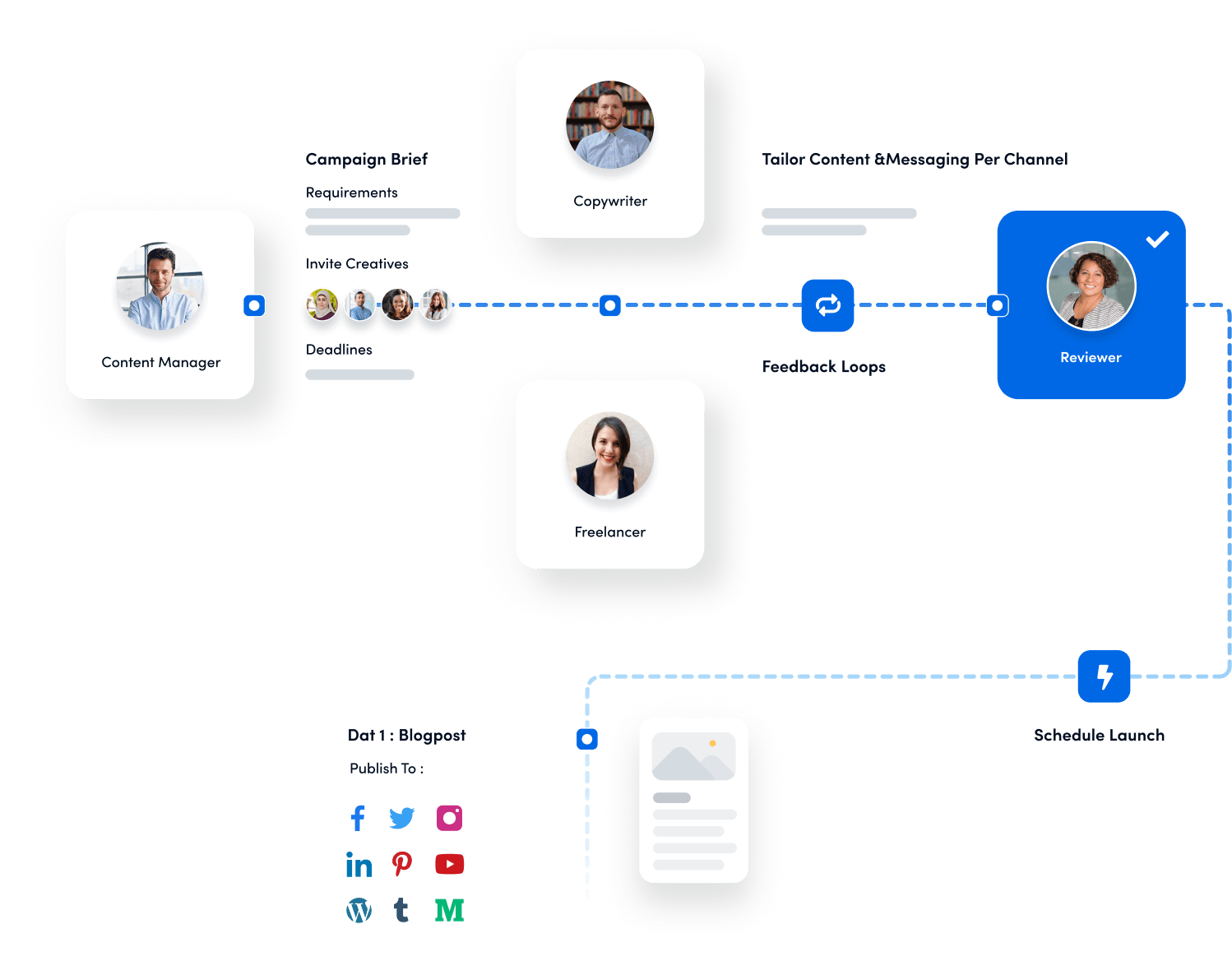
Experience organized workflow with a unified social media management platform for agencies.

Try ContentStudio for FREE
social media management platform

Why add the first comment to your scheduled posts?

Adding the first comment to your scheduled posts can amplify your social media presence in several ways. Here’s why it’s worth considering:

  • Increase engagement: By being the first to comment on your own post, you encourage your audience to engage. Whether you’re asking a question, adding a call-to-action (CTA), or providing extra value, the first comment can spark interactions that boost your post’s visibility.
  • Share additional information: Sometimes, you might want to keep your main post concise but still share extra details like links, hashtags, or a promotion. The first comment is the perfect space to include that without cluttering the original post.
  • Improve post discoverability: Hashtags are crucial in making your content more discoverable, especially on platforms like Instagram and LinkedIn. By placing hashtags in the first comment, you can increase your post’s reach without overwhelming your audience with too much text in the main post.
  • Control the narrative: The first comment lets you steer the conversation in the right direction. Whether you address common questions or guide users to related content, you can control how the discussion unfolds.

Incorporating the first comment strategy into your social media scheduling can greatly enhance your posts’ effectiveness while maintaining a polished and professional look.

How the first comment feature works in ContentStudio?

ContentStudio makes it easy to enhance your scheduled posts with the first comment feature. This powerful tool allows you to seamlessly add a comment to your posts as they go live, ensuring you don’t miss an opportunity to engage your audience immediately. The first comment feature is available for several major platforms, including:

  • Facebook pages
  • YouTube videos, except for the content in private settings or made for kids
  • LinkedIn profiles and pages
  • Instagram business profiles

So, whether you’re promoting an event on Facebook, sharing a video on YouTube, or posting an update on LinkedIn or Instagram, ContentStudio allows you to be strategic with your first comment, boosting the impact of your content. 

A step-by-step guide to adding the first comment in ContentStudio

Using ContentStudio’s first comment feature is simple and efficient. Follow these steps to schedule your post, along with a well-crafted first comment.

Step 1: Access the ContentStudio’s dashboard

If you’re new to ContentStudio, the first step is to sign up for an account. You can do this by visiting the official website and completing the quick registration process. 

If you’re already a user, simply login to your dashboard to get started.

Step 2: Connect your social media profiles

You can skip this step if you have already connected your social media profiles with ContentStudio. However, if you haven’t, then you’ll need to connect your social media profiles by following these steps:

  • Click on your profile picture in the top-right corner. From the dropdown menu, select Social Accounts.
  • Choose the accounts you want to connect, such as Facebook Pages, LinkedIn Profiles and Pages, Instagram Business Profiles, or YouTube.

Once connected, you’ll be ready to create and schedule posts with the first comments for supported platforms.

Step 3: Open the social post composer

From the ContentStudio dashboard, navigate to the Compose section on the navigation bar and click on Social Post. This will open the post composer, where you can start crafting your social media post.

On the left-hand side of the composer, you’ll see your connected social accounts listed. Select the profile you want to post to that supports the first comments.

Now, you can start creating your post. If you need help crafting a compelling post, you can use ContentStudio’s AI Writing Assistant. This tool helps you generate engaging content in seconds by offering suggestions for headlines, post text, or hashtags.

Step 4: Enable the first comment feature

Once your post is ready, it’s time to add your first comment.

  • Look for the First Comment toggle and enable it. A text box will appear.
  • You can type the first comment you want to post alongside your scheduled content here. This is a great place to add extra information, hashtags, links, or a call-to-action (CTA). You can also use the hashtag option to quickly generate relevant hashtags for your post. 

Check the final preview of your post, along with the first comment, in the Post Preview section. 

Step 5: Schedule your post with the first comment

Now that your post and first comment are ready, it’s time to schedule them.

  • Click on the Schedule button under the posting options.
  • A window will pop up where you can select the desired date and time for your post to go live.
  • Once you have selected a time that aligns with your audience’s peak engagement hours, click the Schedule button to complete the process.

Both your post and the first comment will automatically be posted at the scheduled time—there is no need to manually add the comment later!

Best practices for scheduling first comments

To maximize the effectiveness of your first comment, follow these best practices to keep your content engaging and impactful:

  • Keep it relevant: The first comment should complement your post. Use it to provide more details, such as a link to a blog, a follow-up message, or a promotion. Ensure it adds value to the post rather than repeating the same information.
  • Use hashtags strategically: Hashtags can increase the discoverability of your content, especially on Instagram, LinkedIn, and Facebook. Placing them in the first comment keeps your main post clean while ensuring it reaches a broader audience.
  • Include a call-to-action (CTA): Encourage engagement by asking a question, inviting users to visit a link, or prompting them to share their thoughts in the comments. A compelling CTA in the first comment can help drive more interactions with your content.
  • Keep it concise: First comments are a great opportunity to add value, but they should still be short and to the point. Avoid overwhelming your audience with too much information.
  • Leverage emojis and visual appeal: Emojis can make your comment more visually appealing and help it stand out in a crowded feed. Use them sparingly to highlight key points or CTAs without overdoing it.

By following these best practices, you can ensure your first comment effectively extends your post and drives meaningful engagement.

Conclusion

Following the steps outlined in this guide, you can add valuable first comments to your scheduled posts across platforms like Facebook, YouTube, LinkedIn, and Instagram. This not only saves you time but also ensures that you maximize the impact of every post you create.

So, try the ContentStudio’s first comment feature today and see the difference it makes in your content’s performance.

FAQs

Which social media platforms support the first comment feature in ContentStudio?

The first comment feature is available for the following platforms in ContentStudio:

  • Facebook Pages
  • YouTube Videos
  • LinkedIn Profiles and Pages
  • Instagram Business Profiles 

This feature can automate adding comments along with your scheduled posts on these platforms.

Can I add multiple first comments to a single post?

You can only add one first comment per scheduled post in ContentStudio. However, you can manually reply to the first comment or engage with your audience after publishing the post to continue the conversation.

How do hashtags in the first comment help my post?

Hashtags in the first comment can increase the visibility of your post without cluttering your main content. This is especially useful on platforms like Instagram and LinkedIn, where hashtags improve discoverability and reach.

Can I edit or delete the first comment after the post is published?

Yes, after your post is live, you can manually edit or delete the first comment directly from the social platform where it was posted. ContentStudio, however, does not offer direct editing or deleting comments once they are posted.

Is it possible to use the AI Writing Assistant to create the first comment?

Yes, ContentStudio’s built-in AI Writing Assistant can help you craft the first comment. Simply enable the first comment toggle and use the AI to generate engaging content that complements your main post.

Can I schedule a different first comment for each platform if I’m posting the same content across multiple platforms?

Yes, when scheduling a post across multiple platforms, you can customize the first comment for each platform individually. This allows you to tailor your first comment to the platform’s audience and format.

Share this article

X logoXLinkedIn logoLinkedInFacebook logoFacebookWhatsAppRedditEmail
Black Friday

Get Up to 50% Off This Black Friday

Join the waitlist and get early access to our Black Friday deal

Early Access Offer

Unlock up to 50% off before it goes public

No credit card required

★★★★★

4.7 on Capterra • 16,500+ marketers trust ContentStudio

Abdullah Mansoor

Abdullah Mansoor

Abdullah Mansoor is a Senior Content Writer at ContentStudio with a proven track record creating engaging content across SaaS, technology, marketing, and e-commerce. He focuses on Instagram growth, how-to guides, carousel posts, user-generated content, and white-label social media management, and reviews blog content for structure, clarity, accuracy, and a consistent brand voice.

View all posts by Abdullah Mansoor

Recommended for you

How to choose a social media management tool (2027 guide)
Help Center

How to choose a social media management tool (2027 guide)

Nov 3, 2026
21 minutes
How to build an executive’s LinkedIn content workflow with Claude Code

Help Center

How to build an executive’s LinkedIn content workflow with Claude Code

Oct 5, 2026
15 minutes
How to turn one product photo into 5 video Ads with Claude Code
Help Center

How to turn one product photo into 5 video Ads with Claude Code

Sep 24, 2026
10 minutes
Social media MCP server: How to automate posting with ContentStudio
Help Center

Social media MCP server: How to automate posting with ContentStudio
Nov 13, 2026
8 minutes
CtaBackground
CtaBackground
Facebook
Instagram
Twitter
YouTube
Pinterest
TikTok

Powerful social media management software

Start your free trial
Book a demo

7-day free trial - No credit card required.

diamond-icondiamond-icon

Grow faster on social, every
single week

Get insights, emerging platform trends, AI strategies, and product updates trusted by 100,000+ marketers.

Lawrence Giordano
Thomas Smith
Anthony Garcia
Matt Li Haoming
Angela R.
100,000+ marketers subscribed

ContentStudio

5.3K subscribers

  • •Step-by-step tutorial and how-tos
  • •Product deep dives and launch demos
Subscribe on YouTube

One scheduler for every social network

Social Media Schedulers→
Facebook logoFacebookX (Twitter) logoX (Twitter)Instagram logoInstagramLinkedin logoLinkedinYoutube logoYoutubeTiktok logoTiktokPinterest logoPinterestBluesky logoBlueskyThreads logoThreads

Product

  • Publishing
  • AI Studio
  • Analytics
  • Inbox
  • Social Listening
  • Discover

Features

  • Content Calendar
  • Smart Scheduling
  • Automation
  • Content Composer
  • Approval Workflow
  • AI Library
  • See all features

Developers

  • Integrations
  • API
  • MCP Server
  • ContentStudio CLI
  • Zapier
  • Make
  • n8n

AI Agents

  • ChatGPT
  • Claude
  • Gemini
  • Grok Bot
  • Hermes Agent
  • Cursor
  • Codex
  • OpenClaw

Upgrade from

  • Hootsuite
  • Buffer
  • Sprout Social
  • Sendible
  • Agorapulse
  • Metricool
  • SocialPilot
  • See all

Resources

  • Blog
  • Help Docs
  • Changelog
  • Glossary
  • Free Tools
  • Case Studies
  • Mobile App
  • Chrome Extension

Company

  • About Us
  • Plans & Pricing
  • Reviews
  • Careers
  • Write for Us
  • Affiliate Program
  • Brand Assets
  • Contact Us
contentstudio-logo
Download on the App StoreGet it on Google Play
Facebook iconX (Twitter) iconInstagram iconLinkedIn iconYouTube iconTikTok icon
4.74.7 star rating, 25,000+ reviews on Capterra and G2

16,500+ brands trust ContentStudio

SSL Secured
GDPR Compliant
CCPA Compliant

© 2026 ContentStudio. All Rights Reserved.

Privacy|Terms|GDPR|System status|Security policy|Child safety|Sitemap