YouTube title generator
Write YouTube video titles and Shorts titles with AI in seconds. Free, no sign-up.
Let ContentStudio's AI craft your social media captions in seconds:
- Simply enter your prompt.
- Tailor the word count to match your requirements.
- Define the tone that fits your requirements.
- Toggle hashtags and emojis as required.
- Choose the number of variations you want.
- Click 'Generate' to let the magic happen.
- Free forever
- No sign-up
- Up to 3 variations
- 16,500+ brands use ContentStudio
What is a YouTube title generator?It is an AI tool that writes title options for your YouTube videos and Shorts. You describe the video, pick a tone and length, and it returns up to three titles you can copy and edit. ContentStudio's YouTube title generator is free, needs no account, and helps you put the keyword first.
How to use it
How to Use the YouTube Title Generator
Describe your video
Write one or two sentences: the topic, the main keyword and who the video is for. "Beginner tutorial on editing videos on a phone" works better than "editing video".
Set the length
8–12 words gives a title that fits on most screens. Go shorter for Shorts.
Pick a voice tone
Friendly, funny, professional or persuasive. Match how you talk in the video.
Hashtags and emojis
Turn them off for most titles. Hashtags in a title use up characters, and emojis suit some niches more than others.
Generate and edit
Choose 1, 2 or 3 variations, click Generate, then pick the strongest title and add a detail only you know, such as a number, a result or a time frame.
Tip: put the words people would type into YouTube search in your description. The generator works them into the title, and you can check the exact phrasing first with the YouTube keyword tool.
What you can write
What you can write with this YouTube title generator
Titles for long-form videos
Tutorials, reviews, vlogs and explainers. Ask for a how-to, list or question style in your description and you get titles built around the search term.
Titles for YouTube Shorts
Short, front-loaded titles that make sense in the Shorts feed, where only a few words show under the video.
Livestream and Premiere titles
Say what happens and when. A clear title helps people decide to set a reminder before a Premiere or live stream starts.
Title options to test
Generate three options and keep the two that differ most. YouTube Studio's Test & Compare feature lets eligible channels test title and thumbnail options against each other.
What makes a good title
What Makes a Good YouTube Title
A YouTube title serves two separate functions at the same time: it tells the YouTube algorithm what the video is about, and it convinces a viewer in the search results or suggested feed to click. A title that does one without the other underperforms on both.
Write for YouTube search (SEO)
YouTube reads the title as a strong signal for which searches a video should appear in. Put the target keyword in the title, ideally in the first half. YouTube titles can be up to 100 characters, but search results and suggested videos usually show only the first 60 to 70 characters before cutting the rest. Keep the keyword inside that space.
Write for click-through rate (CTR)
Click-through rate is the share of people who click after seeing your thumbnail and title. Titles that earn clicks usually do one of three things: state a specific outcome ("How I grew from 0 to 10,000 subscribers in 90 days"), set up a question ("Why most beginner YouTube channels stall in the first 6 months"), or use a number to signal structure ("7 title mistakes that kill your CTR").
Match the title to the video
A title that promises more than the video delivers gets clicks and then loses viewers in the first 30 seconds. YouTube watches what happens after the click, so an accurate title protects your watch time and audience retention.
Titles for Shorts
YouTube Title Generator for Shorts
YouTube Shorts titles follow different patterns from long-form video titles. Shorts play in a vertical scroll feed and the title shows in a shortened form over or under the video, so the first 40 to 50 characters carry most of the weight.
Shorts titles that work tend to be short, direct and front-loaded with the subject. "How to boil an egg perfectly" works better than "The ultimate guide to egg cooking techniques for beginners" because the subject is clear at once and the title fits in the visible space. If your Short covers a trend, put the trend term in the first few words.
To get Shorts titles from the generator, write "YouTube Short" in your description and set the length to 6–8 words. Shorts can now run up to three minutes, so a Short that teaches one step can still use a how-to title.
Check before publishing
How to Evaluate a Title Before Publishing
Before you publish, run these checks on your generated title:
- Keyword present and front-loaded: does the main search keyword appear in the first 50 characters? If not, move it forward.
- Length within the display limit: if the title runs past 60 characters, the keyword and the promise should sit inside the first 60.
- Specificity: does it contain at least one specific detail, such as a number, time frame, result or named technique?
- Curiosity or outcome: does it either open a question the viewer wants answered or state exactly what they will gain? A title that does neither earns average clicks.
- Thumbnail fit: viewers see the title and thumbnail together. The title should add to the thumbnail, not repeat its text.
Once the title is set, write the rest of your metadata with the YouTube description generator.
Title examples
YouTube title examples by video type
- How-to
How to Start a YouTube Channel in 2026 (Step by Step)
- List
7 Budget Microphones That Sound Expensive
- Review
I Used This Camera for 30 Days. Here Is the Honest Review
- Comparison
Notion vs. Trello: Which Is Better for Small Teams?
- Question
Why Do Sourdough Loaves Go Flat? (And How to Fix It)
- Challenge or experiment
I Only Ate Gas Station Food for 24 Hours
- Beginner guide
Excel for Beginners: The Only 10 Formulas You Need
- Short
The 10-Second Trick for Crispy Fries
Length and limits
YouTube title length and limits
| Item | Limit |
|---|---|
| Title field in YouTube Studio | 100 characters |
| Shown in search and suggested videos | About the first 60–70 characters |
| Characters you can't use | Angle brackets (< and >) |
| Hashtags in the title | Allowed, but they use title characters |
| Shorts length (for Shorts titles) | Up to 3 minutes |
You can change a title at any time in YouTube Studio under Content, then Details, so you can test a new title on an older video without re-uploading.
Clickbait vs. click-worthy
Clickbait vs. click-worthy titles
People often ask for a clickbait title. What they usually want is a title that gets clicked. The difference matters, because YouTube measures what viewers do after they click.
Clickbait
Promises something the video does not deliver, such as "You won't believe what happened". Viewers leave early, retention drops and YouTube shows the video to fewer people.
Click-worthy
Creates curiosity and then pays it off, such as "I tried 5 viral cleaning hacks. Only one worked". Viewers stay, and the title keeps earning clicks for months.
Ask the generator for a "curiosity" or "bold" angle in your description, then check that the video answers the title in the first minute.
From title to published YouTube video
A good title is one part of a good upload. ContentStudio is an AI social media management platform that takes you from idea to published video. With it you can:
- Schedule videos and Shorts. Upload once, add your title, description and tags, then publish on time with ContentStudio's YouTube scheduler.
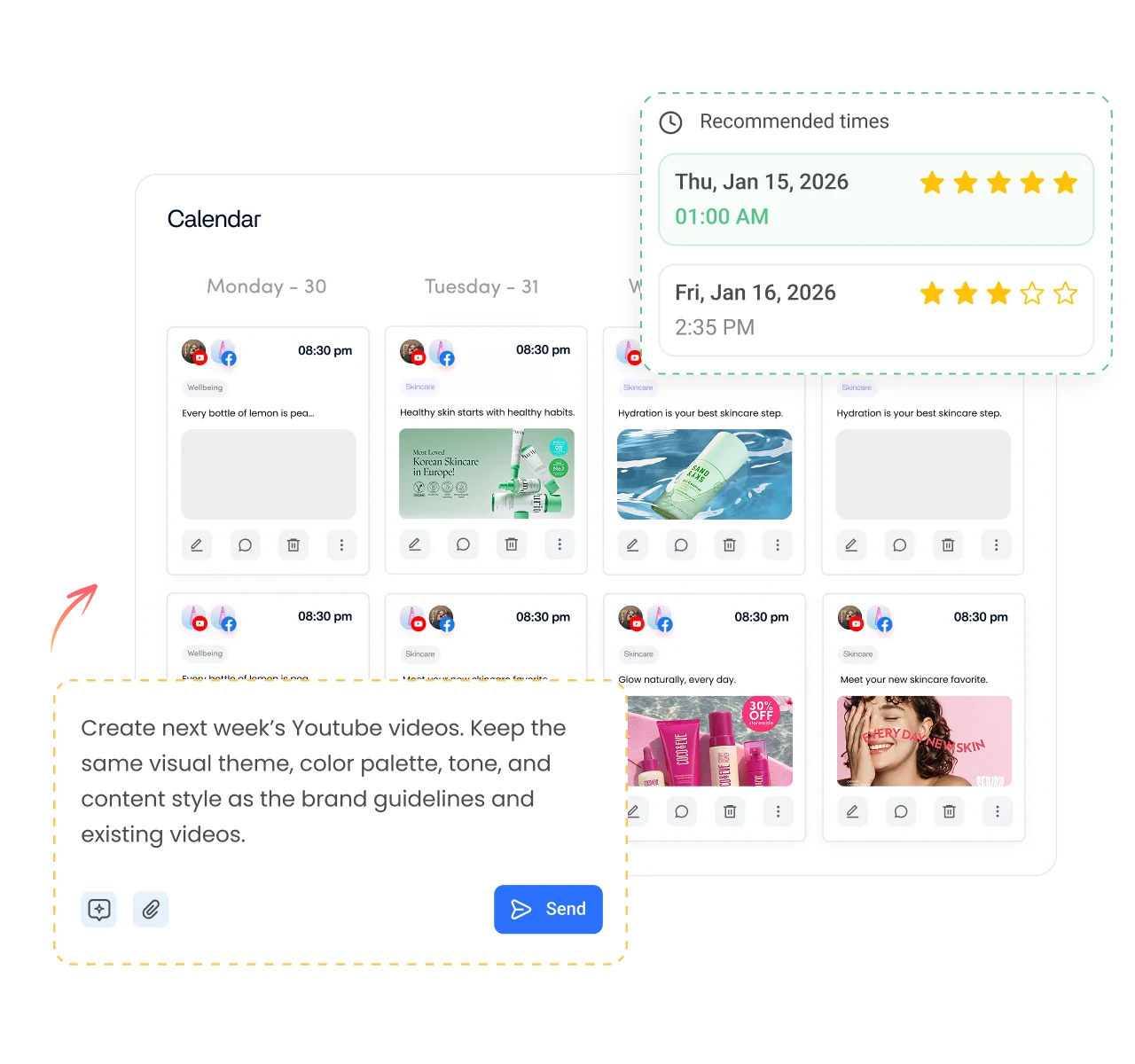
- Write metadata inside your workflow. AI Studio, our AI social media content generator, writes titles, descriptions and captions in the composer, in your brand voice.
- Share the video everywhere. Post the same clip to YouTube Shorts, Instagram Reels and TikTok with titles and captions adjusted for each network.
Is it free?
Is the YouTube Title Generator Free
Yes. ContentStudio's YouTube title generator is free to use with no usage cap and no account required. It is part of ContentStudio's suite of free social media tools.
- Free forever
- No sign-up
- Up to 3 variations
- 16,500+ brands use ContentStudio
More free YouTube tools
All free social media tools →
Frequently asked questions

Book a 30 min call
Have questions? Schedule a quick call and we will guide you through everything.
Book a free call