
How to build an executive’s LinkedIn content workflow with Claude Code
Oct 1, 202615 minutes

Written by
Khadija AnwarUpdated
Are you wondering, the Facebook Messenger doesn’t have a log-out option, unlike other social media channels? Well, you can log out of Facebook messenger through Facebook security & logins.
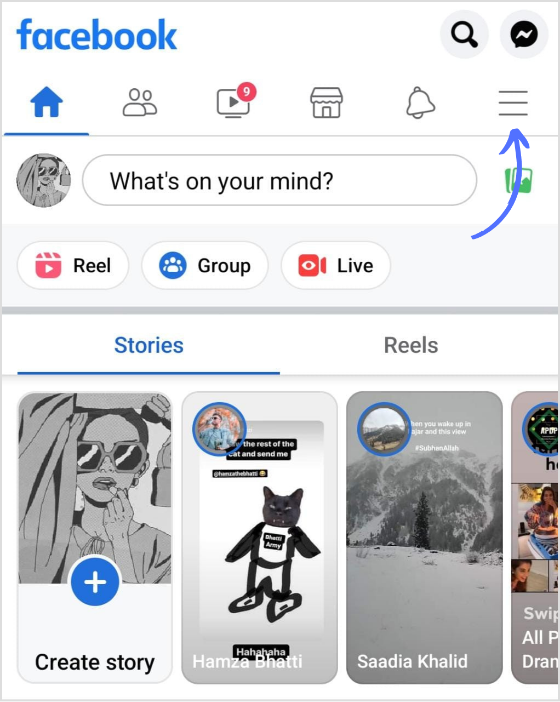
Step 1:
Open the Facebook app and tap the “Hamburger icon.”
Step 2:
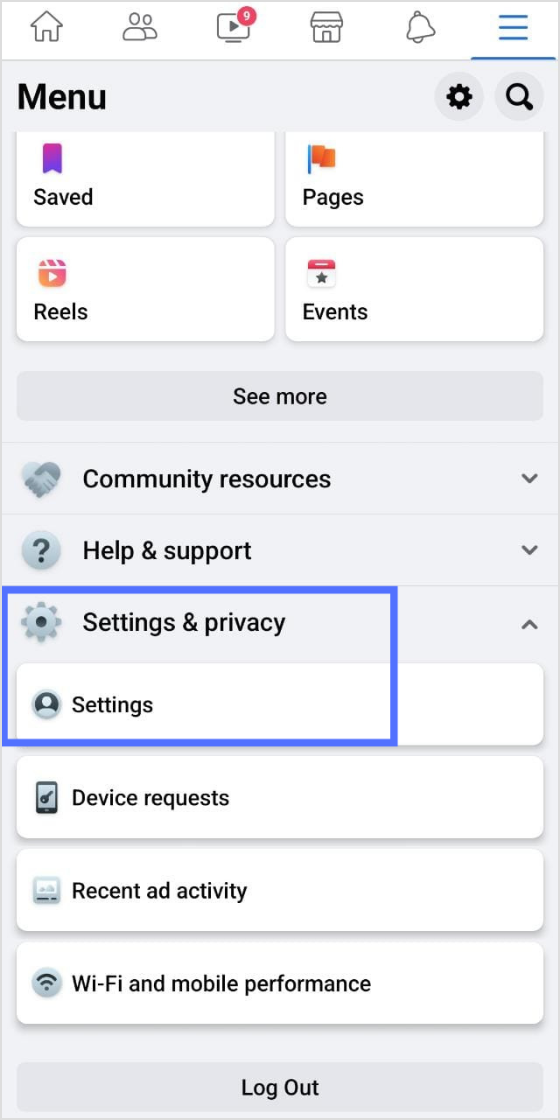
First tap “Settings & Privacy” and a bar of options will appear.
Then again tap “settings”
Step 3:
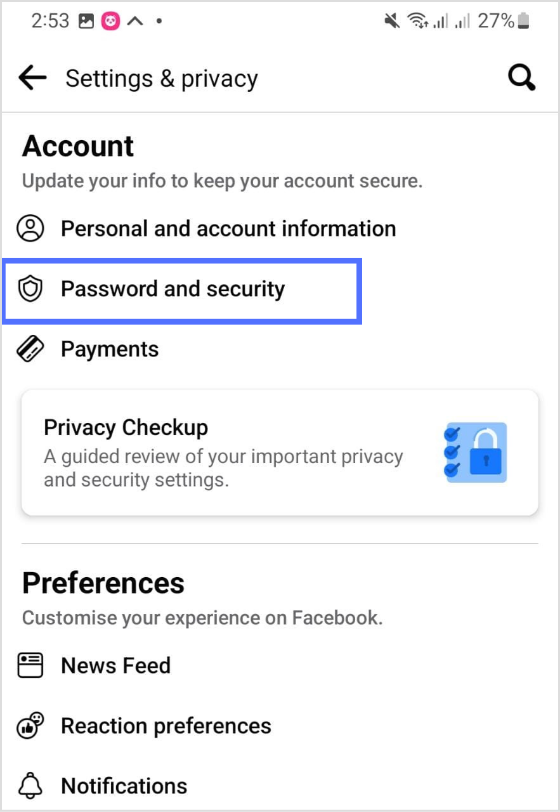
Tap “Password and security.”
The easiest way to manage & grow your social channels
Trusted by 80,000+ forward-thinking agencies & brands worldwide
Discover MoreStep 4:
Tap “See all” where you are logged in
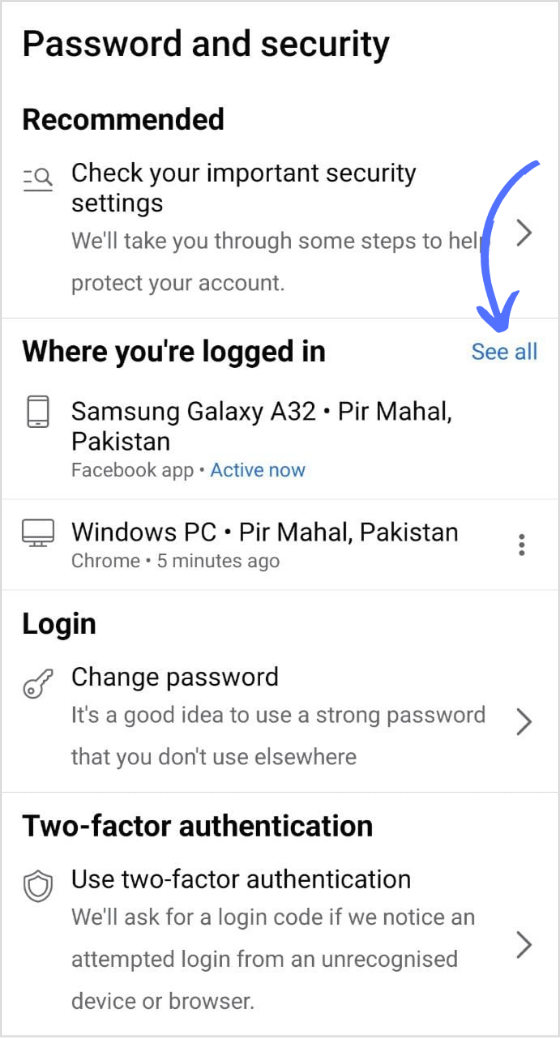
Step 5:
Select your device where the Messenger is active, tap “3 dotted icons” along with the device name, and tap “Log out.”
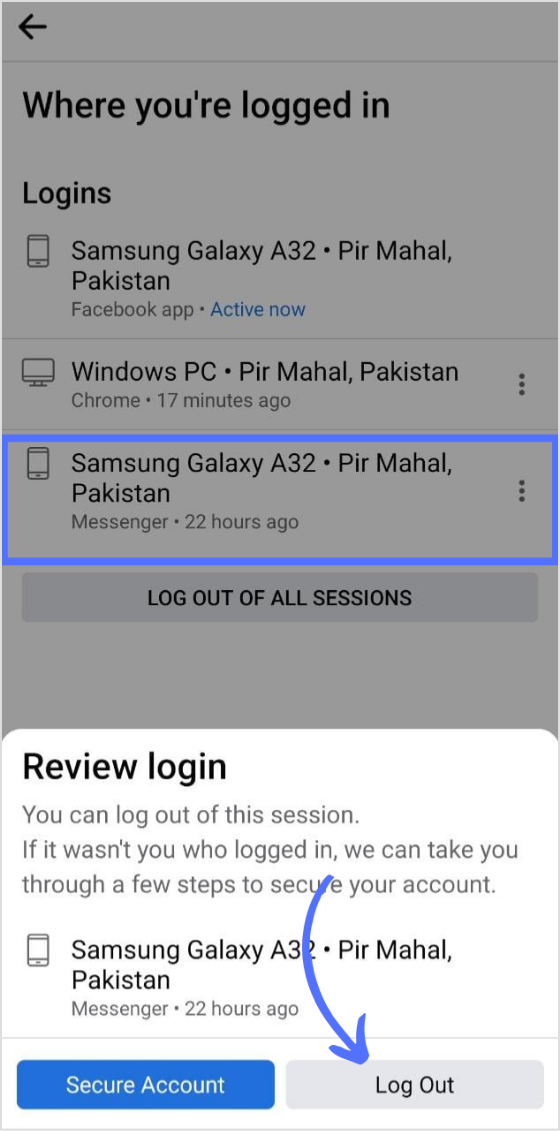
And you are logged out of the Facebook Messenger.
Step 1:
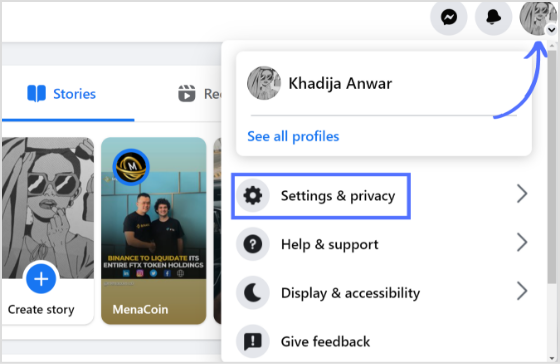
Open the Facebook app on your PC, and click the “Profile icon”
Drop down menu will appear below the profile icon as shown in the image below.
Click on the “Setting and Privacy” option.
Step 2:
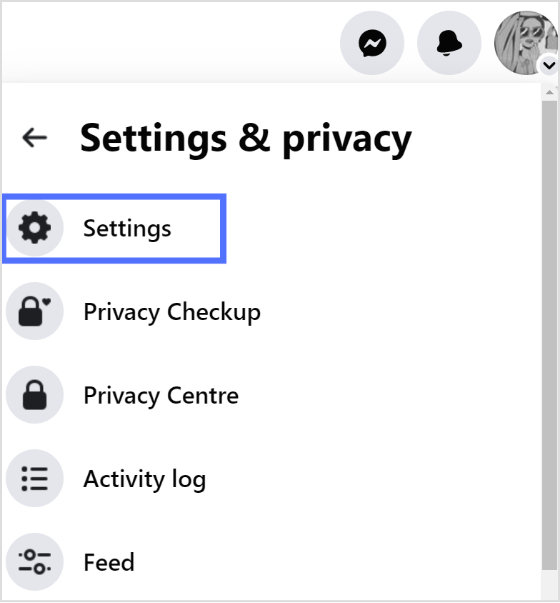
Click “Settings”
Step 3:
Click “Security and logins.”
Step 4:
Choose your device where the messenger is active, click the “3 dot icon”, and then further select the “Log out” option from the drop down menu.
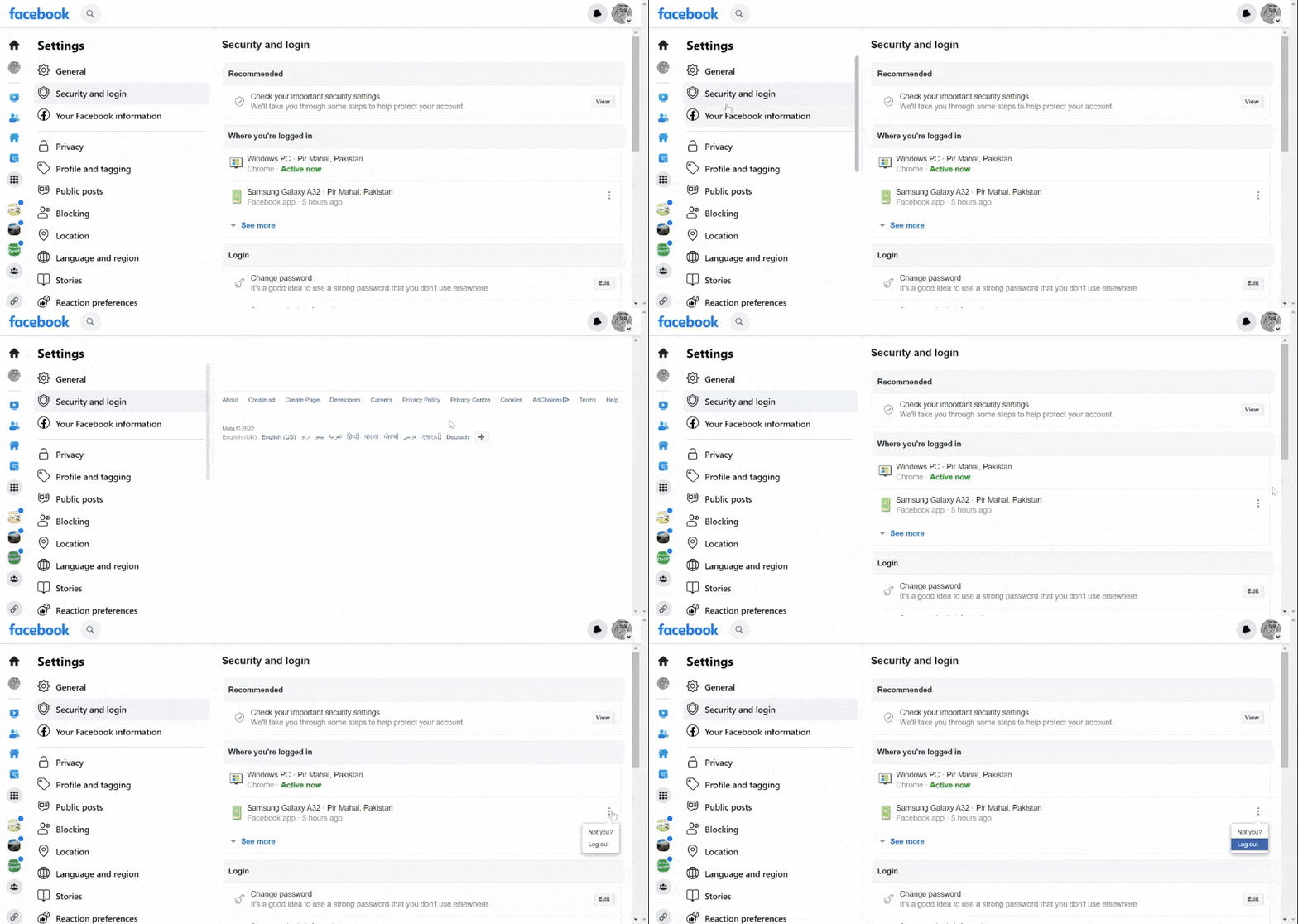
Facebook Messenger will be logged out.
Logging out of Facebook Messenger is a simple but important step in managing your account security across all devices.
Once you’ve got your account access under control, the next step is making sure your Facebook presence stays active and consistent an,d the easiest way to do that is to schedule Facebook posts in advance, so your content keeps reaching your audience without requiring you to be manually online every single day.
Once you log out of Messenger, your messages remain intact. Log out won’t affect the messages you have sent or received.
You can log out of Messenger through Facebook logins and security. Tap on the device you want to log out by clicking the three-dot icon, and tap log-out.
Read More:
Plan 0 Days of Content in 0 Minutes
Create, schedule, publish and analyze your content across all your social media channels from one simple dashboard.
4.7 on Capterra • 16,500+ marketers trust ContentStudio
Khadija Anwar is a Senior Technical Writer at ContentStudio with over 500 published write-ups across the ContentStudio blog and beyond. She specializes in step-by-step platform guides and Help Center content across Facebook, Instagram, LinkedIn, YouTube, TikTok, and X, and reviews how-to articles to verify every step and platform detail is accurate and current.
View all posts by Khadija AnwarRecommended for you
How to build an executive’s LinkedIn content workflow with Claude Code

How to turn one product photo into 5 video Ads with Claude Code
Social media MCP server: How to automate posting with ContentStudio
How to automate social media with n8n: A practical guide