
How to build an executive’s LinkedIn content workflow with Claude Code
Oct 1, 202615 minutes

Written by
Salahuddin UmerPublished

Facebook videos grab attention quickly and often outperform static images in terms of reach and engagement. With Facebook now the second-largest video-sharing platform after YouTube, knowing how to post a video on Facebook is essential for brands, agencies, and creators who want to share stories that stand out.
If you’re wondering how to post a video on Facebook for your business, clients, or personal brand, this guide walks you through every option: mobile, desktop, Pages, groups, Meta Business Suite, and how to edit and optimize your videos for better performance. You’ll also find answers to common upload problems and limits so you can keep keeping your audience engaged.
We’ll walk through the steps to post a video on Facebook from your phone, whether you’re posting to your personal profile or to a Page using the Facebook app.
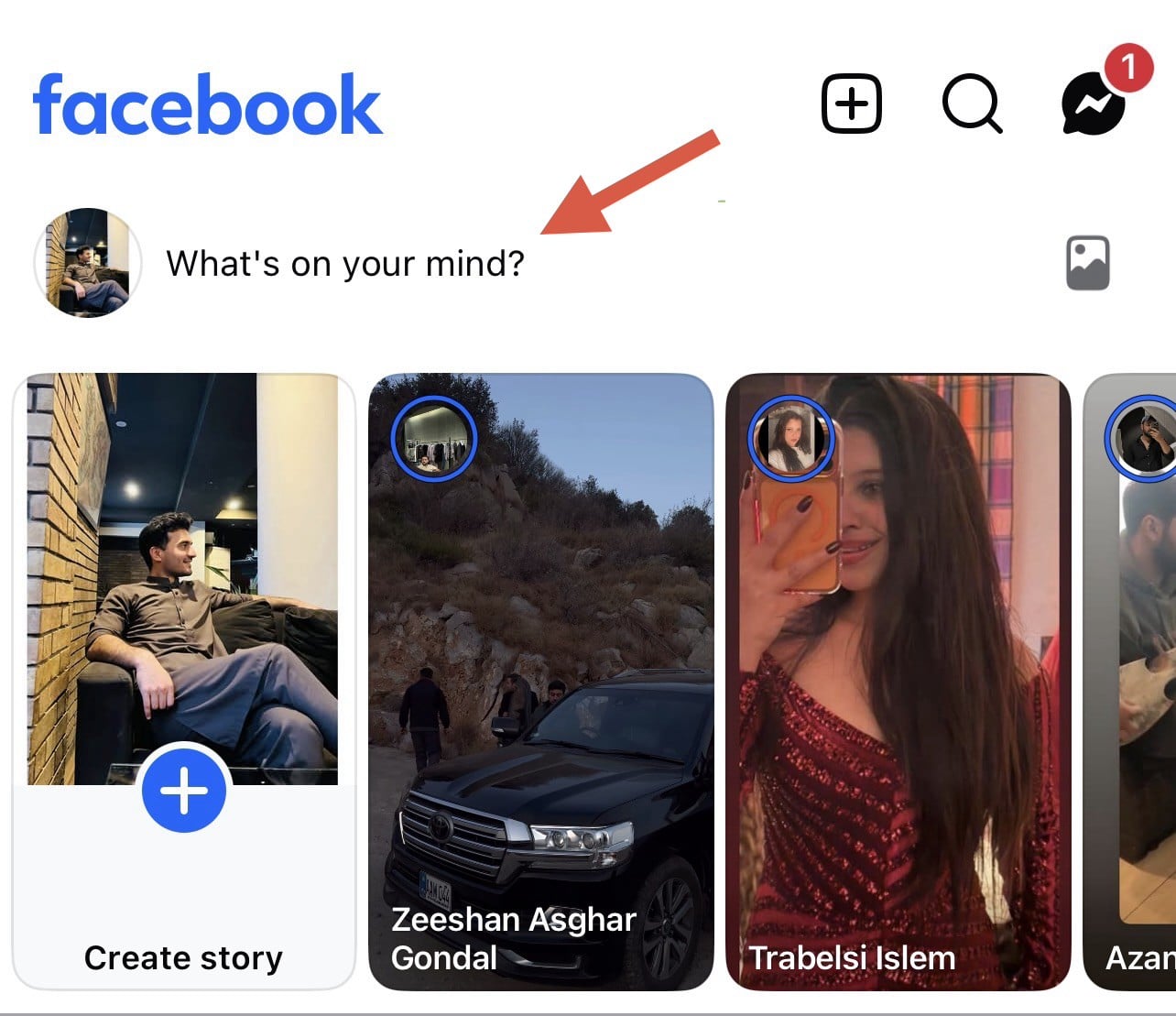
Open the Facebook app and tap “What’s on your mind?”
You can do this from your main News Feed or by going to your profile first. If you manage a Page and you’re using the Facebook app to post as that Page, switch to the Page profile, then tap the composer there.
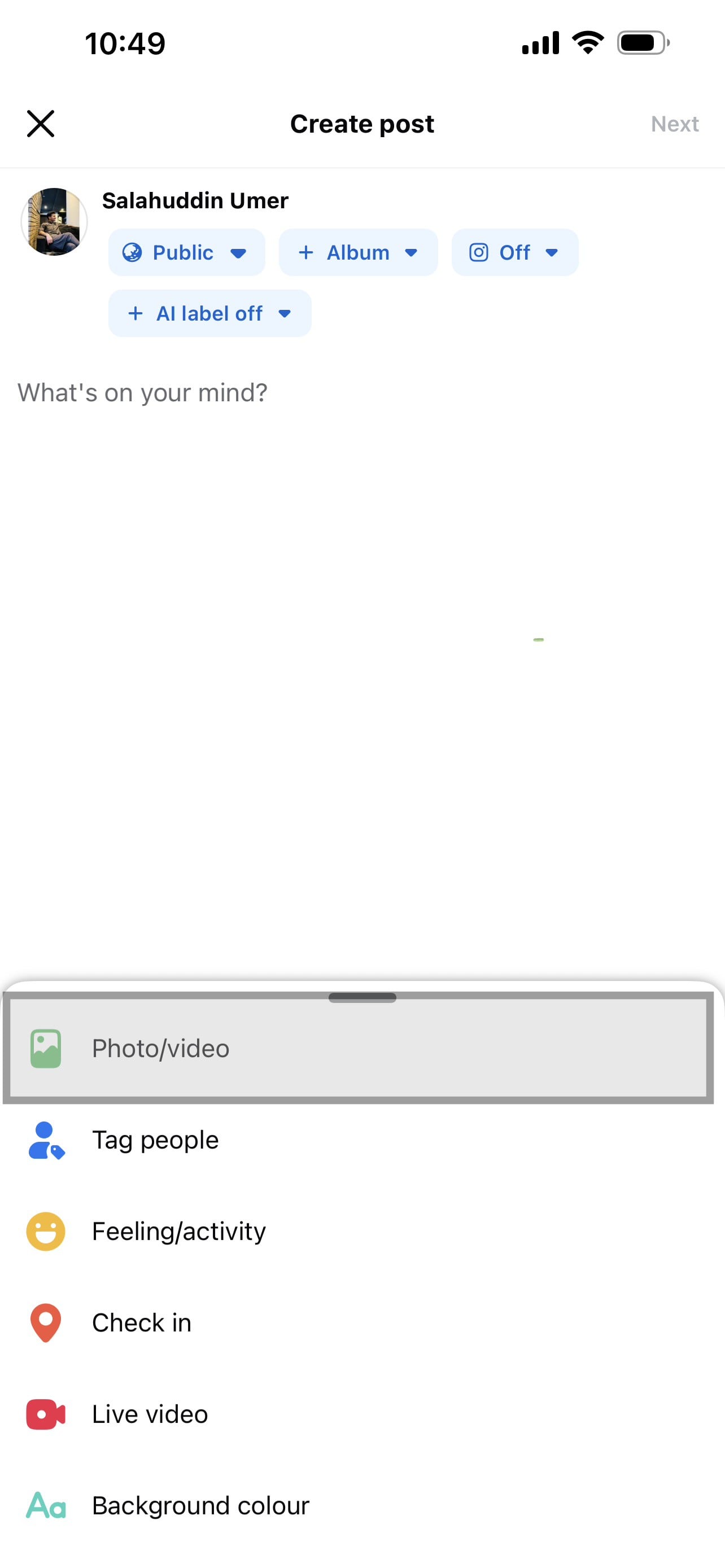
Tap “Photo/video” to open your phone’s gallery or camera roll.
Upload your video from the gallery. You can:
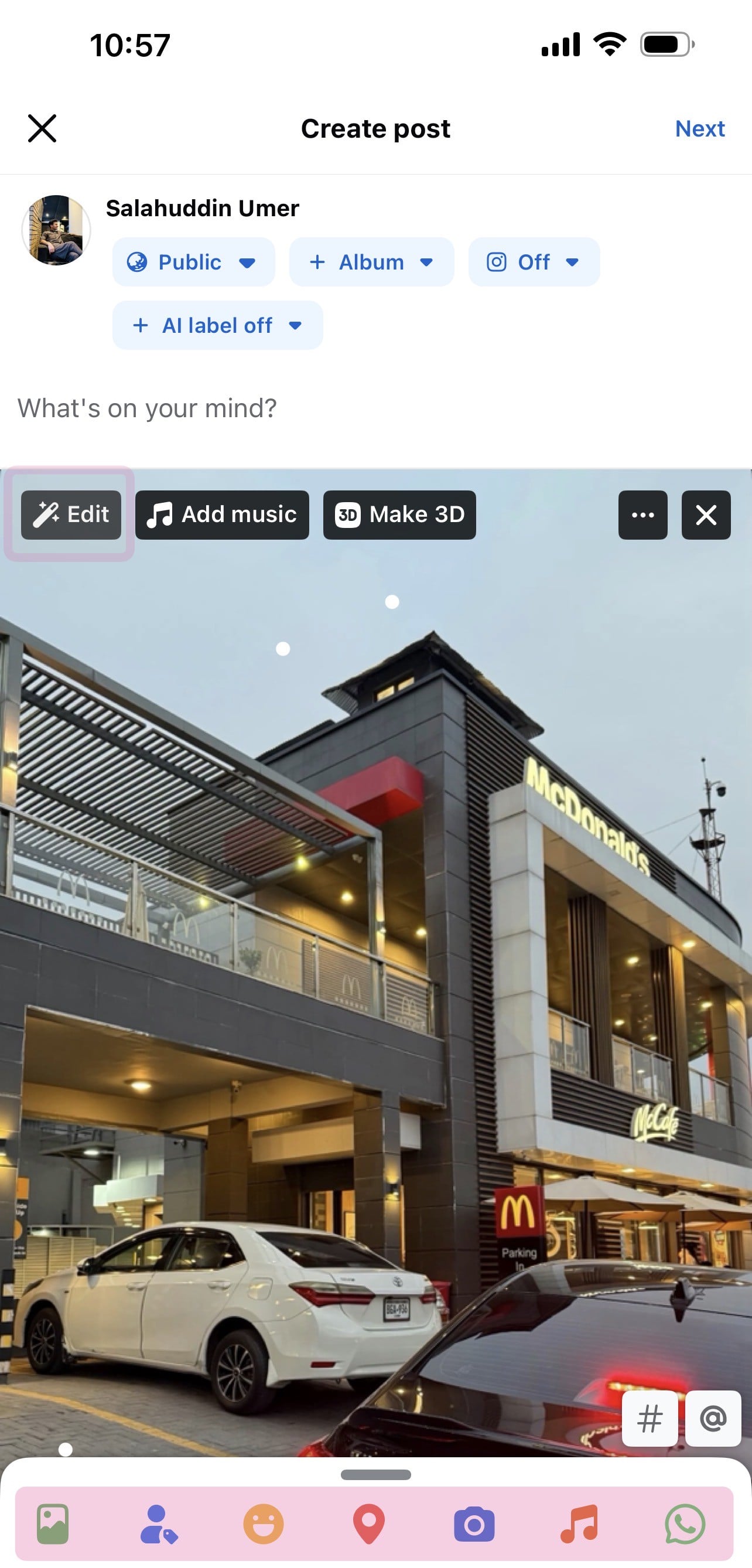
In the top left corner of the video preview, tap “Edit” if you want to make basic changes before posting.
The easiest way to manage & grow your social channels
Trusted by 80,000+ forward-thinking agencies & brands worldwide
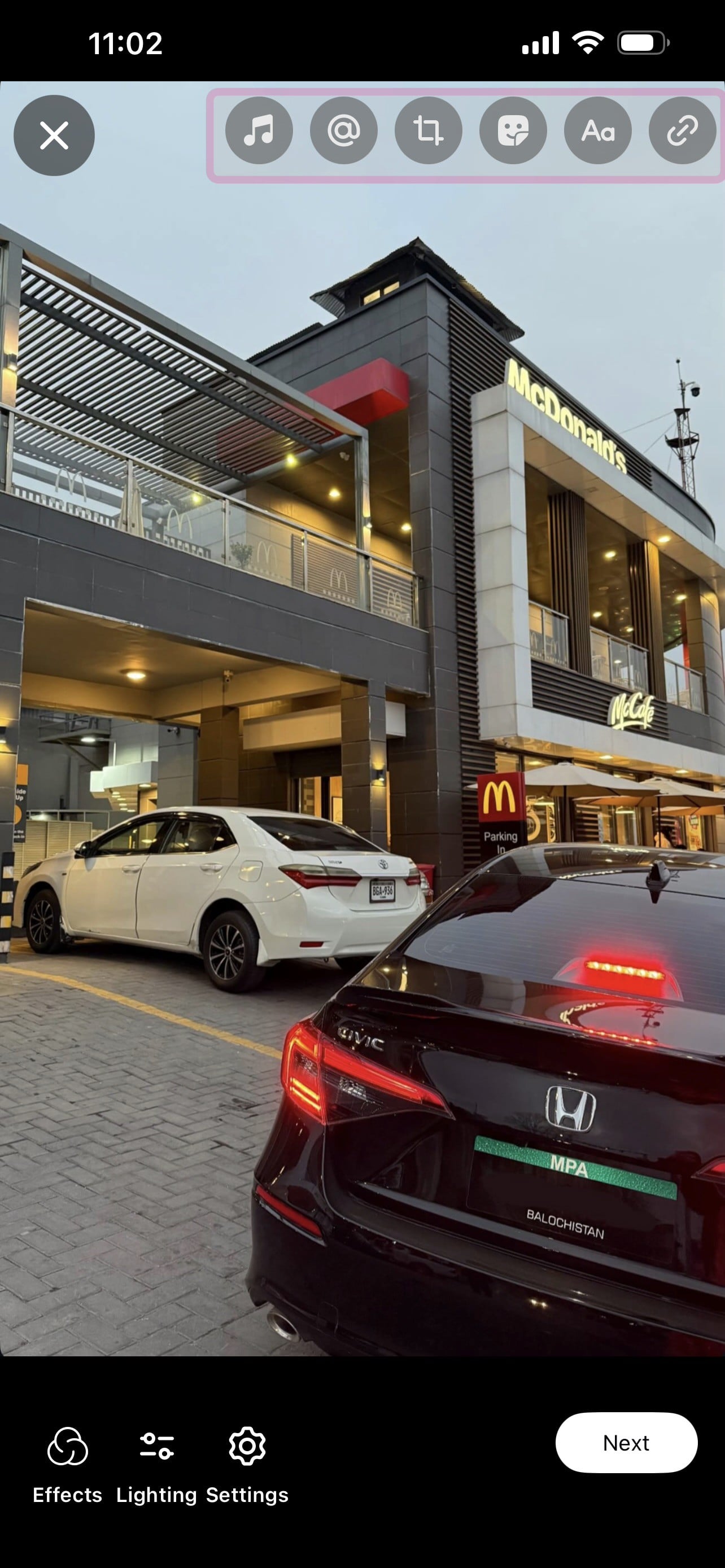
Discover MoreYou can add music and text, trim your video, and apply effects and stickers to make it more engaging and on-brand. Keep the first few seconds tight and visually clear so people stop scrolling and watch
Add a clear description that explains what the video/photo is about and encourages comments or reactions. This is also a good place for hashtags and mentions.
Before you publish, check:
Then tap “Next” in the top-right corner. You will see the “Post” option in the top-right corner, tap on it to publish.
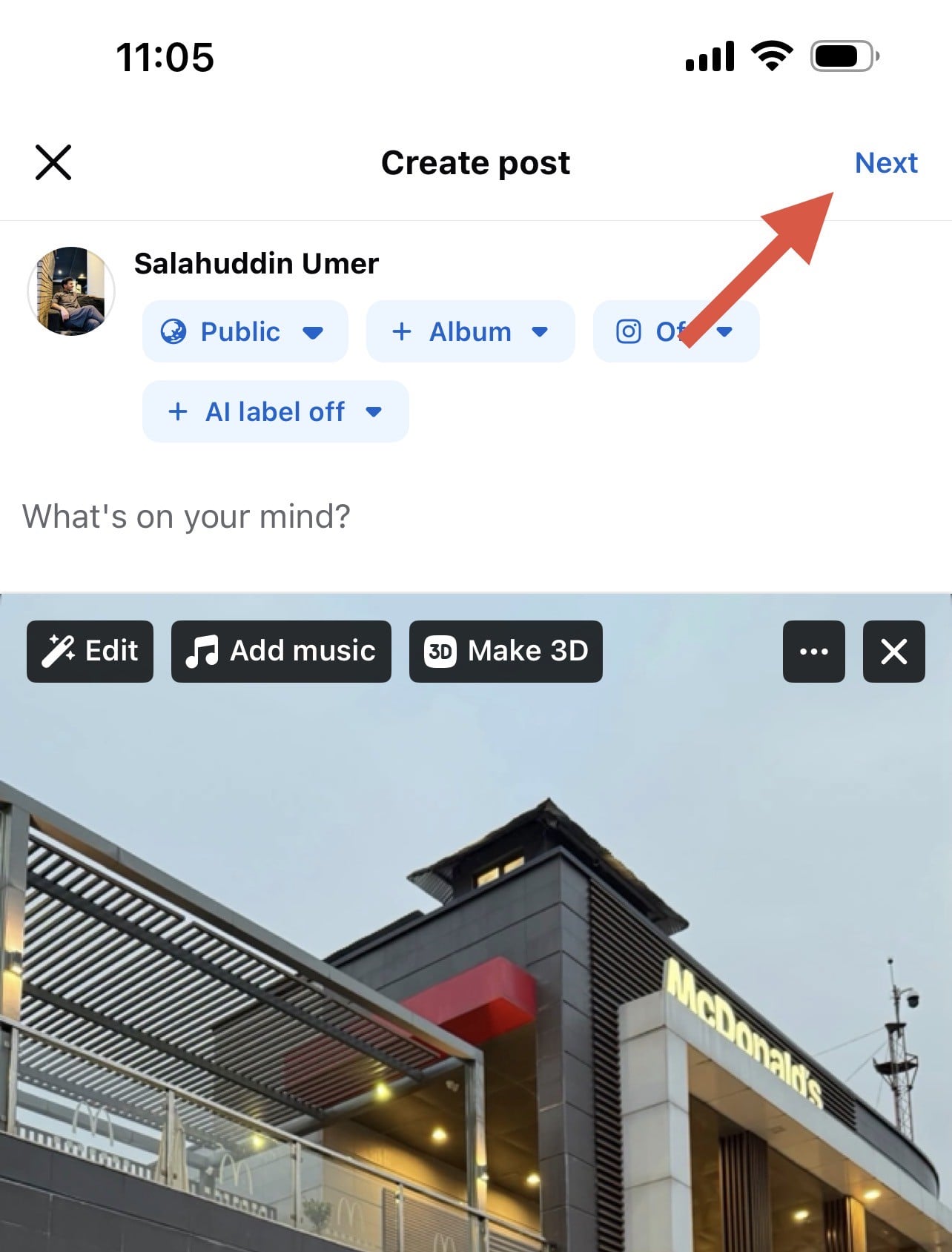
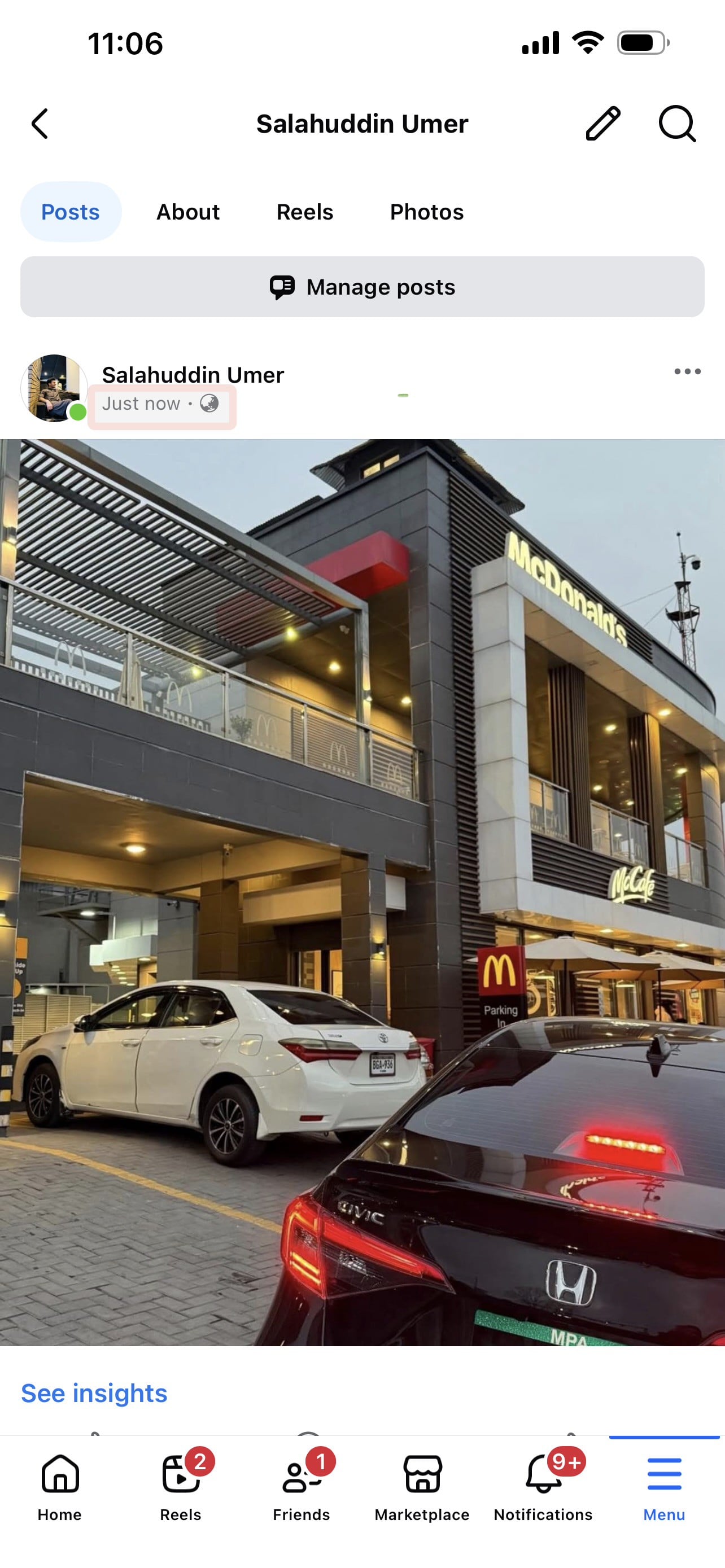
Your video will be set to post.
Related: Ultimate Guide to Schedule Facebook Posts, Reels & Stories

Knowing how to post a video on Facebook is the first step. To get real results, reach, watch time, and conversions, you also need to optimize how those video marketing are presented.
On Pages and in Meta Business Suite, you can give your video a title and a caption.
Well-written titles and descriptions help Facebook understand your content and show it to the right people.
Use Facebook’s video options to make your content easier to discover and watch:
These small optimizations take just a few extra minutes every time you post a video on Facebook, but they can dramatically improve performance over time.
For most marketing content:
Facebook allows much longer videos, but shorter, focused content usually performs better for busy audiences. If you have a longer piece, like a webinar:
You can plan and schedule these clips in advance using tools such as ContentStudio or Meta Business Suite to get more mileage from a single recording.
If you spot a typo in your caption or want to refine your metadata, you don’t have to delete the post. You can edit many details after you post a video on Facebook.
If you have full Facebook access to a Page:
If you have “task access,” you’ll need to edit through Meta Business Suite instead of the main Facebook interface.
On your personal profile:
You can’t replace the actual video file in an existing post. If the footage needs to be changed, you’ll need to delete the post and upload a new video. To avoid losing stats on a high-performing post, review your captions, tags, and thumbnails carefully before you hit Post.
If you can’t post a video on Facebook, the issues are often:
Check your connection, update your app or browser, and ensure the video is MP4 or MOV and within the size limits. For Pages or scheduling, verify that there are no restrictions.
If it still fails, try another device, switch data types, clear the cache, use a different browser, disable the VPN, and close other downloads.
Facebook supports videos up to 240 minutes long and 10 GB in size. However, very large files may:
For marketing, shorter videos work better. Split longer content into a series, each with its own headline and thumbnail for better engagement.
To maintain video quality when you post on Facebook:
Document your workflow to maintain consistent quality. Tools like ContentStudio or Meta Business Suite help standardize your process.
Yes. Scheduling gives you better control over timing:
Scheduling is ideal for agencies and teams managing multiple accounts or time zones.
Captions improve accessibility and engagement for viewers watching without sound:
To add captions after publishing, select your video post, click the three dots menu, choose Edit Video, then Captions. Always review auto-generated captions before finalizing. Quality captions significantly boost engagement and watch time.
Plan 0 Days of Content in 0 Minutes
Create, schedule, publish and analyze your content across all your social media channels from one simple dashboard.
4.7 on Capterra • 16,500+ marketers trust ContentStudio
Salahuddin Umer is a Content Writer at ContentStudio covering social media management, scheduling, and analytics tools. He also writes about AI content creation and video marketing, with a focus on practical, well-researched guides that marketers and teams can put to work right away.
View all posts by Salahuddin UmerRecommended for you
How to build an executive’s LinkedIn content workflow with Claude Code

How to turn one product photo into 5 video Ads with Claude Code

Social media MCP server: How to automate posting with ContentStudio
How to automate social media with n8n: A practical guide