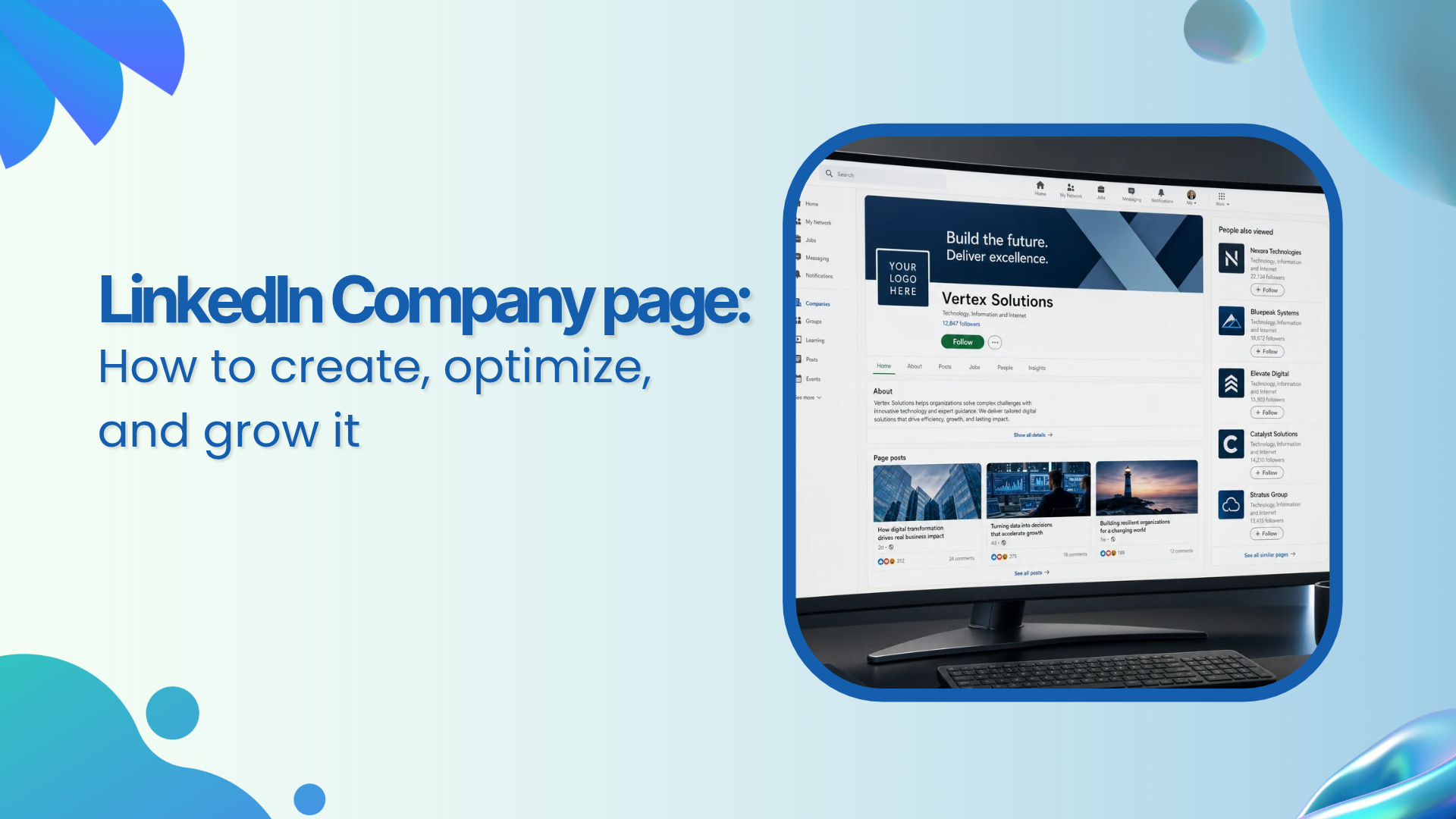
LinkedIn Company page guide: How to create, optimize, and grow it
Sep 24, 202621 minutes

Written by
Saif AliUpdated

If you’re trying to figure out how to see scheduled posts on LinkedIn, you’re not alone. The feature exists, but it’s not where you’d expect. Instead of a clear calendar or “Scheduled posts” tab, LinkedIn places everything inside the post editor, which makes it easy to overlook.
For marketers, this creates unnecessary back-and-forth just to keep track of what’s planned. You end up reopening the composer, checking posts manually, or confirming with teammates.
We have created this guide for you to learn those exact steps for personal profiles and company pages, the main limits of the native tool, and how ContentStudio gives you a cleaner way to plan, schedule, view, and edit everything in one place.
LinkedIn doesn’t give scheduled posts a clear home. There’s no calendar view or “Scheduled” tab, so the queue is tucked away inside the post composer.
To access it, you have to open the post window and find a small clock icon, something many users miss entirely. As a result, even regular LinkedIn users often struggle to locate their scheduled content.
This becomes more noticeable when managing multiple accounts for clients. What should be a quick check turns into repeated back-and-forth inside the interface.
On desktop, follow these steps to see scheduled posts on your personal profile:
Step 1: Open the LinkedIn home feed and look at the top of the page for the field that says “Start a post”.

Step 2: Click “Start a post” to open the standard post window, where you would usually type text and attach media. Look in the lower right corner of that window and find the small clock icon beside the main action buttons.

Step 3: Click the clock icon. A smaller “Schedule post” window appears with date and time options. In the lower left corner of that window, click the link that says “View all scheduled posts”. This opens the full scheduled queue for your profile.

Step 4: Select any post to preview or edit.

On the mobile app, the idea is the same:
Step 1: Tap the post button on the home tab.

Step 2: Write your update in the composer and tap the clock icon near the bottom.

Step 3: Use the “View all scheduled posts” link to open your scheduled list.

Click on any scheduled post to view the full preview. You’ll see all text, images, and links you attached, so you can ensure everything appears correct.
Managing and editing scheduled posts on a personal profile is much more flexible than on a company page. Once you know how to see scheduled posts on LinkedIn at the profile level, you can change both timing and content in a few clicks.
Here is how the main controls work on the Scheduled posts page:


On personal profiles, you always keep this full control, which is very different from company pages.
Seeing scheduled posts on a LinkedIn company page follows the same basic flow, but only admins can access it. You start from the post creation window, click the clock icon, and then open the scheduled queue from there.
The big difference is that page content has stricter limits. First, confirm that you are a Super Admin or Content Admin. Only these roles can see the scheduled queue.
Step 1: On the page admin view, click the prominent “Start a post” button near the top of the interface.

Step 2: In the post window, look at the bottom right corner and click the same clock icon you saw on your personal profile.

Step 3: In the schedule window that appears, use the “View all scheduled posts” link to open the full list of upcoming page updates.

This page‑level queue shows every future post across all admins.

If three team members and one agency partner all schedule content, each approved admin can see the entire pipeline in one place. For agencies that manage multiple social media accounts, this queue is often the first place to check so they do not trip over a planned product launch.
One important warning: on a company page, you cannot edit the content of a post once it sits in the scheduled list. You can only change the date and time or delete the post and recreate it. This rule affects every admin, from junior coordinators to senior marketing leaders.
When a page admin leaves a company or an agency loses access, scheduled posts do not vanish. LinkedIn transfers those posts to the admin who removes the old user. That person becomes the new owner of every scheduled update that the removed admin created.
LinkedIn’s native scheduler has several limits that cause trouble for teams once they know how to see scheduled posts on LinkedIn.
Some content types cannot enter the queue, page posts cannot be edited after scheduling, and time zone rules can confuse global groups. There are also gaps between the scheduler and LinkedIn Campaign Manager.
Certain post formats simply do not work with the scheduler. On company pages, you cannot schedule multi‑image posts, polls, reshares, or native event posts.
If you add one of these and try to schedule it, the clock icon disappears, and an error message blocks you. Personal profiles also cannot schedule events, jobs, or service posts.

Once you understand how to see scheduled posts on LinkedIn natively, you may notice how limited it feels for real teamwork. ContentStudio LinkedIn scheduler steps in here by giving you a clear content calendar, simple editing, and shared workflows across all your LinkedIn profiles and pages.
ContentStudio connects directly to LinkedIn, so you compose and schedule LinkedIn posts from one publishing screen. You pick your LinkedIn profile or company page, write the copy, generate text, images, and videos using our AI content assistant, add media from the Media Library, and either publish now or schedule for later.
The post appears on the LinkedIn Content Calendar. You can switch between Calendar, List, and Feed views to see content by day, week, or campaign. Filters let you narrow by status, author, channel, or label.
ContentStudio also shines for collaboration:
Agencies often invite clients into the social media approval workflow with shareable links that do not require a login. That means a client can see every planned LinkedIn post in context, review copy and media, and approve or request changes in one place.
LinkedIn’s native scheduler works best as a light helper once you already know how to see scheduled posts on LinkedIn. It gives solo users a way to line up a few updates without staying glued to the keyboard, but it also hides key features and comes with strict limits on editing, formats, and timing.
You now know where your content lives and how to change it before it goes live. For teams, agencies, and growing brands, a dedicated social media scheduling tool like ContentStudio turns LinkedIn scheduling into part of a larger, organized workflow.
With a shared calendar, AI‑assisted writing, approvals, and social media analytics in one interface, it becomes much easier to plan ahead and keep every LinkedIn channel on track.
Yes, once a LinkedIn post is published, you can edit it, whether it came from a profile or a company page. The restriction only applies while the content sits in the scheduled queue. After it appears in the feed, you can open the post, click the More icon, and update the copy as usual.
The clock icon disappears when the post includes a type that LinkedIn does not allow in the scheduler. Common triggers are polls, reshares, multi‑image posts on company pages, or certain event and job formats. Remove the unsupported element, and the clock icon appears again so you can schedule.
Personal profiles can schedule posts from ten minutes ahead up to three months out. Company pages can schedule from one hour ahead up to the same three‑month limit. If you need more flexible options or want to reuse content over longer periods, ContentStudio gives wider control.
On personal profiles, only you can see your scheduled posts. On company pages, any Super Admin or Content Admin can open the queue and view, reschedule, or delete every scheduled post, even if another admin created it. This shared visibility helps teams avoid duplicate updates and clashing campaigns.
No, LinkedIn does not support bulk scheduling inside the native interface. You must create and schedule each post one by one. Platforms like ContentStudio support bulk uploading, multi‑profile scheduling, and calendar‑level edits, which saves a lot of time for agencies and in‑house social media teams.
Plan 0 Days of Content in 0 Minutes
Create, schedule, publish and analyze your content across all your social media channels from one simple dashboard.
4.7 on Capterra • 16,500+ marketers trust ContentStudio
Saif Ali is a Content Marketing Strategist at ContentStudio with over five years of experience across SaaS, IT, and digital marketing. He specializes in SEO-led content, AI content creation, and social media strategy, and leads editorial review at ContentStudio, fact-checking and refining articles for accuracy, SEO, and a consistent brand voice.
View all posts by Saif AliRecommended for you
LinkedIn Company page guide: How to create, optimize, and grow it
LinkedIn marketing in 2026: Strategy, content, and growth
How to Use LinkedIn Hashtags Without Overdoing It
Best times to post on LinkedIn: Day, industry & location