How to post to social media from Claude: A complete guide
Aug 18, 202613 minutes

Written by
Saif AliPublished
Updated
You do not need to be technical to run your social media. No terminal, no code, no dashboard with forty tabs. If you can type a sentence, you can post to your accounts straight from a chat window.
That is the shift Claude makes possible. With ContentStudio connected, the same app you might use to draft an email or brainstorm a headline becomes the place you publish from.
You describe the post, Claude writes it, you approve, and it goes out. This guide shows you how to post to social media from Claude, step by step, without touching anything that looks like software for engineers.
To post to social media from Claude means writing and publishing your social content by chatting with Claude in its app, rather than logging into each network or a separate scheduling tool.
It works through ContentStudio’s MCP server, which links Claude to the social accounts in your ContentStudio workspace. You type what you want, Claude drafts it, and after you approve, it publishes or queues the post for you.
The important part for a marketer: this is a chat window, not a control panel. There is nothing to configure mid-conversation and nothing to learn beyond how to describe what you want. If you have ever asked Claude to rewrite a paragraph, you already know how to publish a post from Claude social media workflows.
Most social tools were built for people who like dashboards. Claude is the opposite. It suits the way marketers actually think, in sentences and intentions, not menus and settings. A few reasons it works:
Competitors tend to show this workflow through a terminal, which loses most marketers in the first ten seconds. Claude removes that barrier entirely. You are not running commands. You are talking.
There is also a quieter benefit that is easy to miss until you feel it: the mental context never breaks. When you write in one app and schedule in another, your attention resets every time you switch, and you lose the thread of what you were trying to say.
In Claude, the idea, the draft, the edit, and the publish all live in one thread, so you stay in the flow of the work instead of managing the tools around it.
It helps to see the two workflows side by side, because the difference is not small. Here is what publishing a handful of posts looks like the traditional way versus from Claude.
| Step | The usual way | From Claude |
| Write the copy | Open a doc, write, second-guess, rewrite | Ask Claude, get a first draft in seconds |
| Adapt per network | Manually reshape for each platform | Ask for network-specific versions in one message |
| Move to the scheduler | Copy, switch tabs, paste, reformat | Nothing to move, it is already in the chat |
| Pick accounts and time | Click through menus for each post | Name them in plain language |
| Publish or queue | Hit schedule, hope nothing broke | Approve, and it is done |
The traditional way is not broken; it is just full of small frictions that add up. Every tab switch and reformat is a few seconds and a little focus, and across a week of posting, those seconds become a real chunk of your day.
The app collapses the whole sequence into one conversation, which is why it feels less like using software and more like handing work to a capable assistant.
Two things, plus a one-time connection between them.
| What you need | Why it matters |
| Claude | The chat app you will write and publish from. |
| A ContentStudio account | Holds your connected social accounts and publishing queue. |
The piece that joins them is ContentStudio’s MCP server. MCP stands for Model Context Protocol, an open standard that lets AI apps connect to outside tools securely. You set this up once, and Claude can reach every account in your ContentStudio workspace from then on.
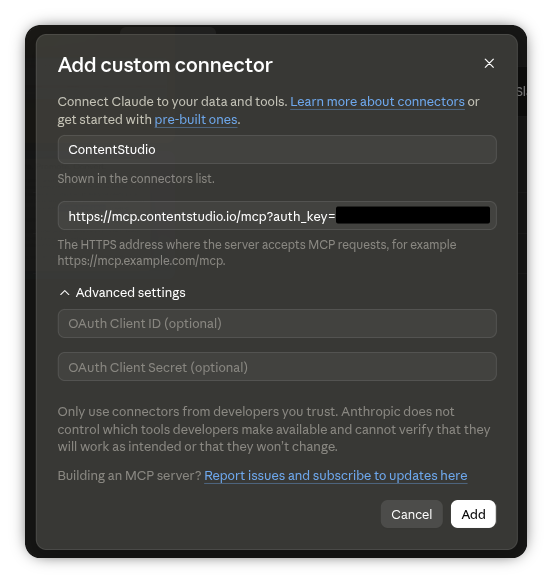
Connecting takes a minute. The fastest route is to add a single MCP link with your ContentStudio API key in Claude connector settings, no download required. There are two other methods if you prefer them.
For the full walkthrough of all three, see our guide on how to connect Claude to your social media. Once you have done it, you will not need to think about it again.
Whatever you have connected in ContentStudio becomes available to Claude. That covers Facebook, Instagram, LinkedIn, X, TikTok, Pinterest, YouTube, Threads, Bluesky, Telegram, and Google Business Profile. You can post to one at a time or several at once, and you name the network in plain language when you make the request.
Here is the flow from an empty chat to a published post. It is the same whether you are posting now or lining one up for later.
That is the whole loop. Open, ask, refine, approve. No fields to fill, no separate scheduler to open.
The workflow shows its value when you ask for more than one post at once, and it follows a simple two-phase rhythm: Claude previews everything first, and only publishes after you say go.
Say you have a new feature to announce and you want it live across your main channels today. Your message might be:
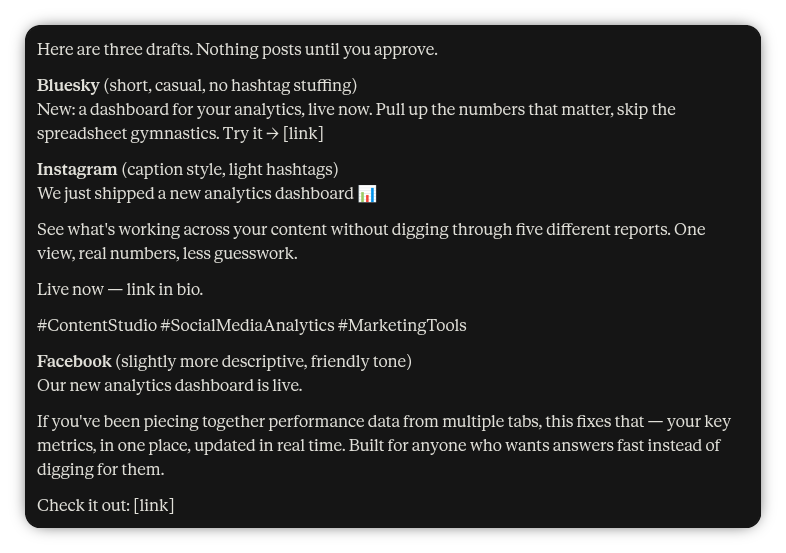
“Write three posts announcing our new analytics dashboard and post them to Bluesky, Instagram, and Facebook. Match each platform’s style and show me all three before anything goes live.”
Phase one, the preview (dry run). Claude drafts all three in the chat, each shaped to its network, and lays them out without touching your accounts yet. Nothing is live at this point. You are looking at a preview:
| Post | Network | Angle | Status |
| Analytics dashboard launch | Bluesky | Professional, value-led, one clear takeaway | Preview, not yet posted |
| Analytics dashboard launch | Short, visual, three hashtags | Preview, not yet posted | |
| Analytics dashboard launch | Warm, community tone, light question at the end | Preview, not yet posted |
You read the three, tighten a line, swap a word, or ask Claude to redo one entirely. This is the moment to change your mind, and it costs nothing because nothing has been published.
Phase two: execute. When the drafts look right, you approve. Only then does Claude publish each post to its network, and it comes back with a confirmation for all three. If you had asked for a later time instead of “now,” this is the point where Claude would queue them in ContentStudio rather than publish immediately.
From a single sentence, you get posts live across three channels, each written for its audience rather than copy-pasted between them. That preview-then-execute loop is the whole point: one request, a full review before anything ships, and the busywork of adapting and posting across networks handled for you.
The workflow is only as good as what you ask for, and the good news is that plain, specific requests work best. You do not need clever phrasing. You need to say what you want, for which network, and when. Here are prompts you can paste into Claude and adapt to your own brand.
For a single post published now:
“Write a short LinkedIn post announcing that our reporting dashboard now supports custom date ranges. Professional but warm. Publish it now.”
For a post shaped to a specific audience:
“Draft an Instagram caption for our summer sale. Aim it at small business owners, keep it under 40 words, and add three relevant hashtags. Show it to me before posting.”
For a batch across networks:
“Write four posts about our webinar next Thursday, one each for LinkedIn, X, Facebook, and Threads. Match each platform’s style. Hold them all as drafts so I can review.”
For repurposing something you already have:
“Take this blog intro and turn it into a LinkedIn post and an X thread. Keep my voice, do not add hype. Publish the LinkedIn one and save the thread as a draft.”
The pattern across all of these is the same: state the topic, the network, the tone, and what to do at the end (publish, schedule, or hold as a draft). Once you get used to it, most requests take one line.
One worry marketers have about any AI tool is that the output will sound generic. It is a fair concern, and the way you avoid it in Claude is the same way you would coach a new hire: tell it what your brand sounds like, and correct it when it drifts.
The first time you sit down to post, spend two minutes describing your voice. You might say your brand keeps sentences short, never uses exclamation marks, avoids words like “revolutionary,” and always closes with a question. Claude holds that guidance through the conversation and applies it to every draft.
When a post comes back slightly off, you do not start over. You give one note, “too formal, loosen it up,” and the next version lands closer. Some marketers keep a short paragraph of voice notes they paste at the start of each session. Either way, your voice is not something the tool guesses at.
It is something you set and refine, in the same chat where you publish. This is also where the human stays essential. Claude can match a tone you describe, but it cannot know that a phrase quietly echoes a competitor’s tagline, or that a joke will not land with your audience.
You bring that judgment, the tool brings the speed, and together they produce posts that are both fast and genuinely yours.
This matters enough to be its own step, because it is what keeps you in control.
Claude never posts on its own. It drafts and prepares everything, but nothing publishes until you say yes. This human-in-the-loop step means Claude does the writing and the busywork while you keep the final call on what actually reaches your audience. The app assists; it does not act unattended.
Before you approve, take three seconds to check:
Approval is a single confirmation, and it is the line between fast and careless.
A few small habits make the whole thing smoother.
A few missteps trip people up in their first week. None of them is serious, and all are easy to sidestep once you know to watch for them.
The most common one is being vague about timing. If you say “post this later,” Claude has to guess what later means, so say “publish now” or “schedule for Thursday at 9 am” instead. The second is forgetting to name the network, which leaves Claude to pick or ask.
The third is approving too quickly, since skimming defeats the one safeguard that keeps a rough post from going live. The fourth is treating the first draft as final, when the second or third version is almost always better, so give at least one note before you approve.
None of these will break anything, because the approval step is always your backstop. But avoiding them turns the workflow from good to genuinely fast.
The reason this matters is simple: it takes the technical wall out of social media. You do not need a dashboard, a terminal, or a separate publishing tool open in another tab. You need a chat window and a sentence.
Connect ContentStudio’s MCP server once, and Claude becomes the place where your posts are written and published in the same breath. From a plain-English request to a post live across your networks, the whole thing happens in one conversation, and every post still waits for your approval before it goes out.
And if you need a more direct way to connect your own tools and workflows, you can also use the ContentStudio Social Media API. Every post still waits for your approval before it goes out.
Yes. Once Claude is connected to ContentStudio through the MCP server, you can post to social media directly from the chat. You describe the post, Claude drafts it, and after you approve, it publishes to your chosen network or adds it to your queue.
No. Posting from Claude needs no coding and no terminal. The connection is a one-time setup, and after that every post is just a message you type in plain language. If you can write a sentence, you can publish a post.
You can post to any account connected in your ContentStudio workspace, including Facebook, Instagram, LinkedIn, X, TikTok, Pinterest, YouTube, Threads, Bluesky, Telegram, and Google Business Profile. Once the MCP server is connected, all of them are available in the chat.
No. Claude never publishes on its own. It drafts and prepares each post, but you review and approve it before anything goes live. You keep the final call on everything that reaches your audience.
Yes. In a single message, you can ask Claude to write and post across several networks at the same time. It drafts a version shaped to each one, and you approve them before they publish.
Yes. You choose in your request. Ask Claude to publish immediately, or name a future time, and it will queue the post in ContentStudio for that slot instead.
Yes, as long as you tell Claude what your voice is. Describe your tone, the words you avoid, and how you like posts to open and close, and Claude applies that to every draft. You refine it with quick notes in the chat until it sounds like you, and you approve before anything publishes.
Claude is the most common choice because it is simple and requires no setup beyond the connection. The ContentStudio MCP server also works with other MCP-compatible clients, but if you want the easiest path as a non-technical marketer, the app is the place to start.
Plan 0 Days of Content in 0 Minutes
Create, schedule, publish and analyze your content across all your social media channels from one simple dashboard.
4.7 on Capterra • 16,500+ marketers trust ContentStudio
Saif Ali is a Content Marketing Strategist at ContentStudio with over five years of experience across SaaS, IT, and digital marketing. He specializes in SEO-led content, AI content creation, and social media strategy, and leads editorial review at ContentStudio, fact-checking and refining articles for accuracy, SEO, and a consistent brand voice.
View all posts by Saif AliRecommended for you
How to post to social media from Claude: A complete guide
How to schedule social media posts with Claude

How to post a video on Facebook in 2026: Step-by-step guide
How to turn off active status on Instagram in 2026 (Step-by-step guide)