How to choose a social media management tool (2027 guide)
Nov 3, 202621 minutes

Written by
Saif AliUpdated

You already write posts inside your AI assistant. The awkward part comes next: copying that draft into another tab, finding the right account, picking a time, and hitting schedule. That handoff is where most things start to break, and it is exactly the step you can remove.
With ContentStudio’s MCP server, Claude connects directly to your social accounts. You describe the post you want, and when it should go out, Claude drafts it, shows you a preview, and once you approve, it lands in your ContentStudio queue. No second tab, no copy and paste.
Let’s learn how to schedule social media posts with Claude from start to finish: what the setup looks like, how to connect the two tools, and how to schedule a single post or a full week from one conversation.
Claude social media scheduling is the ability to draft and schedule social posts by chatting with Claude, instead of writing in one tool and scheduling in another. It works through the ContentStudio MCP server, which connects Claude to ContentStudio and the social accounts inside it. You ask for a post in plain language, Claude prepares it, and after you approve, it schedules the post to publish at the time you named.
In short: ContentStudio connects Claude to your social accounts so you can schedule posts by chatting. It is one of the most direct ways to schedule social media with AI, because you stay in one window and the finished draft goes straight to your publishing queue.
Once ContentStudio and Claude are connected, most of your day-to-day scheduling happens through conversation. You can:
The networks you can publish to are the ones ContentStudio already supports, including Facebook, Instagram, LinkedIn, X, TikTok, Pinterest, YouTube, Threads, Bluesky, Telegram, and Google Business Profile. Whatever accounts you have connected in your ContentStudio workspace become available to Claude once the MCP server is set up.
One thing worth being clear about from the start: Claude does not publish behind your back. It prepares and schedules the work, but you approve every post before it goes live. More on that below.
Three pieces have to be in place. None of them takes long.
| What you need | Why it matters |
| A ContentStudio account | Holds your workspaces, connected social accounts, and publishing queue. |
| Claude Desktop (or another MCP-compatible client) | The AI assistant that runs the conversation and calls the MCP server. |
| The ContentStudio MCP server | The bridge that lets Claude talk to your ContentStudio workspace. |
The MCP server is what ties the first two together. MCP stands for Model Context Protocol, an open standard that lets AI tools connect to outside services in a secure, predictable way.
ContentStudio’s MCP server uses that standard to give Claude access to your workspace without exposing more than it needs. Your API key stays protected, and every request follows the same standardized connection.
If you use a different MCP-compatible client, the ContentStudio MCP also works with Microsoft Copilot and automation frameworks like LangChain, LlamaIndex, and Semantic Kernel. The steps below use Claude Desktop because it is the most common starting point.
There are three ways to connect, and they all get you to the same place. Pick the one that fits your setup. The direct MCP link is the fastest, so start there.
Before any of them, generate your key: head to your ContentStudio settings, find the API keys section, and create a new key. Every method below uses it.
Add ContentStudio as a remote MCP server using a single URL. Take the link below, replace YOUR_API_KEY with the key you just generated, and add it in your client’s connectors settings:
https://mcp.contentstudio.io/mcp?auth_key=YOUR_API_KEY
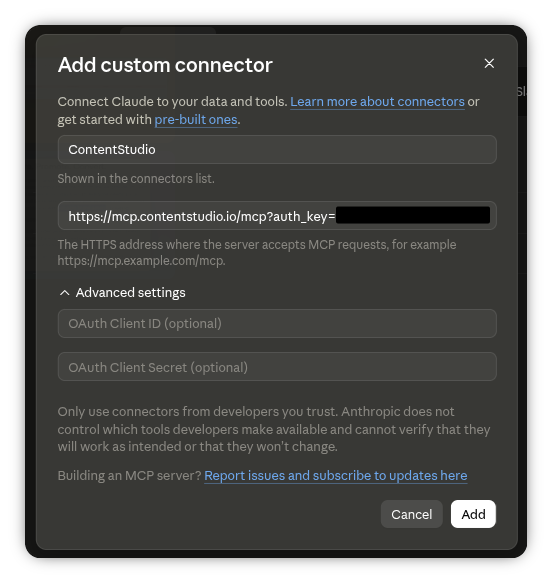
Save, and Claude is connected. This is the quickest route because there is no file to download and nothing to install.
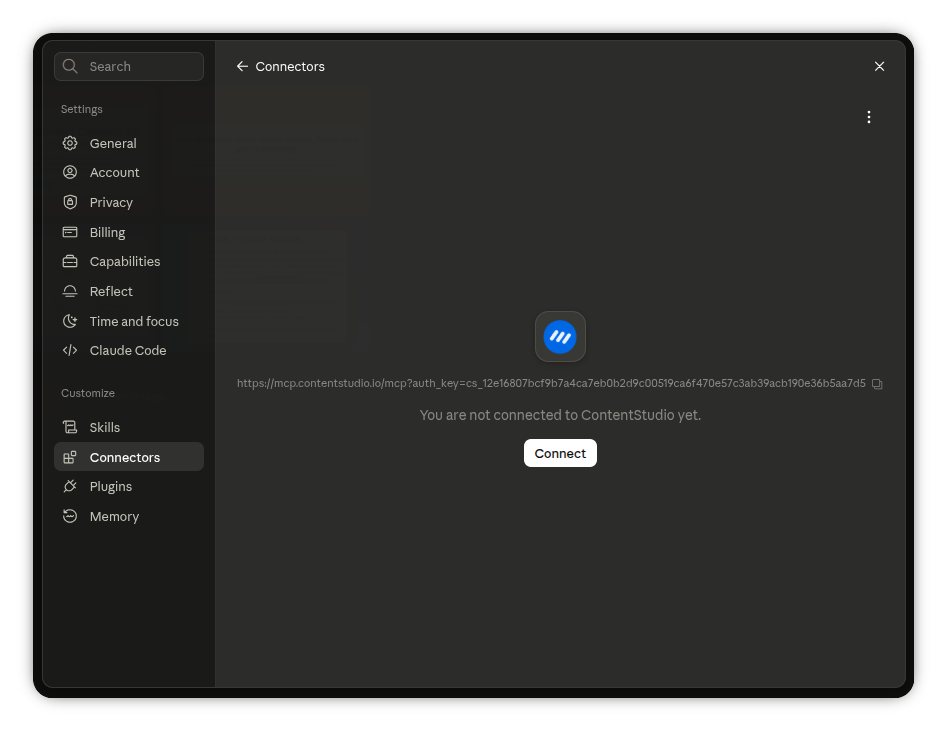
If you prefer to set it up by hand, copy the config block below into your MCP client and replace the placeholder with your ContentStudio API key:
Code Snippet:
{

  "contentstudio": {

    "command": "bash",

    "args": ["-lc", "npx -y contentstudio-mcp"],

    "env": {

      "CONTENTSTUDIO_API_KEY": "<your-api-key>"

    }

  }

}
Swap <your-api-key> for your key, save, and restart your client.
Download the ContentStudio MCP file, then install it as an extension in Claude Desktop. Open your client’s settings, add the file as a new extension, paste in your API key, and save.
Whichever route you take, test it the same way: ask Claude to create a post. If it drafts one and shows you a preview, you are connected.
With the connection live, you can schedule posts with Claude in a single request. Here is the flow to schedule social media posts with Claude, one post at a time.
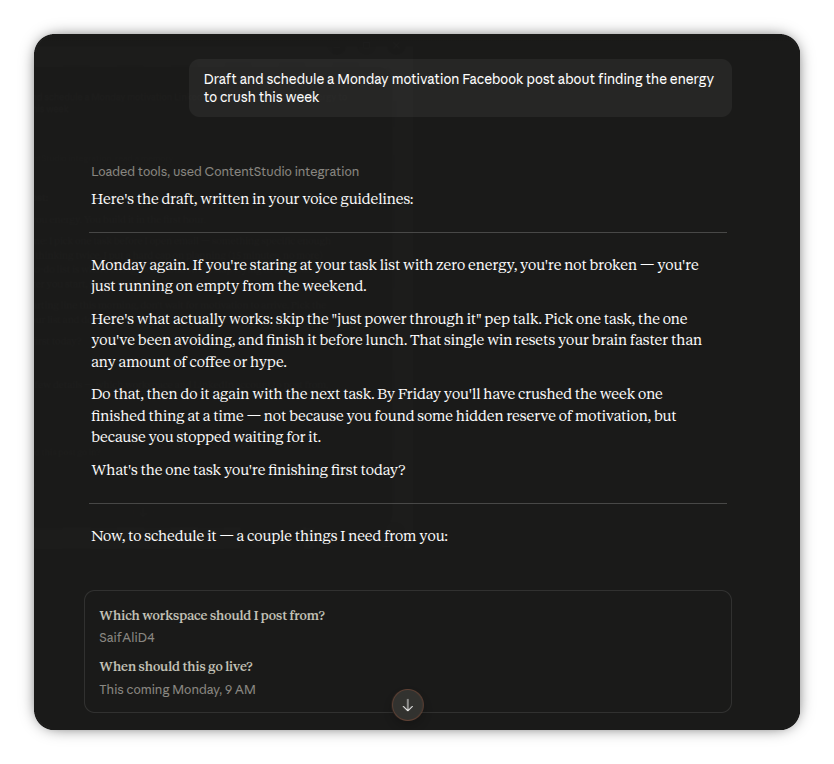
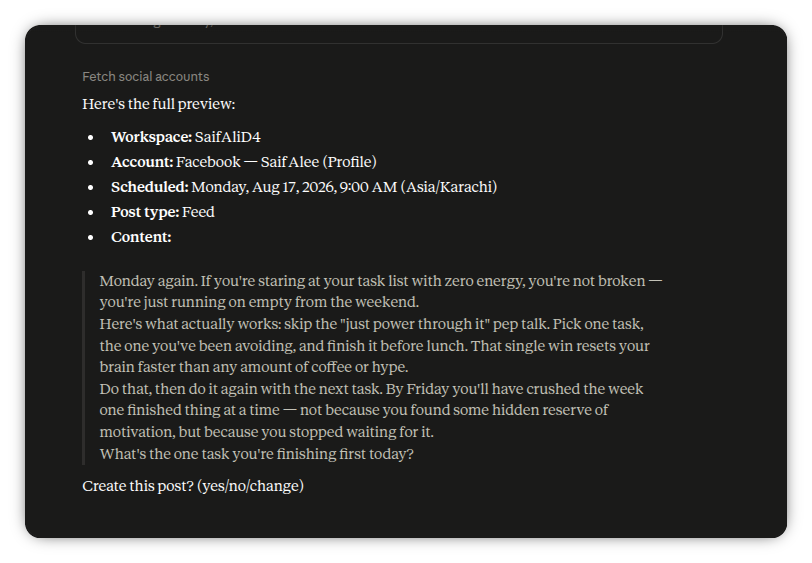
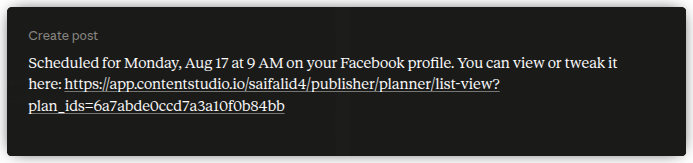
That preview-then-approve rhythm is the whole point. You get the speed of writing by conversation without giving up the final read before a post goes public.
Single posts are useful, but the real time savings show up when you plan ahead. You can hand Claude a batch of topics and let it lay out the week.
Say you have three posts in mind. Your prompt might look like this:
“Draft three LinkedIn posts and schedule them for next week. Monday: why we stopped writing content calendars. Wednesday: the one metric we check every Monday. Friday: what reply threads taught us about hooks. Put them all at 8:15 am.”
Claude drafts all three, keeps them in your voice, and shows each one with its proposed slot:
| Post | Network | Slot |
| Why we stopped writing content calendars | Mon 8:15 am → queued | |
| The one metric we check every Monday | Wed 8:15 am → queued | |
| What reply threads taught us about hooks | Fri 8:15 am → queued |
You review the batch, tweak anything that needs a second pass, and approve. Three posts scheduled, no tab switching, and the whole week is set from one conversation. If you would rather ContentStudio pick the timing, you can ask it to use your best-performing slots instead of naming exact times.
It is worth slowing down on this, because it is what keeps you in control.
Claude never publishes automatically. It drafts, it prepares, and it schedules only after you say yes. Nothing goes live without your approval. This human-in-the-loop step means the assistant handles the moving parts, the writing, the formatting, the queueing, while you keep the final call on what actually reaches your audience.
Practically, that means you should always read the preview before approving. Check three things:
Approval takes seconds, and it is the difference between fast and reckless.
A few habits make the whole thing smoother.
Scheduling used to mean two tools and a copy-paste in between. Learning to schedule social media posts with Claude removes that step entirely. You write, preview, and schedule in one conversation, and every post still waits for your approval before it publishes.
The setup is a one-time job. Connect ContentStudio’s MCP server, generate your API key, and Claude can reach every social account in your workspace, from LinkedIn and Instagram to X, TikTok, and Google Business Profile. From there, a single prompt can fill your queue for the week, in your voice, at the times you choose.
If you already write in Claude, this closes the last gap between a finished draft and a published post. Connect ContentStudio’s MCP server once, and scheduling becomes part of the same conversation where you write.
To go deeper, read more about the ContentStudio MCP server, or explore the social media API if you want to build your own integrations.
Yes. Claude can schedule social media posts once it is connected to ContentStudio through the MCP server. You describe the post and the time in plain language, Claude drafts it and shows you a preview, and after you approve, it schedules the post to your ContentStudio queue. It works across every network your workspace supports.
You connect Claude to ContentStudio by adding its MCP server, which takes a minute. The fastest way is to add a single MCP link with your ContentStudio API key, no download needed. You can also install the prebuilt MCP file as an extension in Claude Desktop or set it up through manual configuration.
You can schedule posts to any account connected in your ContentStudio workspace. That includes Facebook, Instagram, LinkedIn, X, TikTok, Pinterest, YouTube, Threads, Bluesky, Telegram, and Google Business Profile. Once the MCP server is connected, all of those accounts become available to Claude.
No. Claude never publishes without you. It drafts and prepares each post, but you review and approve it before anything goes live. This human-in-the-loop step means Claude handles the work while you keep the final call on what reaches your audience.
No, scheduling posts with Claude does not require any coding. The quickest setup is adding a single MCP link with your API key, with no download or install. A prebuilt file and a manual configuration option are there if you prefer them, but most people never need to touch code.
Yes, it is safe to connect Claude to your social accounts. The connection runs through the Model Context Protocol, an open standard that gives AI tools only the access they need. Your API key stays protected, and you approve every post before it publishes.
Yes. You can hand Claude several topics in a single prompt, and it will draft and schedule the whole batch across your chosen days and times. This is the fastest way to plan a full week of content in one conversation.
Yes. As long as the post has not gone live, you can ask Claude to edit the caption, change the time, or update other details, and it will adjust the scheduled post for you.
Saif Ali is a Content Marketing Strategist at ContentStudio with over five years of experience across SaaS, IT, and digital marketing. He specializes in SEO-led content, AI content creation, and social media strategy, and leads editorial review at ContentStudio, fact-checking and refining articles for accuracy, SEO, and a consistent brand voice.
View all posts by Saif AliRecommended for you
How to choose a social media management tool (2027 guide)
How to build an executive’s LinkedIn content workflow with Claude Code

How to turn one product photo into 5 video Ads with Claude Code
Social media MCP server: How to automate posting with ContentStudio