How to build an executive’s LinkedIn content workflow with Claude Code
Oct 1, 202615 minutes

Written by
Saif AliUpdated

There’s a difference between asking an AI to write a post and asking it to run your social media.
The first ends with text on your screen that you still have to do something with. The second ends with a scheduled post sitting in your calendar, ready to go live. That gap is where most people lose time, and it’s exactly what a Claude social media workflow is built to close.
Claude can now do more than draft captions. Connected to the right platform, it can pull up your accounts, write content that fits your brand, drop it into a publishing calendar, route it through approvals, and adjust anything you want changed, all inside one conversation.
That’s a real shift, because it changes what you actually spend your day doing.
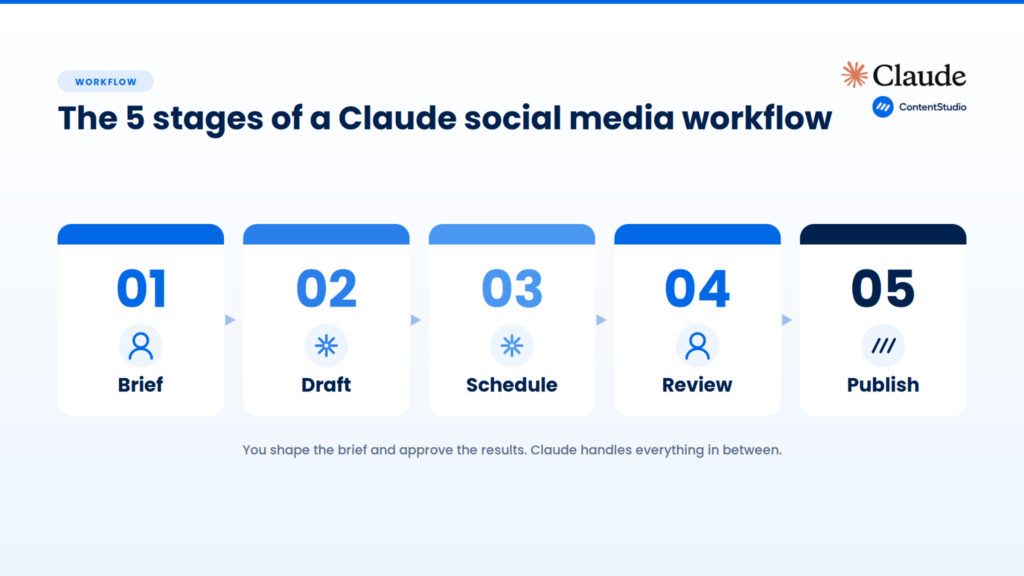
This piece breaks the whole thing into five stages. You’ll see what happens at each step, where Claude does the heavy lifting, and where you stay firmly in the driver’s seat. If you’ve ever wondered what “AI running your social media” really looks like in practice, this is the honest version.
Before the stages, it helps to name the thing that changed.
Most people have used AI to write a social post. You type a request, it hands back some copy, and then you do the rest yourself: open your scheduler, paste it in, pick the accounts, set the time, hit save.
The AI helped with one slice of the job. Everything around that slice was still manual.
A Claude social media workflow works differently because Claude isn’t just answering you. It’s taking actions on your behalf. It reaches into a connected platform, reads real data about your accounts, creates content in the right place, and handles the steps that used to eat up your afternoon.
This is what people mean when they call an AI “agentic.” It doesn’t stop at the suggestion. It carries the task through to something finished.
But that only works when Claude has a secure way to reach your tools. On its own, Claude has no access to your social accounts or your posting schedule. It needs a bridge.
That’s where a platform like ContentStudio comes in. Through its Claude integration, Claude connects to your workspace, sees your connected accounts, and can create and schedule posts, all without you ever handing over your account passwords.
The connection is scoped and revocable, which matters more than it sounds. We’ll get to why in stage five.
For now, hold onto one simple idea:
With that framing, here are the five stages.
Every workflow starts with you saying what you want. The difference is how little structure you need to provide.
No form. No wizard. You describe the job in plain language, the way you’d explain it to a teammate:
That’s the brief. Claude takes it from there.
What’s happening underneath is more than transcription. Claude reads your request and works out the pieces: how many posts, which platforms, what mix of formats, roughly what each one should say. If your instruction is vague, it fills gaps sensibly. If it’s specific, it follows your lead closely.
You can hand it a rough idea and let it shape the details, or spell out every requirement and have it execute exactly.
This is also the stage where good input pays off. The more you tell Claude about your goal, your audience, and your voice, the better the output.
Claude is capable, but it’s still working from what you give it.
One practical note: you can pack a lot into a single brief. Several topics, multiple platforms, different formats, specific timing. Claude tracks all of it and works through the whole thing in one go, instead of making you request each post separately. That’s a big part of where the time savings come from.
Once it understands the brief, Claude writes. Most people already associate this stage with AI, so the interesting part is what it does beyond producing words.
Claude drafts each post in the format and voice you asked for. A LinkedIn post reads differently from an X post, and a carousel caption reads differently from a single image post. Claude adjusts for the platform instead of pasting the same block everywhere.
If you give it a brand voice or a few example posts to match, it works from those, so the results sound like you rather than like a template.
It also handles variety. Ask for ten posts, and you don’t want ten versions of the same sentence. Claude varies the angle, the hook, and the structure across a batch, so a week of content actually feels like a week of content. You can steer it too:
It follows the pattern you set.
When your content needs more than text, this stage stretches further. You can ask Claude to plan posts with images, carousels, or videos, and to organize them around a campaign or content theme.
Through a connected platform like ContentStudio, it can pull media from your workspace library or attach files you point it to, so the draft isn’t just words. It’s closer to a finished post.
The output of this stage is a set of drafts. Nothing is live. Nothing is even scheduled yet. You’ve got content, written to spec, waiting for the next step, and you haven’t touched your scheduler once.
Here’s where a Claude social media workflow pulls away from the copy-paste version. Instead of handing you drafts to place yourself, Claude puts them into your publishing calendar directly.
You tell it when and where:
Claude takes those instructions and creates the scheduled posts inside your connected workspace, assigning each one to the right account and the right time.
This is the step that used to be pure manual labor. Opening the scheduler, creating each post, selecting accounts, setting times, saving, repeating. For a full week or month of content across several platforms, that’s a real chunk of your day. In a Claude workflow, it collapses into a single instruction.
The platform matters a lot here, because scheduling is only as good as the calendar behind it.
ContentStudio was built as a publishing platform first. So when Claude schedules through it, the posts land in a real calendar you can see, sort, and manage.
They go out across all your connected networks from one place, whether that’s Instagram, LinkedIn, Facebook, X, TikTok, YouTube, Pinterest, or others. Claude handles the placement; ContentStudio handles the actual delivery at the right moment.
That division is what makes the whole thing dependable rather than a party trick.
You can also work at the calendar level, not just the post level. Ask Claude to show you everything scheduled this week, grouped by platform, and flag any times when two posts overlap. It reads your calendar, organizes what’s there, and points out timing problems before they become real ones.
That’s the kind of oversight that’s tedious to do by hand and quick to do in conversation.
At the end of this stage, you have a filled-in publishing calendar. But notice what hasn’t happened: nothing has gone live. That’s deliberate, and it’s the whole point of the next stage.
This is the stage that should make you comfortable letting AI near your accounts. Claude prepares everything, but it doesn’t publish on its own. You review first.
By default, Claude drafts and schedules posts as pending. Before anything reaches your audience, you get to look at:
You read through the full set, approve what’s good, send back what needs work, and edit anything directly. Nothing goes out until you say so.
This is called keeping a human in the loop, and it isn’t a nice-to-have. It’s the thing that separates useful automation from a liability.
AI is good at handling volume and repetition. It’s not the one who should decide, with no oversight, what your brand says in public. The review step lets Claude do the tiring parts at scale while you keep the final call on what represents you.
The approval workflow also matters for teams. If you’re running social for clients or working with reviewers, you can handle the whole flow in conversation with Claude:
Through ContentStudio’s approval workflow, that back-and-forth happens in one place instead of being scattered across tools and messages. For an agency juggling multiple client workspaces, that’s often the difference between a smooth week and a chaotic one.
Review is also where edits get easy. Say a few posts are close but not quite right. You can ask Claude to shorten the opening lines on this week’s tutorial posts or move all the Tuesday posts to 9 AM. It finds the matching posts, applies the changes, and saves them across the batch.
As long as a post hasn’t gone live, it’s still editable. You’re never locked into a first draft.
Only after you approve does anything move forward. Which brings us to the last stage.
Once you’ve approved, the posts are published at their scheduled times. And this is where the quieter, more important part of the workflow shows up: the guardrails that were there the whole time.
It’s worth understanding how Claude actually reaches your accounts, because it’s more secure than most people assume.
Claude connects to a platform like ContentStudio through the Model Context Protocol, an open standard for how AI tools talk to software. In plain terms, it’s a standardized, secure connection that gives Claude only the access it needs, nothing more.
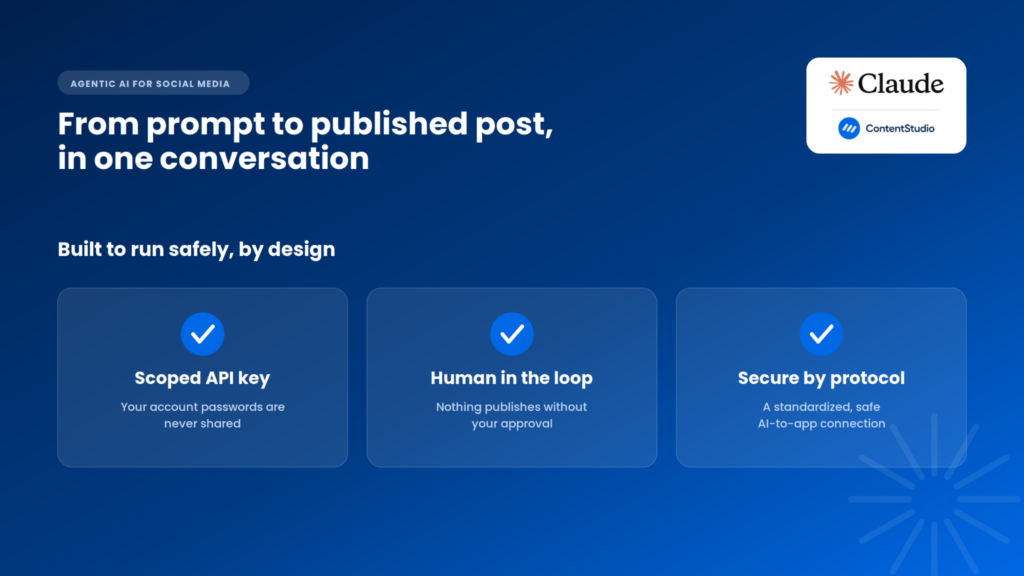
Here’s what that means in practice:
That’s a meaningful design choice. You’re not giving an AI the keys to your entire social presence. You’re giving it a narrow, controlled channel to do specific work, through a bridge you can shut off whenever you want.
Layer that on top of the review step from stage four, and you get two safety nets:
Speed on the tedious parts. Control on the parts that count.
Step back and look at the five stages together:
In the old way of working, you touched almost every one of those by hand. You wrote or edited, opened the scheduler, placed each post, set each time, published. AI, at best, helped with the writing and left you the rest.
A Claude social media workflow flips the ratio. Claude carries the brief through drafting, scheduling, and preparation. You step in at the two moments that genuinely need a person: shaping the brief at the start, and approving the output at the end.
The tedious middle, the part that quietly consumes hours every week, largely takes care of itself.
That’s the real promise of agentic AI for social media, and it’s less flashy than the hype suggests. It’s not about replacing the marketer. It’s about handing off the repetitive execution so you can spend time on strategy, ideas, and the judgment calls AI shouldn’t be making anyway.
ContentStudio was built for exactly that role, which is why it fits naturally into a Claude workflow. It’s an AI-ready platform that gives an agent room to operate while keeping you in control of what goes live, and it connects to the rest of your stack the same way.
If you’re already using Claude to write your posts, you’ve seen the first slice of what it can do. The five-stage workflow is what happens when you connect it to the rest of the job and let it run.
It’s the process of running your social media through Claude connected to a platform like ContentStudio. Claude drafts posts, schedules them, and prepares them for approval inside your workspace. You describe what you want and approve the results, while Claude handles the steps in between.
The five stages are brief, draft, schedule, review, and publish. You give Claude the brief and approve the final output. Claude drafts the content, schedules it in your calendar, and prepares everything for review. Nothing goes live until you approve it.
Yes, when connected to a platform like ContentStudio. Claude creates scheduled posts directly in your publishing calendar, assigning each one to the right account and time. You tell it when and where in plain language, and it places the whole batch in one step.
No. Claude drafts and schedules posts as pending, then shows you the copy, network, media, and timing. Nothing reaches your audience until you approve it. This human-in-the-loop step keeps you in control while Claude handles the repetitive work.
Claude connects through the Model Context Protocol, an open standard for how AI tools reach software. The connection uses a single scoped API key that talks only to ContentStudio’s public API. Your social account passwords are never shared, and you can revoke the key anytime.
Yes, with sensible guardrails. Claude uses a scoped API key instead of your passwords, connects over a standardized protocol, and only reaches what you allow. Every post is previewed before scheduling, and nothing publishes without your approval, so you keep the final call.
Claude can publish to every network you’ve connected in ContentStudio, including Instagram, LinkedIn, Facebook, X, TikTok, YouTube, Pinterest, and more. You connect an account once in ContentStudio, and Claude can then schedule and publish to it.
Yes. As long as a post hasn’t gone live, you can ask Claude to change the caption, adjust the time, or update other details, and it updates the scheduled post. It can also apply edits across a batch, like moving all Tuesday posts to a new time.
No. The quickest setup adds a single connection with your API key, no coding required. Once connected, you work with Claude in plain language, describing the posts you want. Claude handles the drafting, scheduling, and preparation without any technical steps from you.
Agentic AI doesn’t stop at suggesting content, it takes action. Instead of just writing a caption you paste elsewhere, Claude drafts, schedules, and prepares posts inside your workspace, carrying a task through to a finished, scheduled post while you approve what goes out.
Plan 0 Days of Content in 0 Minutes
Create, schedule, publish and analyze your content across all your social media channels from one simple dashboard.
4.7 on Capterra • 16,500+ marketers trust ContentStudio
Saif Ali is a Content Marketing Strategist at ContentStudio with over five years of experience across SaaS, IT, and digital marketing. He specializes in SEO-led content, AI content creation, and social media strategy, and leads editorial review at ContentStudio, fact-checking and refining articles for accuracy, SEO, and a consistent brand voice.
View all posts by Saif AliRecommended for you
How to build an executive’s LinkedIn content workflow with Claude Code

How to turn one product photo into 5 video Ads with Claude Code
Social media MCP server: How to automate posting with ContentStudio
How to automate social media with n8n: A practical guide