
How to calculate affiliate earnings: Commissions and earning breakdown
Oct 6, 202612 minutes

Written by
Saif AliUpdated
Most people treat the Conversions column in Google Ads like a scoreboard: whatever number sits there is the truth, and the job is to make it go up. But Google Ads conversion tracking doesn’t measure reality.
It reports the output of a stack of settings you, or whoever built the account, chose: an attribution window, a counting rule, a list of which actions get to “count.” Change any one of them and the number changes, without a single extra sale happening.
That matters because you make real money decisions on this data. You scale the campaigns that look like winners, pause the ones that look like losers, and report ROAS to a client or a boss. If the underlying count is wrong, every one of those calls is wrong too, and you usually won’t feel it until the budget is already spent on the wrong thing.
Two identical accounts can report wildly different conversion counts from the exact same traffic, purely on configuration. Neither is broken. They’re just measuring different things, the way two thermometers set to Celsius and Fahrenheit disagree while both being right.
The trouble starts when you read the number in plain English. “142 conversions” sounds like 142 people did the thing you care about. What it actually means is closer to “142 configured events fired, credited under these rules, over this lookback window, with modeled data filling the gaps Google couldn’t observe.” That’s a very different claim, and the distance between the two is where bad decisions live.
The fastest way to build trust in your Google Ads conversion tracking is to know the handful of places it goes sideways, so you can rule each one in or out. Here are the seven that account for nearly every discrepancy.
The click-through conversion window decides how long after a click a conversion still gets credited back to that click. Set it to 30 days when your sales cycle actually runs 60, and you’re only ever crediting the first half of the journey. Recent campaigns look weak because their conversions simply haven’t landed in the report yet.
Where to check: Tools and Settings, then Conversions, then click the conversion action and open the Click-through conversion window setting. Confirm it matches how long your buyers really take to decide, not the default value someone left untouched at setup. If you sell a considered purchase, the default is almost certainly too short.
Google Ads lets you count every conversion from a single click, or just one. For a purchase, “every” is usually correct, because a customer can genuinely buy more than once. For a lead form, “every” quietly inflates your count the moment one person submits the same form twice, which people do constantly when a page reloads or they aren’t sure it went through.
If your conversion total looks suspiciously high next to the actual number of leads sitting in your CRM, the counting method is the first place to look. It’s a two-click fix once you spot it.
Add-to-cart, form views, newsletter signups, page scrolls. All useful signals, but if any of them is set as a primary conversion, it gets folded into your headline number and, more dangerously, into the target Smart Bidding optimizes toward. Suddenly you have 400 “conversions” and 12 sales, and the algorithm is happily buying you more cart-adds instead of more revenue.
The fix is to move anything that isn’t a real business outcome to secondary. It stays tracked and visible for analysis, but it’s kept out of the count that drives bids and out of the number you report. This single change often cleans up the biggest gap between reported conversions and real ones.
In 2026, data-driven attribution is the default in Google Ads and is generally the right choice. If your account is still running last-click, you’re handing 100 percent of the credit to the final click and undercrediting every campaign that started the journey. Upper-funnel work looks worse than it is, so you cut it, and then wonder why your best-converting campaigns slowly dry up.
Worth knowing: Google removed the older rules-based models (first-click, linear, time decay, position-based) back in 2023, so if you’ve inherited an old account with one of those still referenced somewhere, treat it as a flag that the setup hasn’t been reviewed in a while.
This is the discrepancy that eats the most hours. The two platforms use independent attribution models on different data scopes, so by design they cannot agree.
Google Ads counts conversions that originate from a Google Ads click and models the gaps aggressively, because Smart Bidding needs a complete signal to function. GA4 credits only clicks that produced a tracked session and applies its own model across every channel, paid and organic alike.
A 10 to 30% difference is normal. GA4 usually reports differently because it’s filling in modeled conversions for users who declined tracking, and it’s crediting a broader view of the journey. GA4’s April 2026 attribution restructure widened the gap further for some accounts.
The mistake is treating that gap as a bug and burning days trying to force the two dashboards to reconcile. They won’t. Document the gap, confirm it stays consistent week to week, and only investigate when it suddenly jumps.
Conversions are credited to the day of the click, not the day the conversion actually happens. So a click today that turns into a sale next week shows up in today’s row a week from now, backfilling into the past. If you judge the last three or four days too early, you’ll see soft numbers, panic, and pause campaigns that are about to look excellent once their conversions mature.
The fix is patience calibrated to your own data. Check your typical days-to-conversion and treat anything inside that window as incomplete rather than final. For many accounts that means not making hard calls on the most recent week of data.
This is the one setup-adjacent check worth doing while you’re already in here. A tag that fires twice inflates the count. A tag missing from a key confirmation page loses conversions entirely.
And Enhanced Conversions being switched off is the common quiet culprit: without it, Google Ads systematically under-counts, because it can’t recover the cross-device and cookie-blocked conversions that Enhanced Conversions is designed to match back.
Use Google Tag Assistant to confirm each conversion tag fires exactly once, on the right page, and nowhere it shouldn’t. Then check whether Enhanced Conversions is on under the conversion action’s settings. Turning it on is one of the few changes that makes your count go up and become more accurate at the same time.
Also Read: Google Ads metrics: What to track and what each one tells you
You don’t need a full teardown to trust your data. This is a focused pass you can run once a quarter, and any time the numbers suddenly look off. Work through it in order, because each step rules out a whole category of problem before you move on.
Perfect agreement between platforms is the wrong target. Chasing it wastes hours and teaches you nothing, because the two systems are built to disagree. Here’s the realistic bar for a healthy setup:
The healthy mindset is simple: know your gap, know exactly why it exists, and watch for the day it changes. That, not two numbers that happen to line up, is what a trustworthy setup looks like. A consistent, explainable gap is a sign your Google Ads conversion tracking is working as designed.
Notice how much of the audit above involves bouncing between the Google Ads interface, GA4, and your back-end, while holding date ranges and event definitions in your head as you jump. That friction is exactly why most accounts never actually get audited. It’s tedious, it’s easy to put off, and discrepancies love to hide in the gaps between tabs where nobody’s looking.
Pulling your Google Ads data into a single view makes the sanity-check dramatically faster. When conversions, cost per conversion, and conversion value sit right next to spend, clicks, and CTR on one screen, an inflated count or a flat conversion value jumps out at you instead of hiding two tabs away. You spend your time interpreting the data rather than assembling it.
ContentStudio’s Google Ads Analytics dashboard connects your account and lays these metrics out together, so the pattern-scanning steps of your audit take minutes instead of a tab-hopping afternoon.
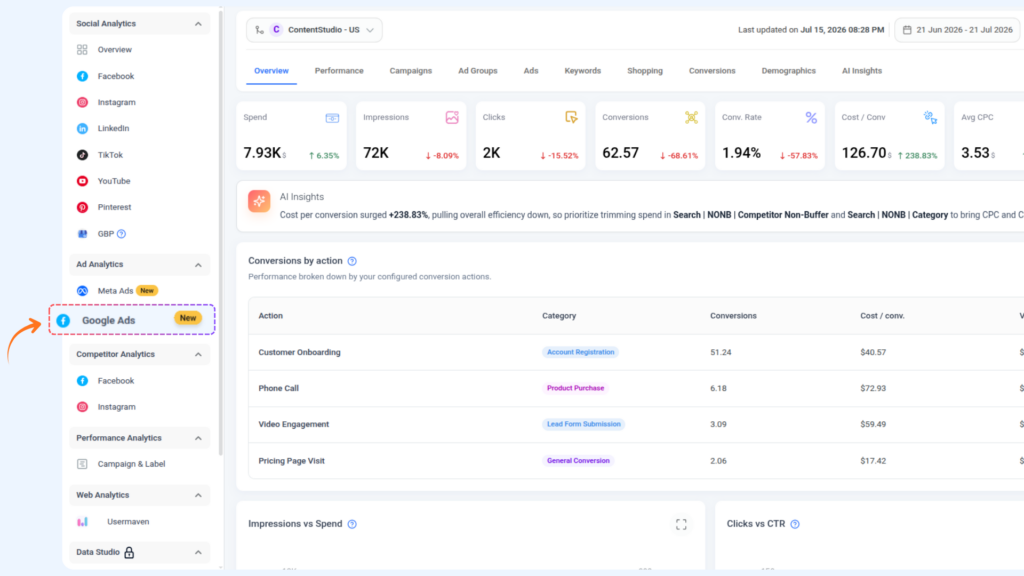
To be clear about what it does and doesn’t do: it won’t set up your conversion tracking, because that lives in Google Ads where it belongs. What it does is make the ongoing job of checking whether your numbers are right far less painful, which is the difference between auditing your data every quarter and never getting around to it.
Your conversion count is an instrument reading, not a headcount, and accuracy is something you verify rather than assume. Run the 20-minute audit once a quarter, expect a 10 to 30 percent gap with GA4, reconcile against your CRM before you report revenue, and work through the seven causes in order when a number looks wrong. Do that, and you’ll trust your data enough to act on it fast, which is the whole point.
Want the checking part to take minutes instead of an afternoon? Try ContentStudio and see your conversions, cost per conversion, and conversion value next to spend and clicks in one view, so a number that’s off is obvious at a glance.
Because they measure different things. Google Ads counts conversions from its own clicks and models the gaps to feed Smart Bidding, while GA4 credits only clicks that produced a tracked session and applies its own attribution model across every channel. A 10 to 30 percent difference is normal, not a bug. Compare volume rather than revenue, and use a date range of at least 60 days.
Roughly 10 to 30 percent. Within about 15 percent, don’t bother reconciling. A larger, unexplained gap usually points to an attribution-window mismatch, a counting-method difference (“every” vs. “one”), or Enhanced Conversions being turned off in Google Ads.
Conversion lag. Conversions are credited to the day of the click, not the day they happen, so a click today that converts next week backfills into today’s row later. Don’t judge the last few days too early, especially if you sell a considered purchase with a longer decision cycle.
Run a full audit of your Google Ads conversion tracking once a quarter as a baseline, plus any time the numbers suddenly spike, drop, or stop matching your actual orders. The 20-minute checklist above is enough for a routine pass. Set a recurring calendar reminder so it actually happens.
Neither Google Ads nor GA4 in isolation. For channel decisions, meaning where to move budget, use Google Ads and GA4 together. For board or client reporting on lead volume and revenue, reconcile against your CRM or store back-end, which is the real source of truth. Ads and GA4 answer “which campaign,” not “how much money.”
Yes, and usually for the better. Enhanced Conversions sends hashed first-party data so Google can match conversions it would otherwise lose to cross-device activity and browser privacy restrictions. Turning it on typically raises your reported count and makes it more accurate at the same time, which also gives Smart Bidding a stronger signal to work with.
Plan 0 Days of Content in 0 Minutes
Create, schedule, publish and analyze your content across all your social media channels from one simple dashboard.
4.7 on Capterra • 16,500+ marketers trust ContentStudio
Saif Ali is a Content Marketing Strategist at ContentStudio with over five years of experience across SaaS, IT, and digital marketing. He specializes in SEO-led content, AI content creation, and social media strategy, and leads editorial review at ContentStudio, fact-checking and refining articles for accuracy, SEO, and a consistent brand voice.
View all posts by Saif AliRecommended for you
How to calculate affiliate earnings: Commissions and earning breakdown

YouTube Shorts analytics: Diagnose retention, swipes, and subscriber gains

Affiliate disclosure on social media: FTC rules, examples, and platform guidance

How to launch a podcast episode with Claude Code and ContentStudio