How to promote affiliate links on social media in 2026
Oct 2, 202616 minutes

Written by
Nawal MansoorPublished
Have you ever felt like you’re being followed by an overly enthusiastic digital companion on Snapchat? You’re not alone.
Since Snapchat introduced My AI in 2023, countless users have been searching for ways to remove this chatbot from their friends list. While the AI assistant was meant to be helpful, many find it intrusive, unsettling, or simply unnecessary in their chat feed.
The good news?
Whether you’re a Snapchat Plus subscriber or using the free version, there are legitimate methods to get rid of My AI on Snapchat.
In this comprehensive guide, we’ll walk you through multiple proven techniques to remove, block, or hide this AI chatbot from your Snapchat experience.
Plan, schedule, share, and analyze content for 15+ social media channels.
Try ContentStudio for FREE
My AI is Snapchat’s experimental chatbot powered by generative AI technology, designed to function as a virtual assistant within the app. Think of it as Snapchat’s attempt to integrate conversational AI directly into your social experience.
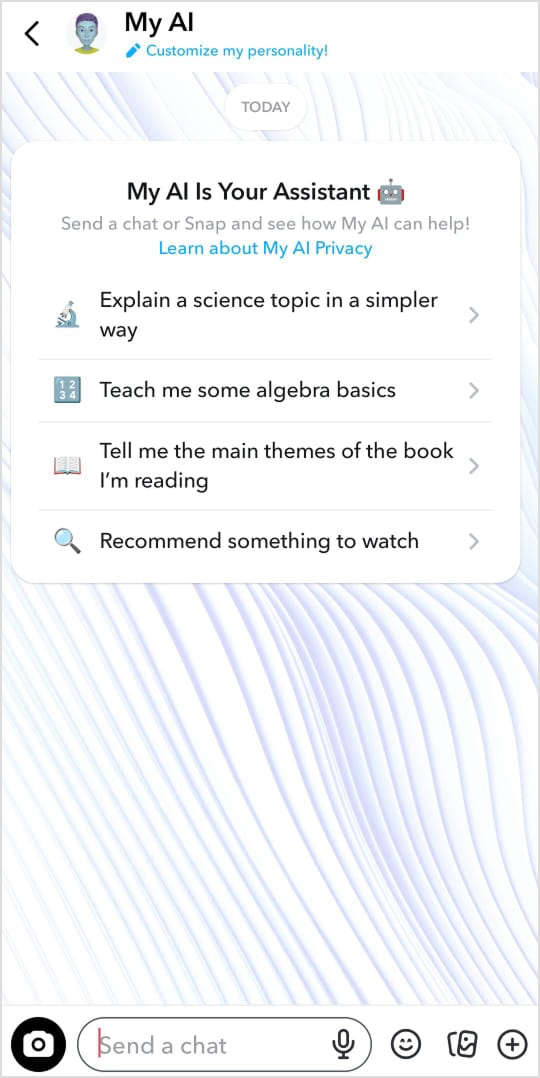
The core capabilities of My AI on Snapchat are:
Snapchat openly acknowledges that My AI isn’t perfect. The chatbot can generate inaccurate, misleading, or biased responses, so you shouldn’t rely on it for critical decisions or medical, legal, or financial advice.
Privacy is another consideration because Snapchat retains all content you share with My AI until you manually delete it. The company also advises against sharing confidential or sensitive personal information with the bot.
When My AI first launched, it appeared as a pinned conversation at the top of every user’s chat list, which frustrated many people who didn’t want an AI companion they never requested. This persistent presence, combined with privacy concerns about the bot potentially viewing your Stories, has led to widespread searches for removal methods.
Also read: How to make a public profile on Snapchat?
Understanding why My AI seems impossible to remove requires looking at several technical and subscription-based factors that Snapchat has built into the feature.
The most significant barrier is that the official removal of My AI is locked behind Snapchat’s premium subscription service. Free users don’t have access to the delete option in their settings, making the chatbot a permanent fixture unless you upgrade or use alternative methods.
This paywall approach has generated considerable frustration among users who view it as forcing unwanted features.
My AI used to be automatically pinned to the top of your chat list, which means standard chat management options don’t apply. Though now the My AI chat drifts down your feed, recent interactions with the bot can also keep it active and visible, making it feel even more intrusive.
Sometimes, technical issues prevent removal even when you follow the correct steps. App bugs, outdated software versions, or server-side problems can interfere with the deletion process. If you’ve attempted removal multiple times without success, the issue might be technical rather than intentional.
Snapchat simply doesn’t provide an obvious “delete” or “remove” button within the standard settings menu for free users. This design choice has led many to believe removal is completely impossible without subscribing, though workarounds do exist.
Now, let’s discuss how to get rid of My AI on Snapchat.
This method works for all users, regardless of subscription status, and takes advantage of Snapchat’s account reporting and blocking features.
Open Snapchat and navigate to the Chat screen by swiping right from the camera view. Find My AI or search for it in your conversations list.
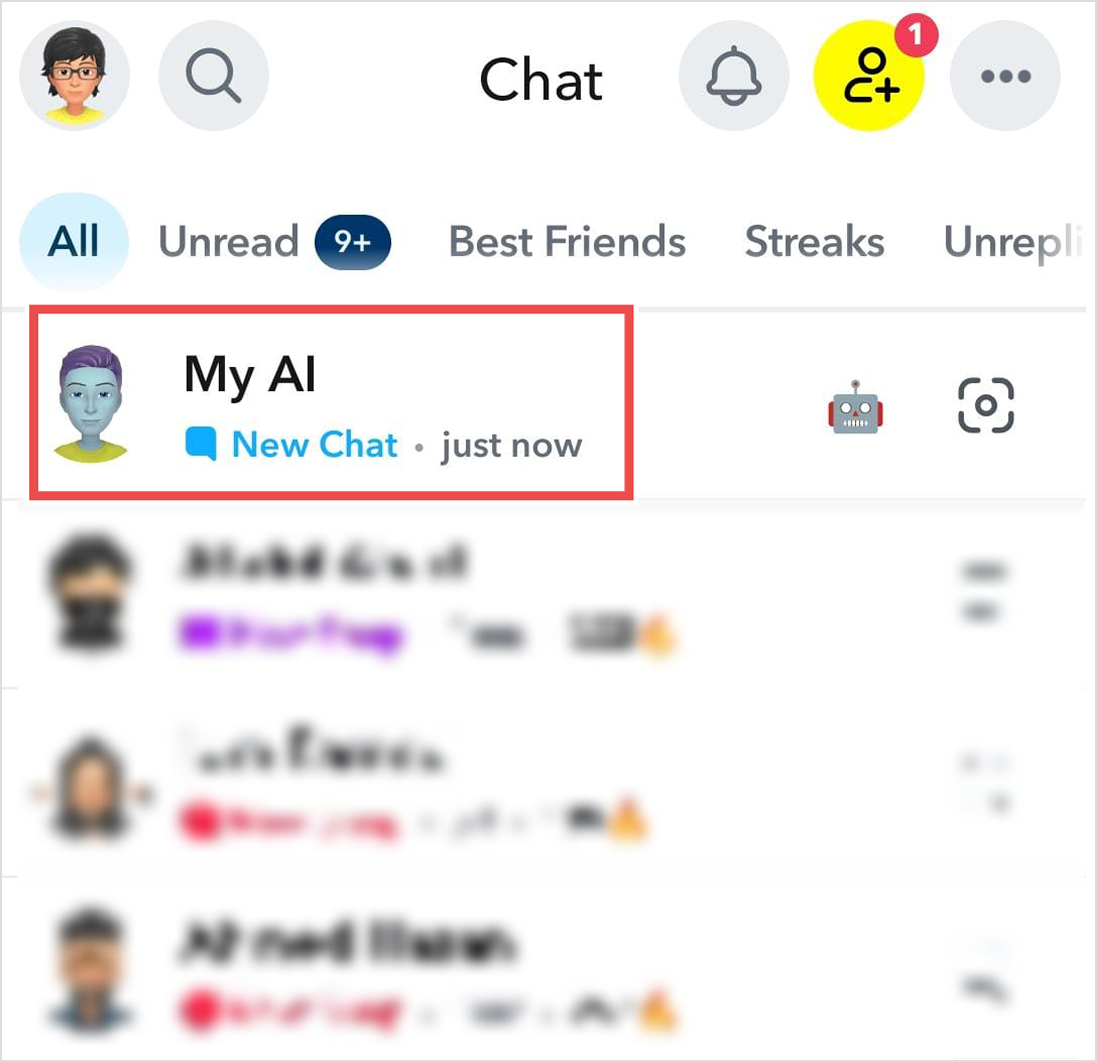
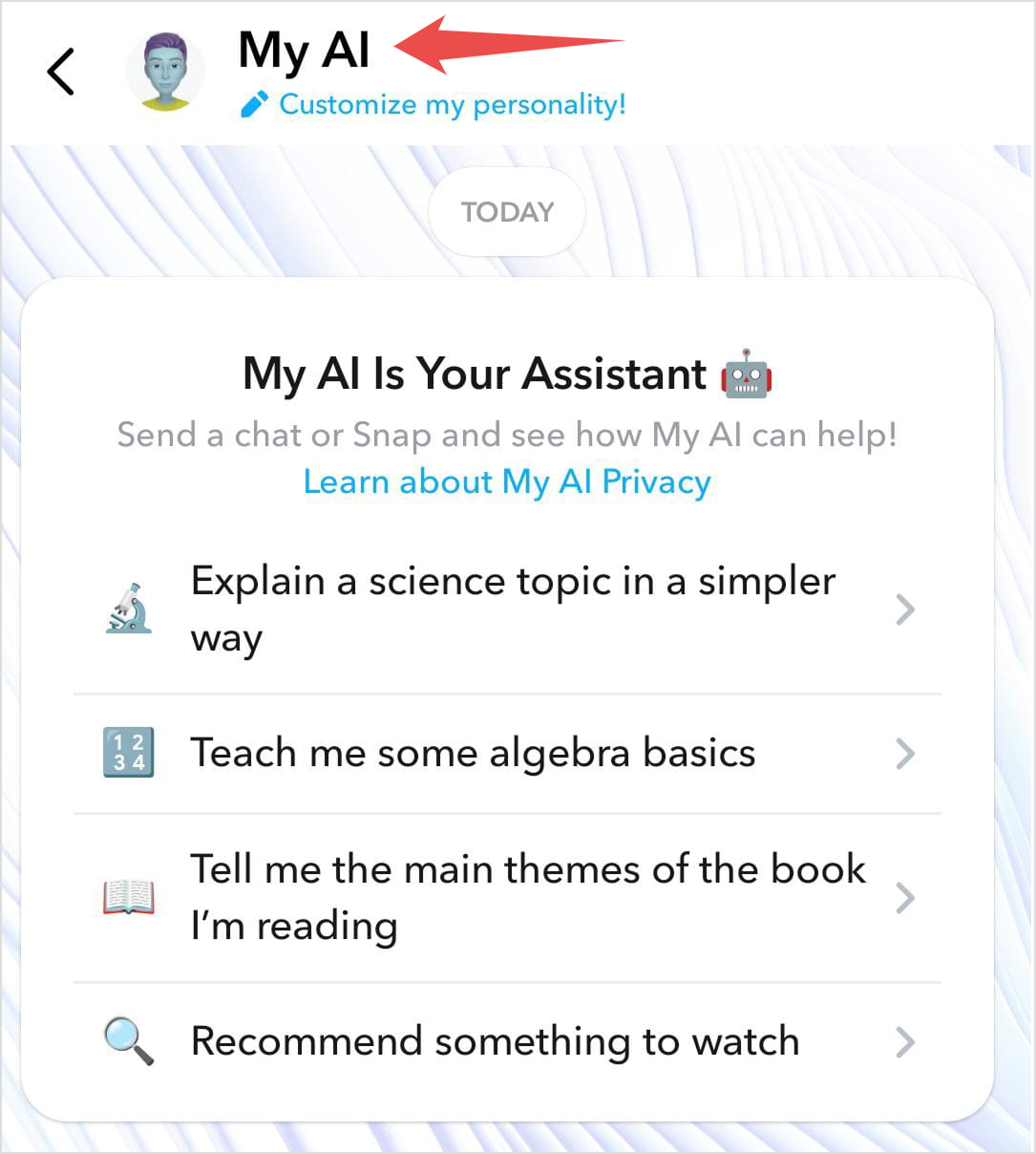
Tap on the My AI chat to open the conversation. Once inside, tap on the My AI name or icon at the top of the screen to access the profile page.
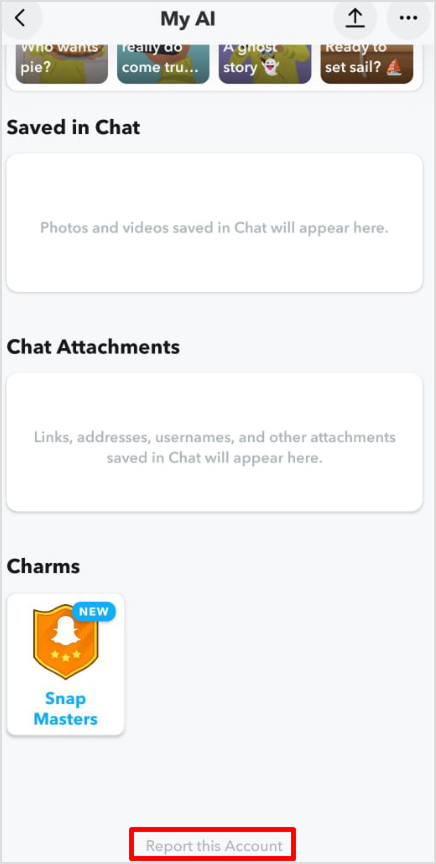
Scroll down through My AI’s profile until you locate “Report this Account.” This option appears in light gray text, making it somewhat difficult to spot against the background, so look carefully.
Tap “Report this Account,” and you’ll be presented with several reporting options. Choose any reason from the list, as the specific reason doesn’t particularly matter for this purpose when you’re using the reporting flow to access the blocking feature.
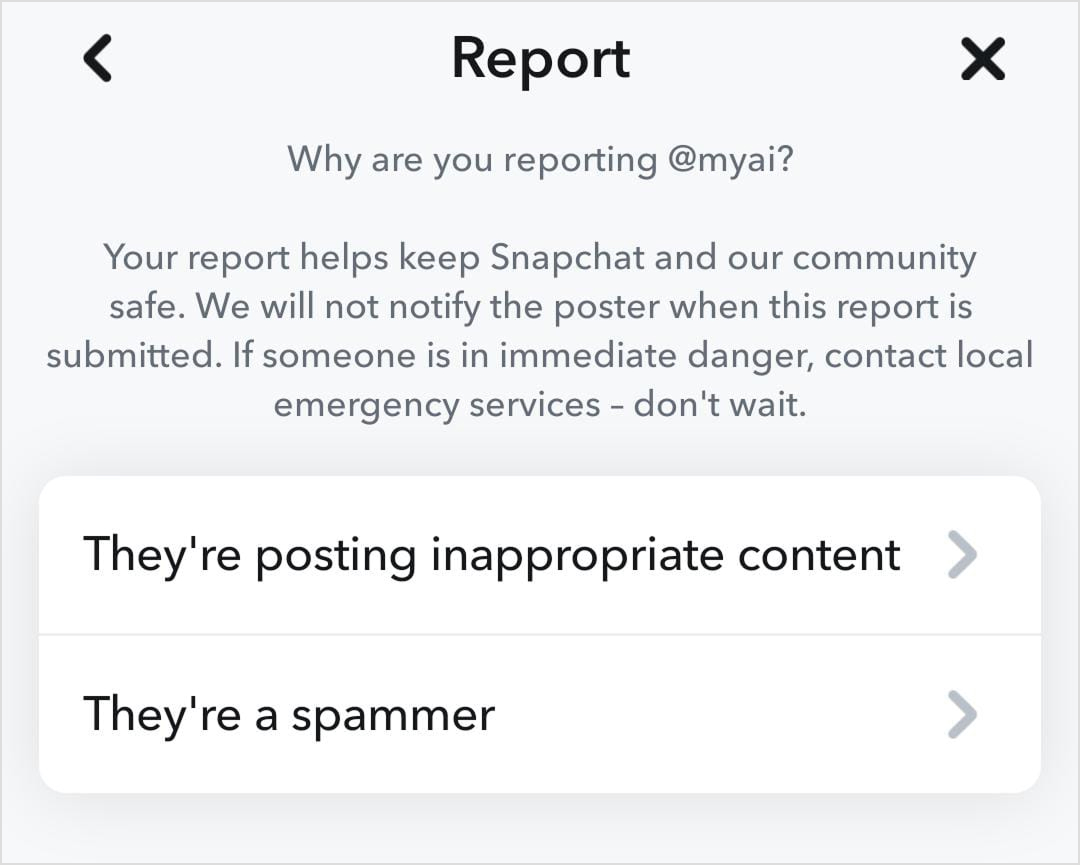
After selecting a report reason, Snapchat will present you with the option to block the account. Tap “Submit” to confirm the submission of your report. Once blocked, My AI will immediately disappear from your chat list.
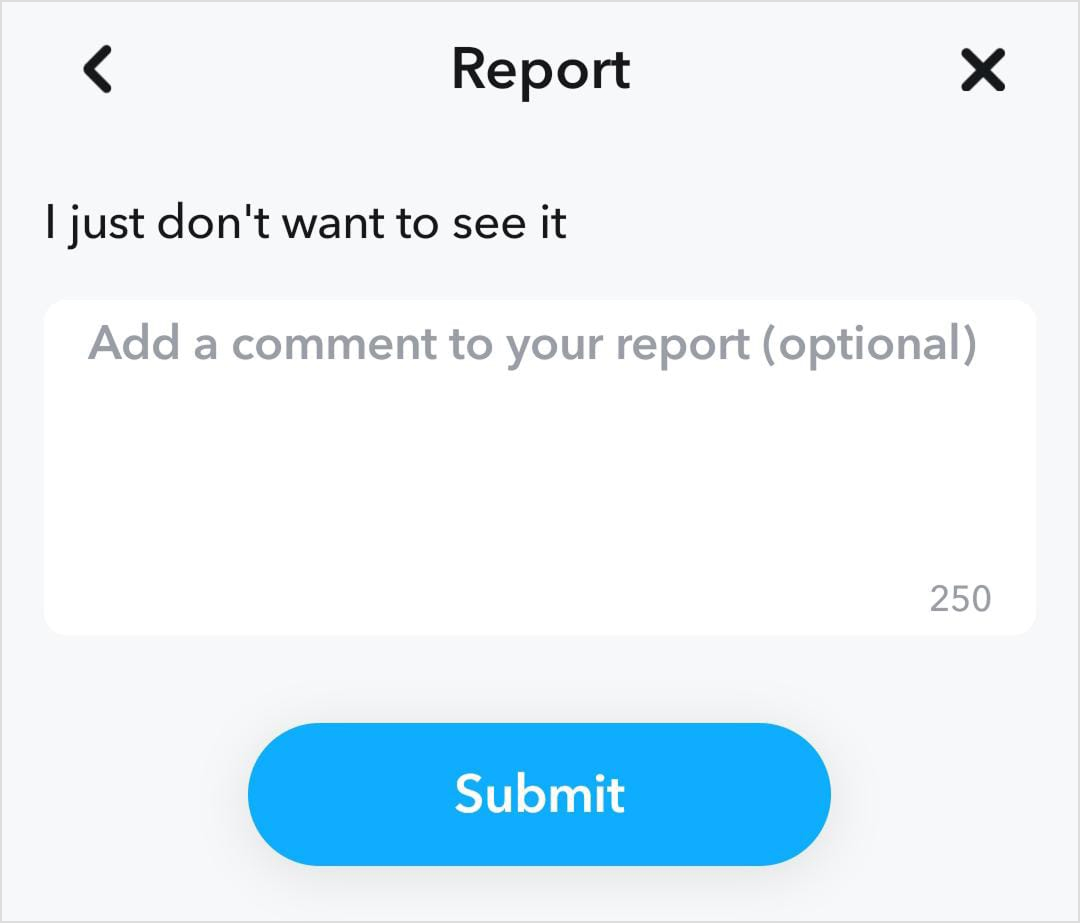
This workaround effectively removes My AI from your visible chat feed on any device, whether you’re using Snapchat on Android or iPhone. The beauty of this method is that it uses standard account management features available to all users, not just premium subscribers.
Important note: While this method successfully removes My AI from your chat list, Snapchat could potentially patch this workaround in future updates. However, as of now, it remains the most effective free solution.
Also read: How to unblock someone on Snapchat?
Many users don’t realize that My AI has default access to view your Snapchat Stories, which raises legitimate privacy concerns about an AI bot monitoring your shared content.
While Snapchat hasn’t explicitly confirmed that My AI actively “watches” your Stories, the presence of a privacy toggle strongly suggests the chatbot can access this content.
According to Snapchat’s own documentation, content shared with My AI, including your location if you’ve enabled location services, is used to provide relevant and personalized responses, including nearby recommendations.
Step 1: Open Snapchat and swipe right to access your Chats screen, where conversations are displayed.
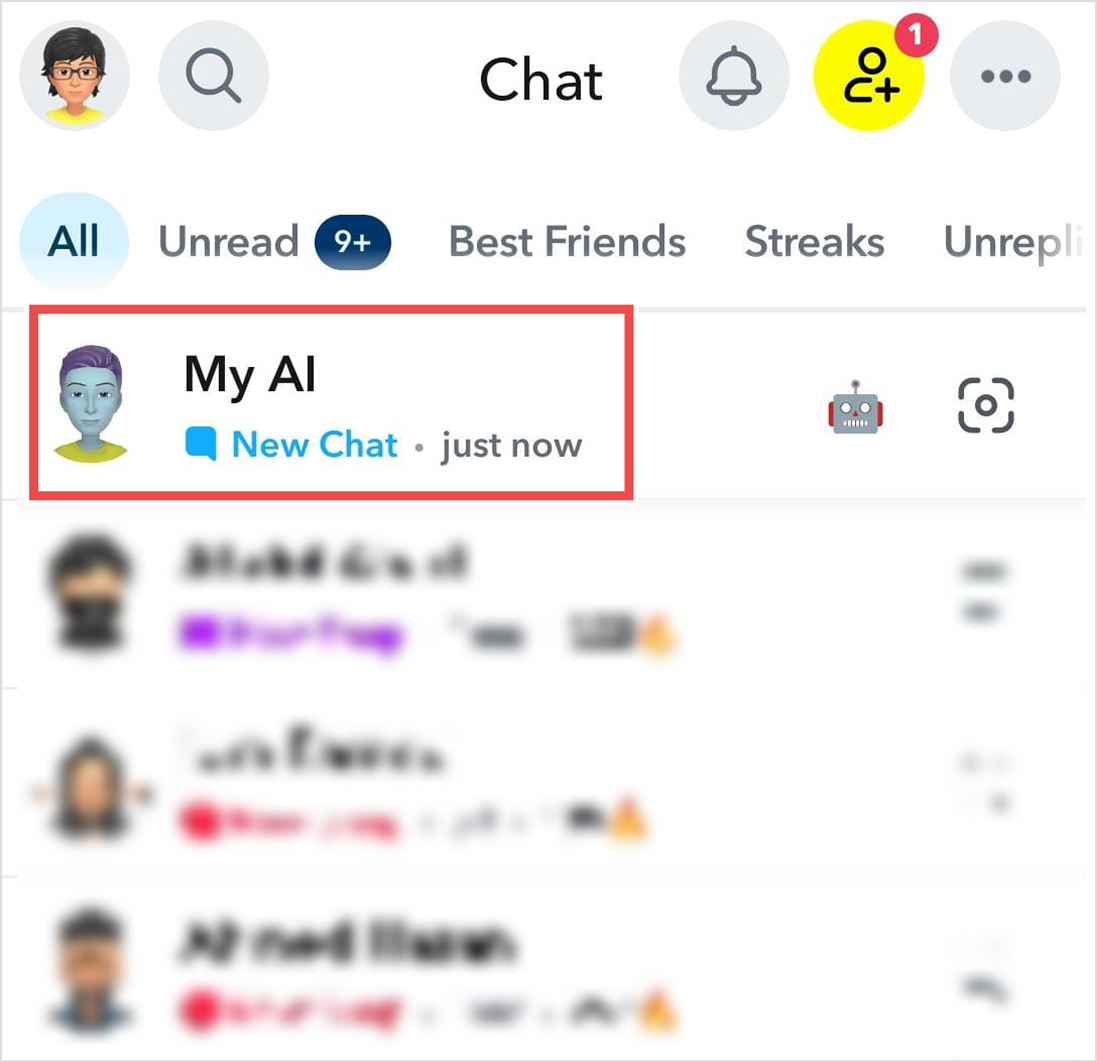
Step 2: Long-press (tap and hold) on the My AI banner at the top of your chat list. A menu will appear with several options.
Step 3: From the menu that appears, select “Privacy Settings” to access the specific controls for My AI’s data access.
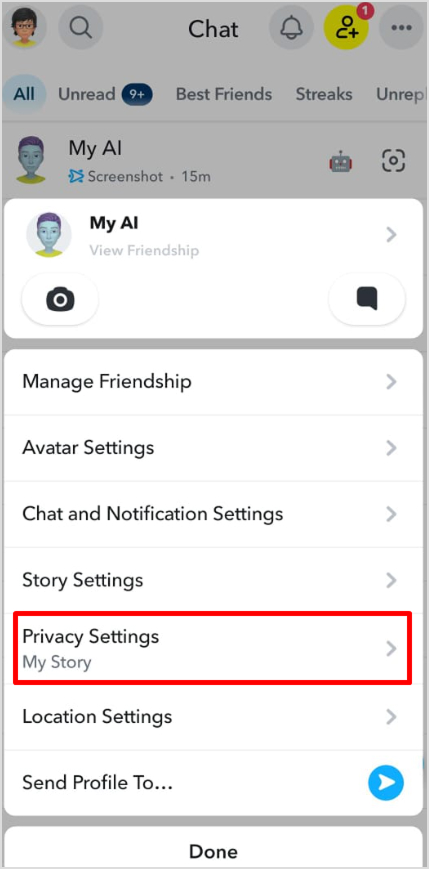
Step 4: In the Privacy Settings menu, you’ll find a toggle labeled “My Story.” This controls whether My AI can view the Stories you post. Toggle this option to the off position.
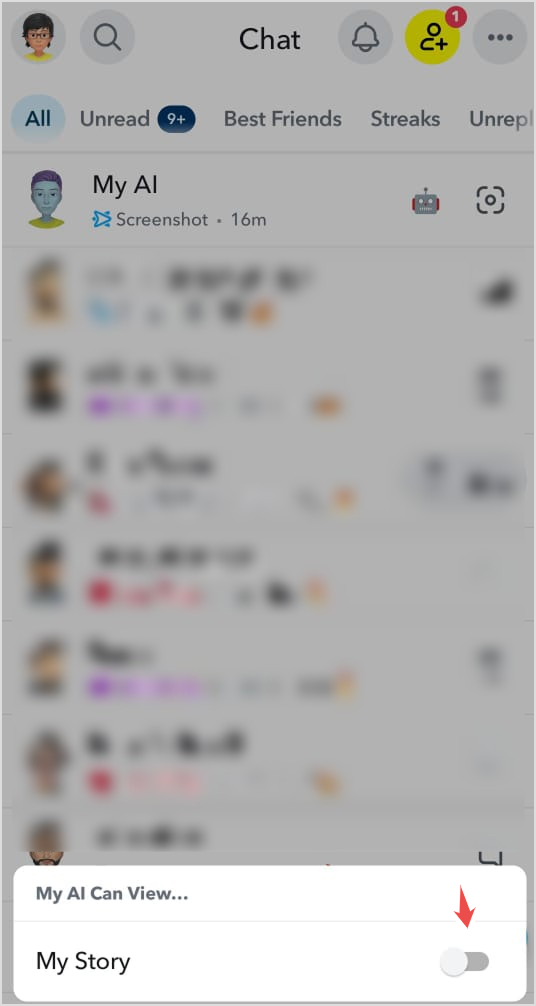
Once disabled, My AI will no longer have access to view your Snapchat Stories, providing an additional layer of privacy even if the chatbot remains in your chat list. This is a crucial step for anyone concerned about what information the AI is collecting and using to personalize responses.
Note: My AI chat is no longer pinned automatically for most users, but if you still have this issue and want to unpin it, here’s how!
If you don’t want to completely remove My AI but simply prefer it not to dominate the top of your chat list, unpinning is a middle-ground solution.
Step 1: Launch Snapchat and swipe right to access your conversations on the Chat screen. Tap on the My AI chat to open the conversation thread.
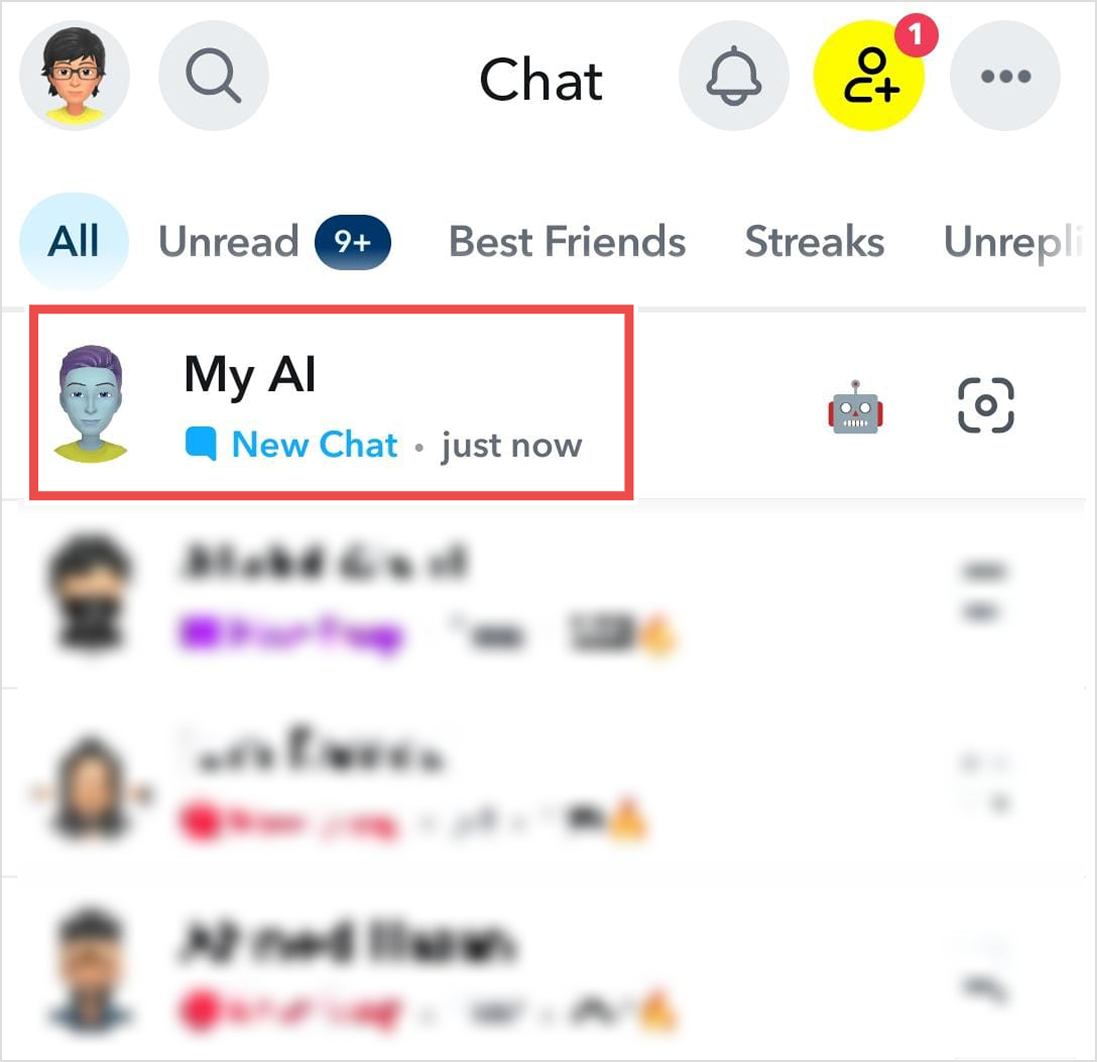
Step 2: Tap and hold the My AI chat option to access further options. Open Chat and Notification Settings.
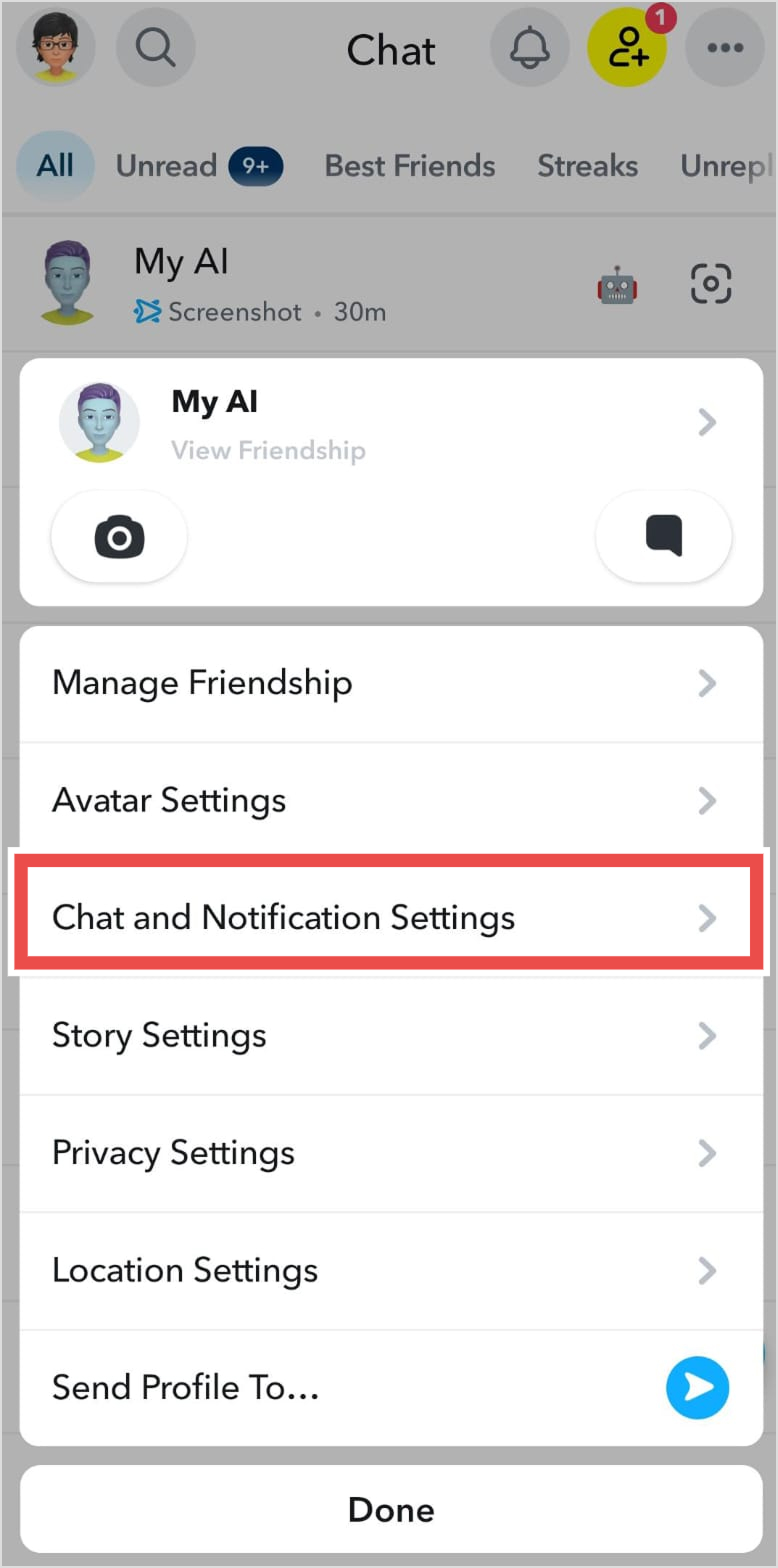
Step 3: From the menu that appears, select “Unpin Conversation.” This will remove My AI’s permanent position at the top of your conversations.
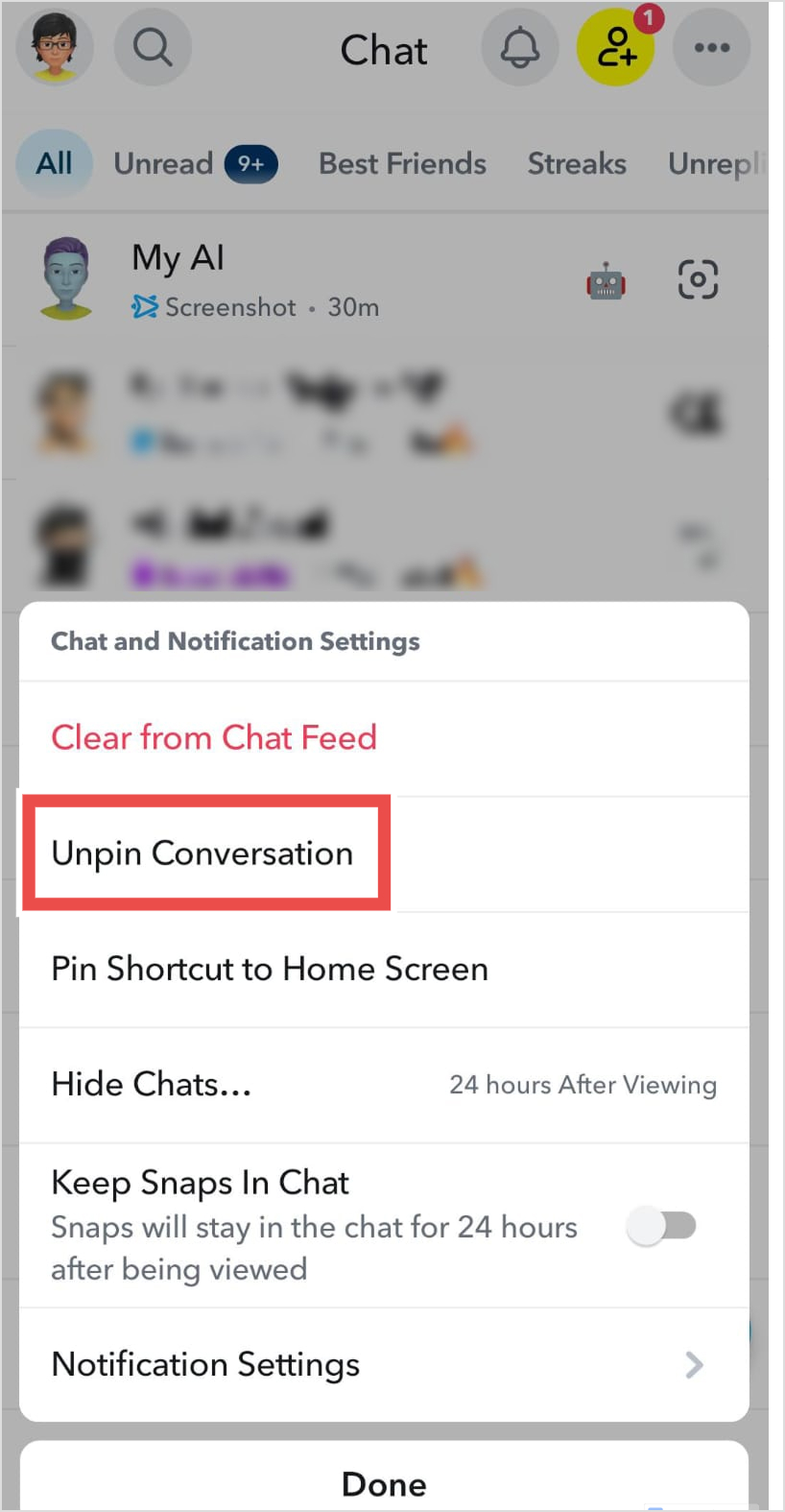
After unpinning, My AI will behave like any other chat on Snapchat, moving up or down your chat list based on when you last interacted with it. If you don’t engage with My AI, it will gradually drift down your chat feed as you have conversations with actual friends.
This solution is ideal if you occasionally find My AI useful but don’t want it permanently occupying premium real estate in your chat interface. You can always re-pin it later if you change your mind.
Also read: The ultimate guide to Snapchat marketing for brands
Note: The official option of deleting My AI and clearing it from the chat feed was available only to Snapchat Plus subscribers. However, now the option is available to all users, so you can easily remove My AI from your Snapchat with or without the Plus subscription.
This approach of deleting My AI from Snapchat is more straightforward than reporting workarounds:
Step 1: Launch Snapchat on your device and ensure you’re logged into your account.
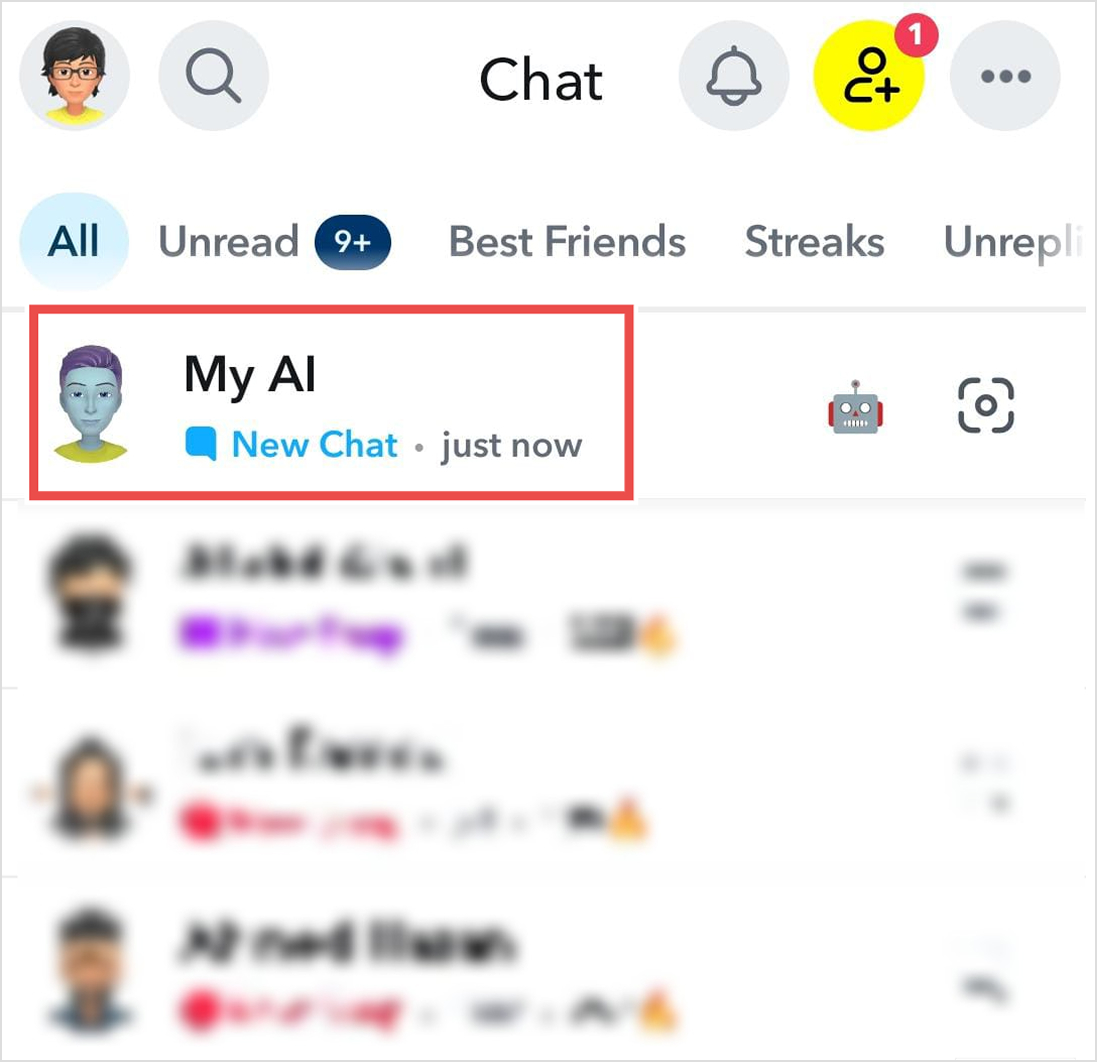
Step 2: Tap and hold the My AI chat window to access further options. Open Chat and Notification Settings.
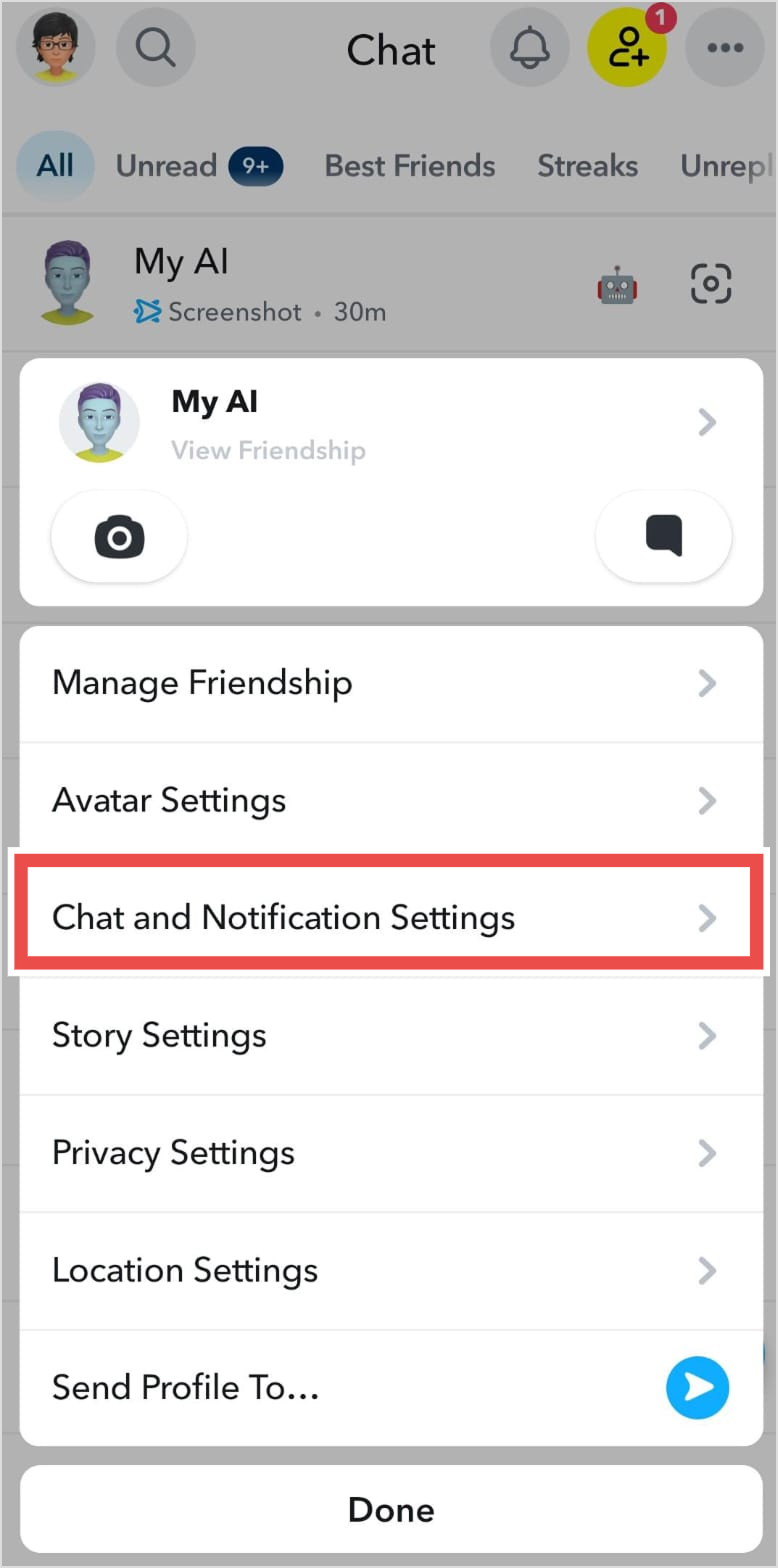
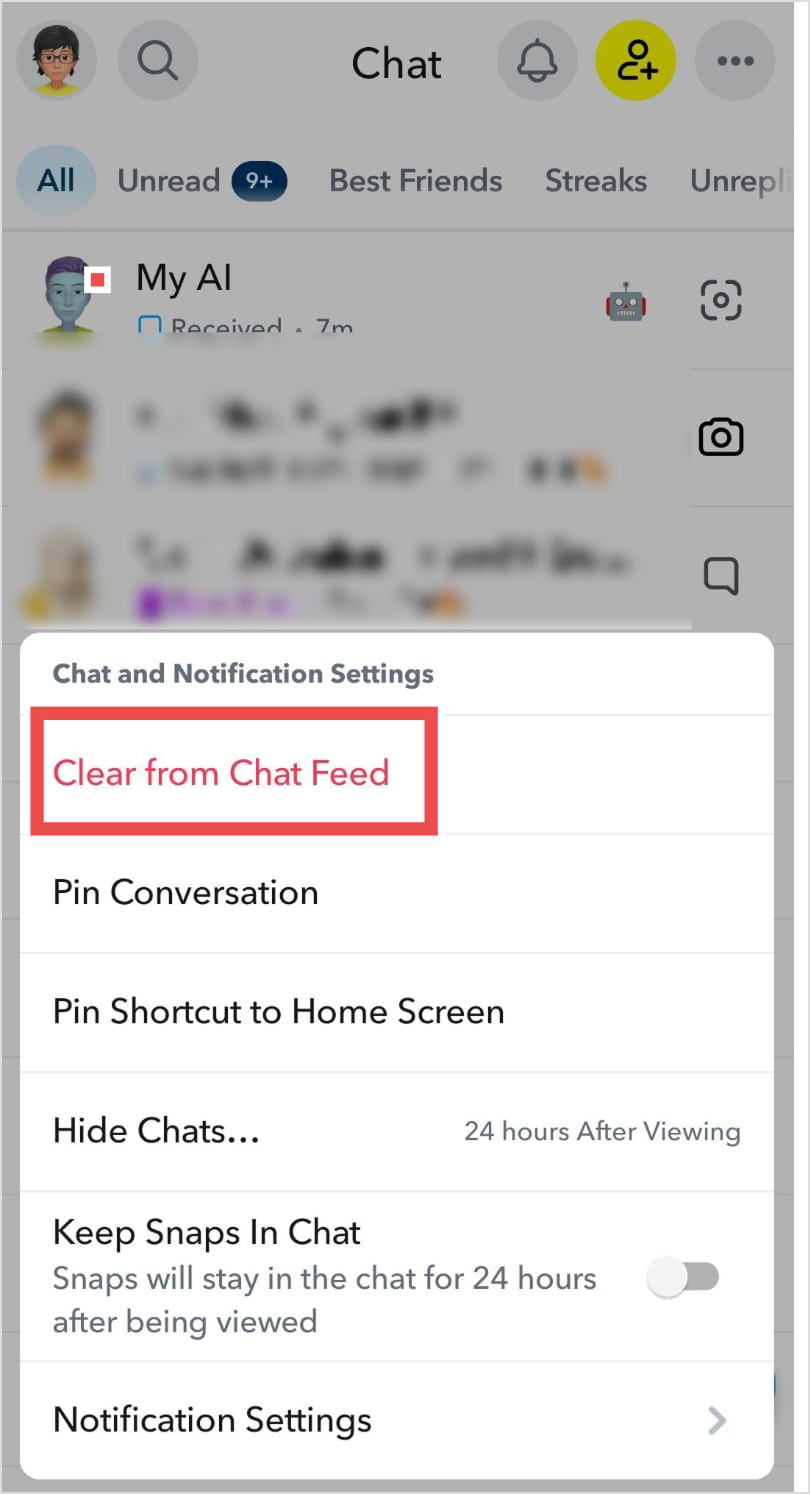
Step 3: Choose the Clear from Chat Feed option.
Step 4: A pop-up will appear asking to confirm your decision to clear the conversation. Tap “Clear” to proceed with removing My AI from your account.
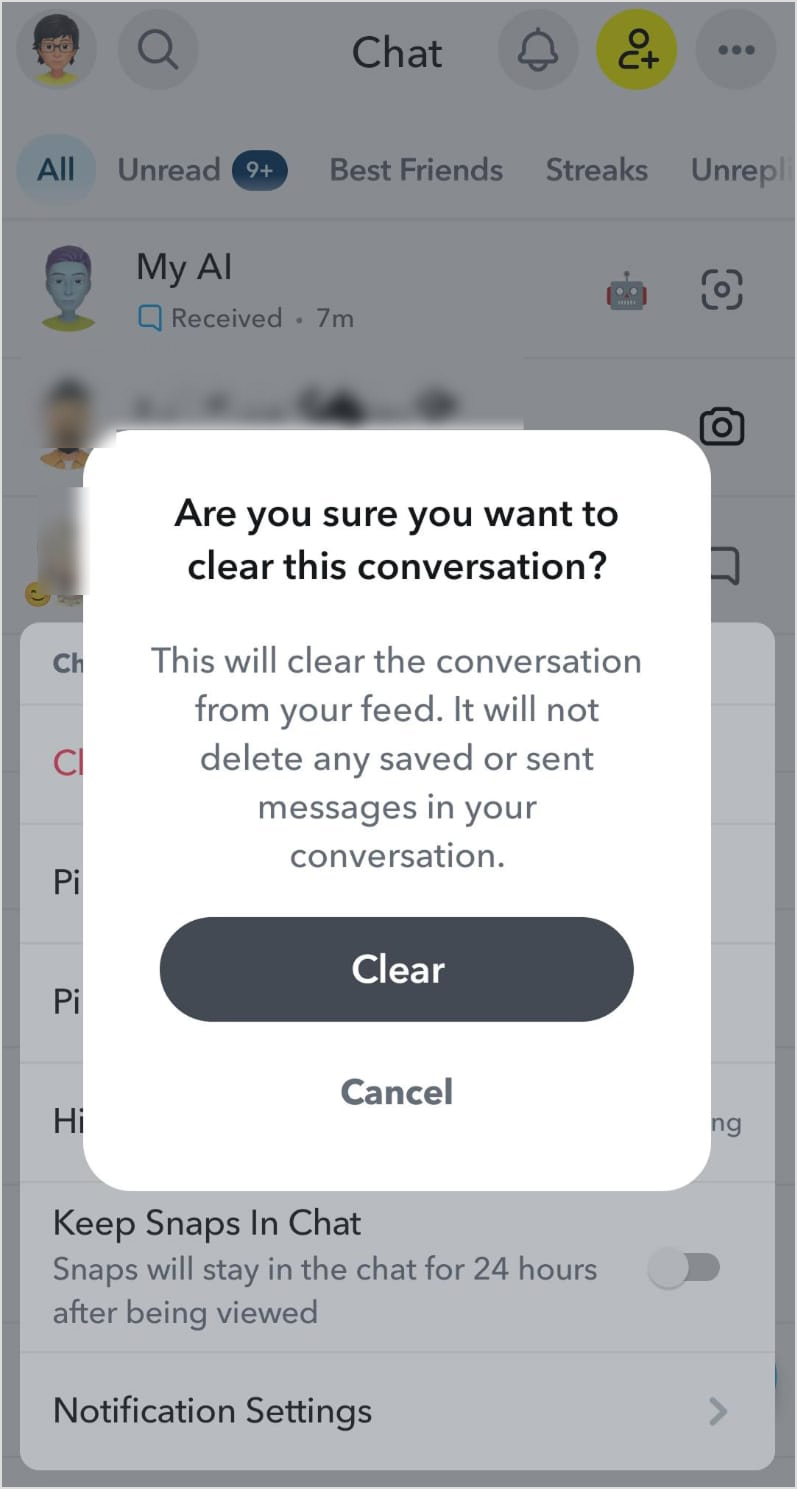
Once completed, My AI will be removed from your chat list entirely. You can enable it again by searching for My AI in your chat.
But remember that the above steps only remove the My AI chat and not the data you’ve shared with Snapchat. To do that, you should follow the steps discussed in the next section.
Beyond removing My AI from your visible chat list, you might want to delete the conversation history and data you’ve shared with the chatbot to protect your privacy.
For content shared within the past day, you can delete individual messages:
Step 1: Open your chat with My AI
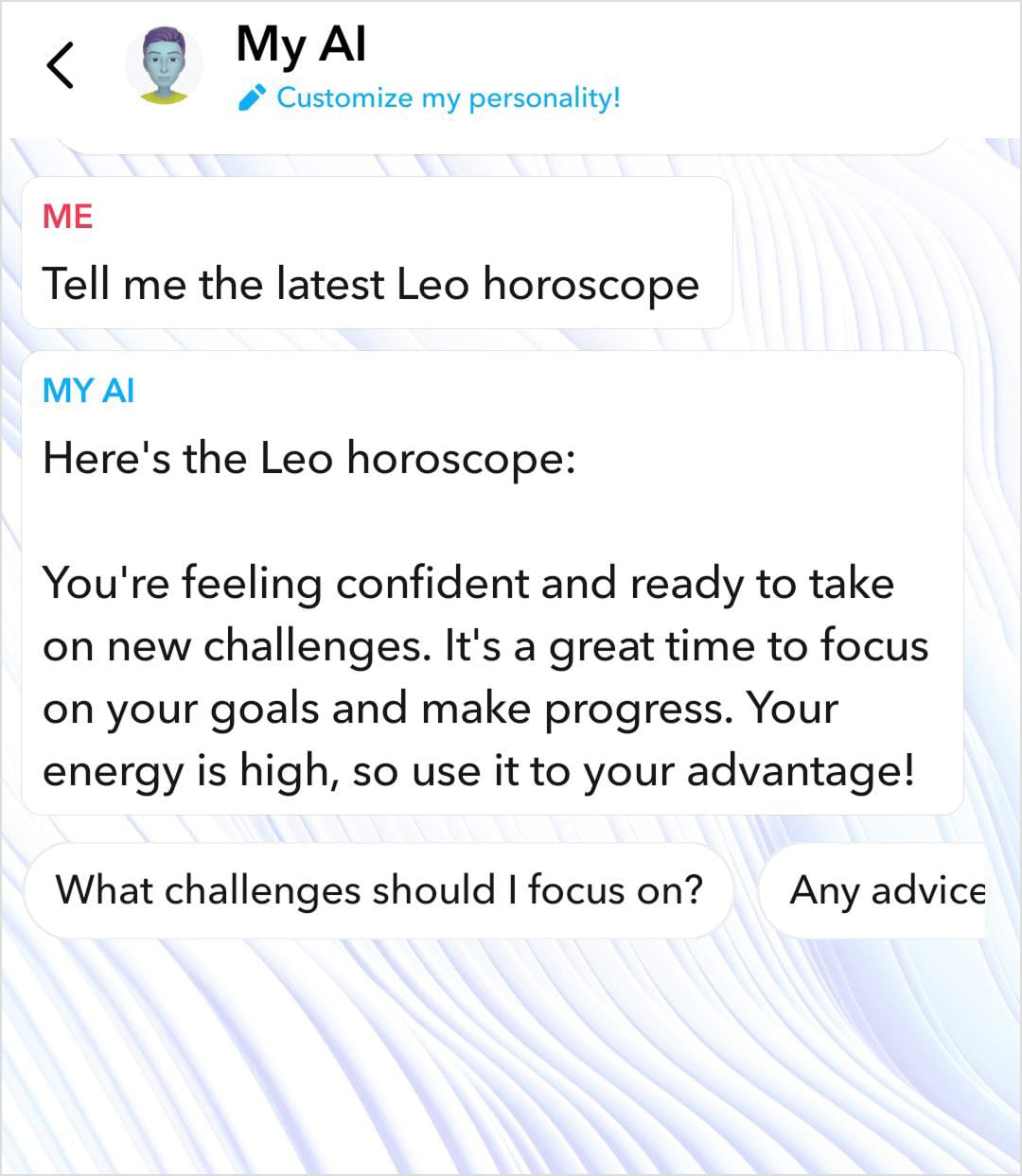
Step 2: Long-press on the specific message you want to remove
Step 3: Tap “Delete” from the options that appear
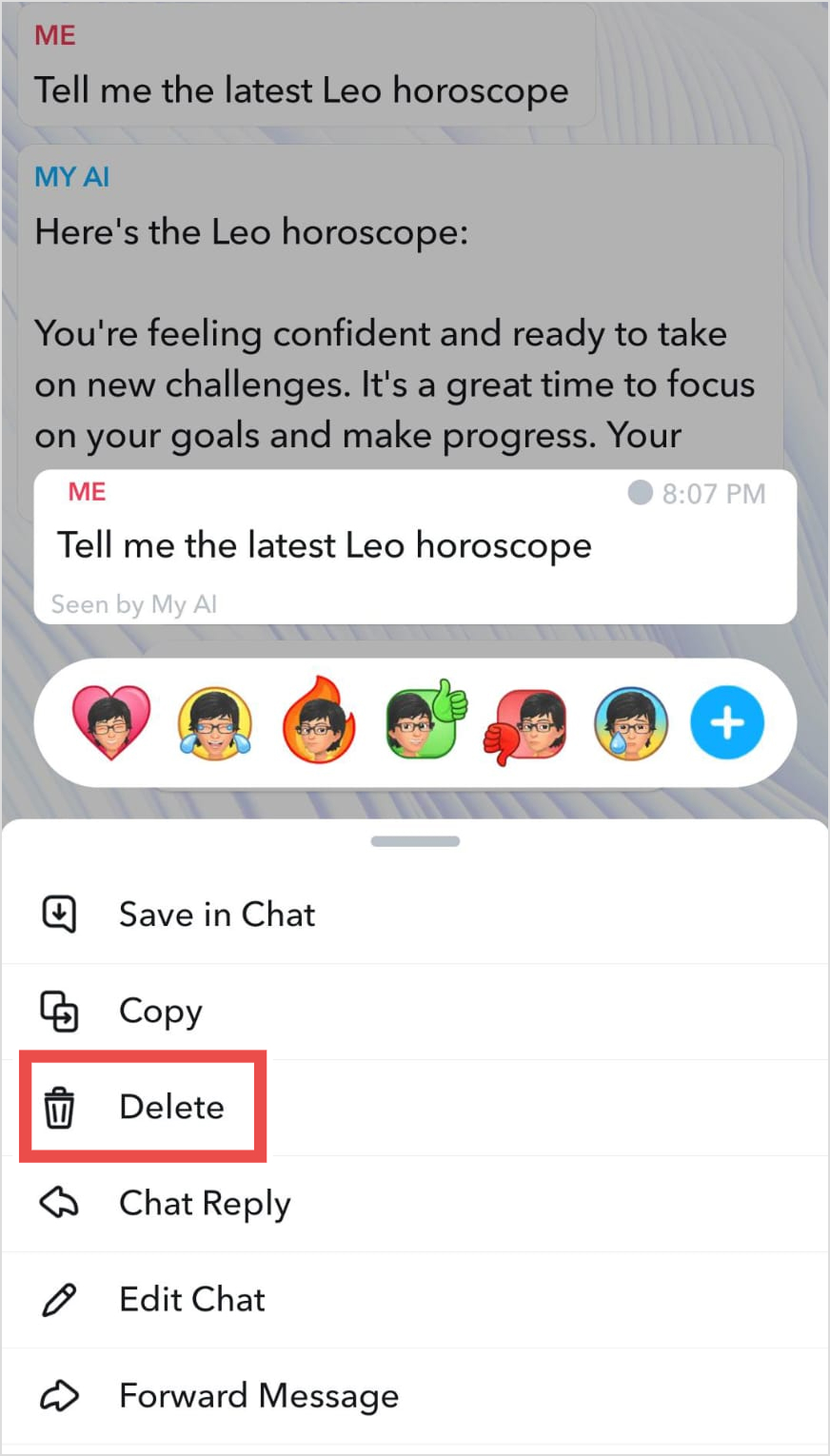
This removes your message from the conversation thread.
To completely erase your entire conversation history and data shared with My AI, you need to follow these steps:
Step 1: Tap your Profile icon and select the gear icon (⚙️) to access Settings
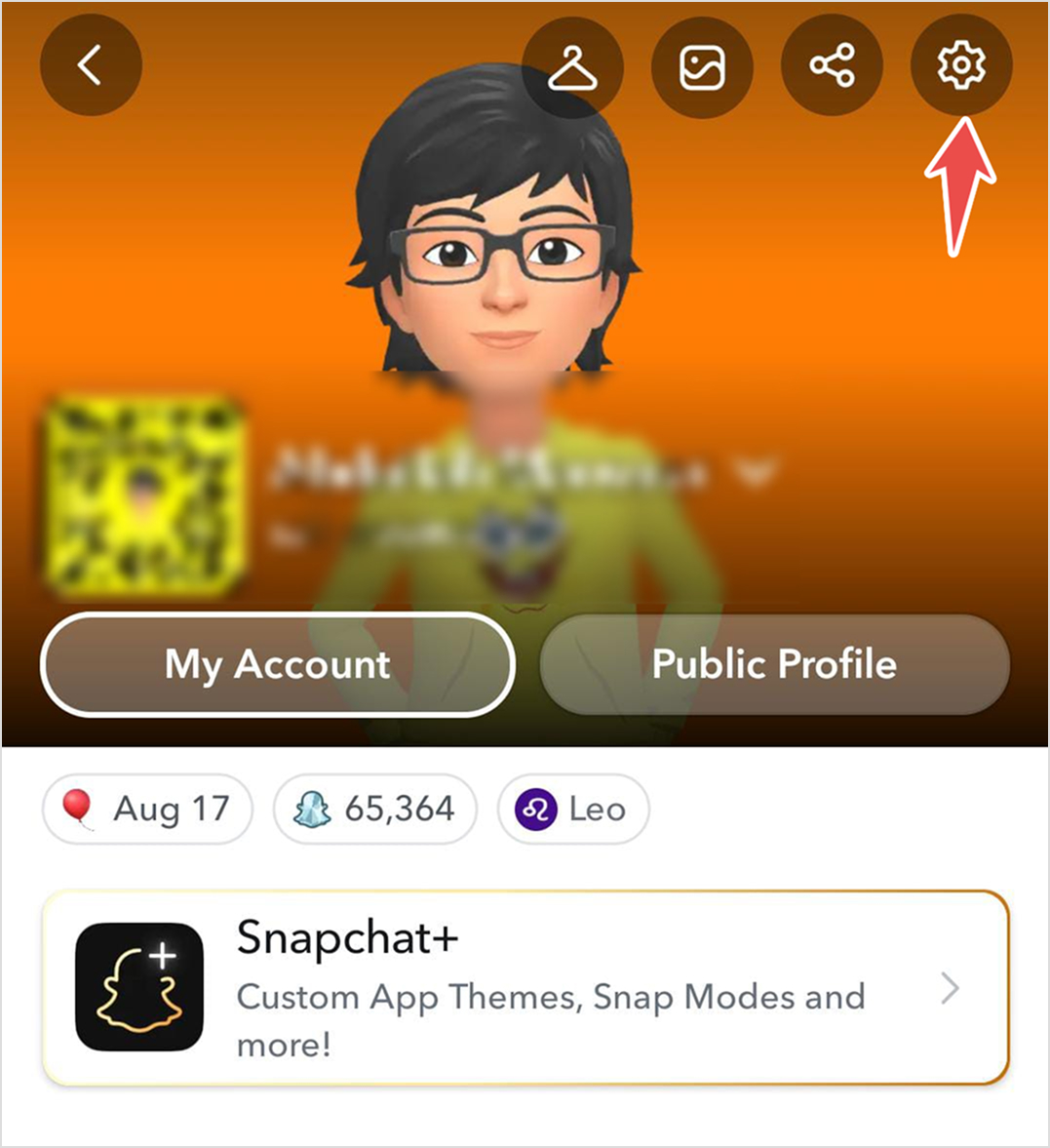
Step 2: Scroll down to “Account Actions”
Step 3: Tap “Delete My AI Data” and confirm the deletion
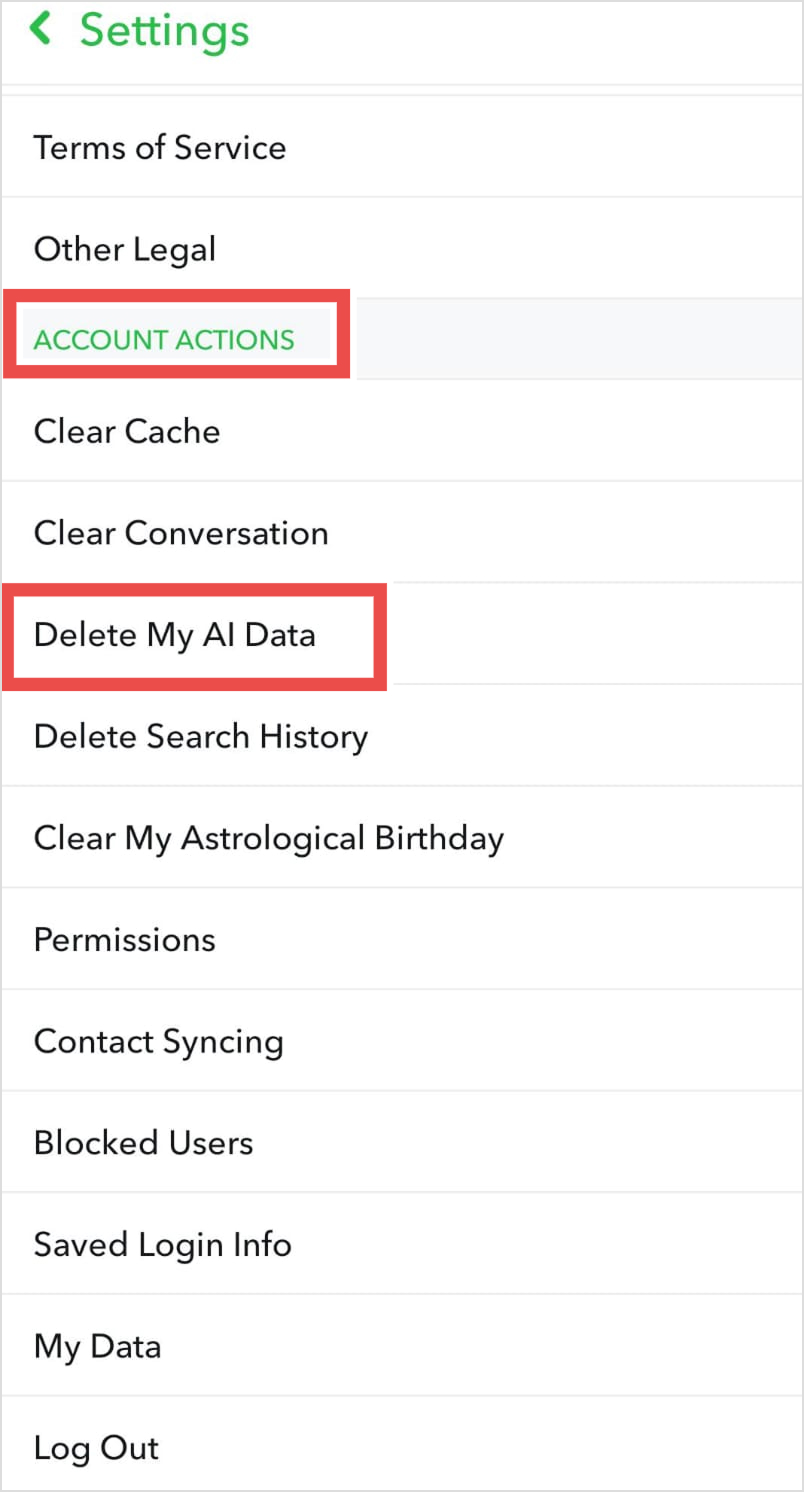
After confirming deletion, Snapchat states that it can take up to 30 days for the relevant My AI data to be fully removed from their servers. This delay is common with social media platforms and relates to backup systems, distributed server architecture, and data processing workflows. During this period, your data is marked for deletion but may not be immediately purged from all systems.
This data deletion process is separate from removing My AI from your chat list. You can delete your conversation history even if you keep My AI visible in your chats, and conversely, you can remove or block My AI without deleting your past conversations (though doing both provides the most comprehensive privacy protection).
Related Read: How to turn off Meta AI on Facebook, Instagram, WhatsApp, & Messenger?
Getting rid of My AI on Snapchat is entirely possible, regardless of whether you have a premium subscription. While Snapchat Plus subscribers enjoy the straightforward official removal method through account settings, free users can effectively achieve the same result by using the block feature through the reporting system. Both approaches successfully remove this persistent chatbot from your chat list and restore control over your Snapchat experience.
Remember that Snapchat’s features and policies evolve constantly, so if one method stops working, alternative approaches may still be effective. The key is understanding that you’re not stuck with unwanted features, as you have options and control over your social media experience.
Plan 0 Days of Content in 0 Minutes
Create, schedule, publish and analyze your content across all your social media channels from one simple dashboard.
4.7 on Capterra • 16,500+ marketers trust ContentStudio
Nawal Mansoor is a Digital Marketing Specialist at ContentStudio who tracks the latest trends and technologies. She writes on social media strategy, AI scheduling and video tools, Instagram advertising, LinkedIn marketing, and emerging platforms like Snapchat, and reviews articles for relevance, accuracy, and currency in a fast-moving social media landscape.
View all posts by Nawal MansoorRecommended for you
How to promote affiliate links on social media in 2026

Multi-location social media management workflow guide

Best SaaS affiliate programs for social media marketers in 2026

19 best social media management tools to plan, schedule, and grow in 2026