Instagram Quiet Mode

The constant stream of social media messages and notifications can become overwhelming, right?
So, whether you're trying to focus on work, spending time with loved ones, or simply need a mental break, Instagram's Quiet Mode offers a solution to help you regain control of your digital life.
Instagram Quiet Mode is a wellness feature designed to help users take intentional breaks from the platform by pausing notifications and letting others know you're not currently active.
It's part of Instagram's broader effort to promote healthier social media habits and give users more control over their digital experience.
What is quiet mode on Instagram?
Quiet Mode on Instagram is a feature that temporarily pauses notifications and updates your activity status to let others know you're taking a break.
When enabled, the feature silences all Instagram notifications for a customizable period and automatically sends replies to people who message you, informing them that you're not currently active on the platform.
This feature serves as a digital boundary-setting tool, allowing you to:
- Temporarily pause notifications from the app
- Display an "In Quiet Mode" status to other users
- Automatically reply to direct messages explaining your unavailability
- Receive a summary of missed notifications once you return
Introduced as part of Instagram's focus on digital wellbeing, Quiet Mode helps users take intentional breaks from constant connectivity while maintaining transparency with followers and friends about their availability.
How does quiet mode on Instagram work?
When you activate Quiet Mode on Instagram, several changes take place to help you disconnect temporarily:
1. Activity status changes
Your activity status will change to "In Quiet Mode," which is visible to anyone who attempts to send you a direct message. This status indicator clearly communicates to others that you're taking time away from the platform.
2. Notification pausing
All Instagram notifications are paused during your set Quiet Mode period. This includes likes, comments, direct messages, and any other Instagram alerts that would normally appear on your device. The app essentially goes silent, helping you focus on other activities without digital distractions.
3. Automatic responses
One of the most helpful aspects of Quiet Mode is the automatic response system.
When someone sends you a direct message while you're in Quiet Mode, they'll receive an automatic reply explaining that you won't be notified until you turn the feature off. This helps manage expectations and lets people know why you might not be responding immediately.
4. Notification summary
Instagram doesn't want you to miss important interactions, so when you exit Quiet Mode, you'll receive a convenient summary of all the notifications you missed while the feature was active. This allows you to catch up quickly without feeling overwhelmed by individual alerts.
Benefits of using quiet mode on Instagram
Implementing Quiet Mode as part of your social media routine offers numerous advantages that can positively impact both your digital habits and overall wellbeing:
Improved focus and productivity
By silencing Instagram notifications, Quiet Mode helps eliminate one of the most common sources of digital distraction.
Whether you're studying, working on an important project, or simply trying to be more present in your daily activities, this feature creates the mental space needed to concentrate fully on the task at hand.
Better sleep quality
Using Quiet Mode during your bedtime hours can significantly improve your sleep quality.
Research consistently shows that exposure to screens and social media before bed can disrupt sleep patterns and reduce sleep quality. By scheduling Quiet Mode to activate before bedtime, you create a digital boundary that helps your mind wind down naturally.
Reduced social media anxiety
For many users, the constant pressure to respond immediately to messages and engage with content can create significant anxiety.
Quiet Mode helps alleviate this pressure by setting clear expectations with your followers about your availability, giving you permission to disconnect without worry about missing important interactions.
Healthier relationship with technology
Regular breaks from social media are essential for developing a balanced relationship with technology.
Quiet Mode makes these breaks more intentional and manageable, helping you create healthier digital habits without needing to delete the app entirely or take extended breaks that might affect your online presence.
Transparency with connections
Unlike simply turning off your phone or ignoring messages, Quiet Mode communicates your status to others, maintaining transparency in your relationships.
This clear communication can actually strengthen connections by setting healthy boundaries while still acknowledging the importance of staying in touch.
How to turn on quiet mode on Instagram?
Activating Quiet Mode on Instagram is straightforward. Follow these simple steps to start enjoying distraction-free time:
- Open the Instagram app on your device
- Navigate to your profile by tapping your profile picture in the bottom-right corner
- Tap the hamburger menu (three horizontal lines) in the top-right corner
- Select "Settings" and tap "Notifications"
- Choose "Quiet Mode" and toggle the switch to enable it
- Customize your Quiet Mode schedule by setting start and end times
- Select which days of the week you want Quiet Mode to be active and save your settings
Once activated, Instagram will display your Quiet Mode status and handle notifications according to your preferences. The platform will notify you approximately 10 minutes before Quiet Mode activates, giving you time to wrap up any ongoing conversations.
Customizing your quiet mode schedule
One of the most valuable aspects of Instagram's Quiet Mode is its flexibility. You can customize when the feature activates to align with your specific needs and routine:
Setting custom hours
While Instagram defaults to an 11 PM to 7 AM schedule for Quiet Mode, you can adjust these times to better match your lifestyle. For instance:
- Students might activate Quiet Mode during class hours and study periods
- Working professionals could schedule it during important meetings or focused work blocks
- Content creators might set Quiet Mode during content planning and creation sessions
- Parents might enable it during family dinner time or children's activities
To customize your hours, simply adjust the start and end times when setting up Quiet Mode in your notification settings.
Selecting specific days
Instagram's Quiet Mode can be configured to activate only on certain days of the week.
This flexibility allows you to maintain different digital boundaries for workdays versus weekends, or to accommodate varying schedules throughout the week.
For example, you might enable Quiet Mode:
- Only on weekdays during work hours
- Exclusively on weekends to enjoy quality time with family and friends
- On specific days when you have recurring commitments that require focus
Creating multiple schedules
While Instagram currently limits users to one Quiet Mode schedule, you can modify your settings as needed to accommodate changing routines. Some users find it helpful to update their Quiet Mode schedule weekly based on their upcoming calendar commitments.
How to turn off quiet mode on Instagram?
Deactivating Quiet Mode is as simple as turning it on. You can either wait for your scheduled Quiet Mode period to end automatically or disable it manually at any time:
Turning off Instagram quiet mode manually
- Open the Instagram app and go to your profile
- Tap the hamburger menu (three horizontal lines)
- Select "Settings" and tap "Notifications"
- Choose "Quiet Mode" and toggle the switch to disable Quiet Mode
Instagram will immediately resume sending notifications, and your activity status will return to normal. You'll receive a summary of the notifications you missed while Quiet Mode was active.
Temporarily overriding quiet mode
If you need to check Instagram during a scheduled Quiet Mode period without completely disabling the feature, you can simply open the app and use it normally.
While notifications won't appear on your device during this time, you can still access all content and features by manually opening the application.
Remember that your activity status will continue to show "In Quiet Mode" to others until the feature is fully disabled or the scheduled period ends.
Who can use quiet mode on Instagram?
Instagram's Quiet Mode is broadly available to users across different regions and age groups, though there are some variations in how the feature is implemented and promoted:
Availability for teens and young adults
Instagram has placed special emphasis on promoting Quiet Mode to teenage users. The platform actively encourages teens to enable Quiet Mode if they spend significant time on Instagram late at night.
This proactive approach reflects Instagram's commitment to supporting healthier social media habits among younger users.
For teenage users, Instagram may display suggestions to activate Quiet Mode when they're active on the platform during late-night hours, serving as a gentle reminder to prioritize rest and offline activities.
Availability for all users
While Instagram particularly encourages teen usage of Quiet Mode, the feature is available to all Instagram users regardless of age. Any user who wants to better manage their notification flow and create boundaries around their Instagram usage can benefit from enabling Quiet Mode.
Regional availability
Quiet Mode has been rolled out in multiple countries and regions, including the United States, United Kingdom, Ireland, Canada, Australia, and New Zealand, with plans for continued expansion.
If you don't see the feature in your Instagram app, ensure your application is updated to the latest version, as Quiet Mode continues to reach more users globally.
Common questions about Instagram quiet mode
As with any social media feature, users have questions about how Quiet Mode works and what implications it has for their Instagram experience:
Is quiet mode on Instagram for one person or everyone?
Quiet Mode affects your entire Instagram experience, not just interactions with specific individuals. When activated, all notifications are paused, and anyone who messages you will receive the automatic response indicating you're in Quiet Mode. You cannot selectively apply Quiet Mode to only certain contacts.
How do others know I'm in quiet mode?
Others will only know you're in Quiet Mode if they attempt to send you a direct message.
When someone sends you a DM while Quiet Mode is active, they'll receive an automatic reply explaining that you're in Quiet Mode and won't be notified until the feature is turned off. Your profile doesn't display any special badge or indicator showing you're in Quiet Mode.
Can I still use Instagram while in quiet mode?
Yes, you can still use Instagram normally while in Quiet Mode. The feature only affects notifications and your activity status—it doesn't prevent you from browsing, posting content, or interacting with others on the platform. You can manually open the app and use all features as usual.
Will I miss important messages in quiet mode?
You won't miss important messages entirely, but you may not see them right away.
When you exit Quiet Mode, Instagram provides a summary of notifications you missed, allowing you to catch up on important interactions. Additionally, you can always manually check your direct messages and notification center while in Quiet Mode if you're concerned about missing something urgent.
Does quiet mode affect my Instagram algorithm?
Instagram has not indicated that using Quiet Mode has any direct impact on your content algorithm or reach.
The feature is designed for wellness and notification management rather than content distribution. Your regular posting schedule and engagement patterns are more influential on your algorithm than your Quiet Mode usage.
Quiet mode vs. other Instagram features
Instagram offers several features for managing notifications and activity, but Quiet Mode stands apart with its comprehensive approach:
Quiet mode vs. pausing notifications
While both features reduce distractions, they differ in key ways:
- Quiet Mode: Sets activity status to "In Quiet Mode," sends automatic replies to DMs, provides a notification summary upon return, and can be scheduled for recurring periods.
- Pause All Notifications: Simply stops notifications temporarily (up to 8 hours) without changing activity status or sending automatic replies.
For brief periods of disconnection, Pausing Notifications may be sufficient. For more structured breaks with clearer communication to others, Quiet Mode offers a more complete solution.
Quiet mode vs. muting specific accounts
Muting accounts allows you to stop seeing content from specific users without unfollowing them, which differs significantly from Quiet Mode:
- Quiet Mode: Affects all Instagram notifications and communicates your status to others
- Muting Accounts: Selectively filters content from specific accounts without their knowledge
These features serve different purposes—muting helps curate your feed, while Quiet Mode helps manage your overall Instagram engagement and notifications.
Quiet mode vs. restricting accounts
The Restrict feature is designed for managing problematic interactions with specific users, whereas Quiet Mode is about your general Instagram experience:
- Quiet Mode: A wellness feature affecting all notifications and conversations
- Restricting: A safety feature for limiting a specific person's interaction with your account
These features can be used together—Quiet Mode for general digital wellness and Restricting for addressing specific privacy or harassment concerns.
Tips for getting the most out of quiet mode
To maximize the benefits of Instagram's Quiet Mode, consider these practical strategies:
Set a consistent schedule
Rather than enabling and disabling Quiet Mode randomly, establish a regular schedule that aligns with your daily routine. Consistency helps train both your brain and your followers to expect certain periods of unavailability, making digital boundaries more effective.
For example, you might set Quiet Mode to activate:
- During your most productive work hours (9 AM to 12 PM)
- During family dinner time (6 PM to 8 PM)
- Throughout your sleep schedule (11 PM to 7 AM)
Communicate with important contacts
If you regularly communicate with certain people via Instagram DMs, consider letting them know about your Quiet Mode schedule in advance.
While the automatic reply will inform them when you're in Quiet Mode, giving close contacts a heads-up about your routine can help manage expectations for response times.
Combine with other digital wellness practices
Quiet Mode works best as part of a comprehensive approach to digital wellness. Consider pairing it with:
- Screen time limits set through your device's built-in tools
- Regular social media breaks or detox periods
- Designated phone-free zones or times in your home
- Mindful checking of social media rather than habitual scrolling
Use the notification summary effectively
When you exit Quiet Mode, take time to review your notification summary mindfully rather than immediately responding to everything. Prioritize which interactions deserve your immediate attention and which can wait, maintaining the calm and focused mindset that Quiet Mode helps establish.
Bonus: Maximize Quiet Mode with strategic content scheduling
While Instagram's Quiet Mode helps you take breaks from the platform, combining it with a comprehensive content scheduling strategy can significantly enhance your digital wellness journey.
This approach allows you to maintain an active Instagram presence even during periods when you're disconnected.
One effective way to make the most of Quiet Mode is to bulk schedule Instagram posts with ContentStudio, so your content goes out consistently even when you're completely offline.
By planning and scheduling your Instagram content in advance, you can:
- Reduce the need for constant platform access: Create and schedule multiple posts, stories, reels, and carousels during your productive hours, then use Quiet Mode during your personal time without worrying about posting consistency.
- Maintain a consistent posting schedule: Even during your Quiet Mode periods, your content continues to publish automatically, helping you maintain engagement and algorithm visibility without the need to manually log in.
- Plan content in batches: Content batching—creating multiple posts in a single session—pairs perfectly with Quiet Mode by allowing you to concentrate your Instagram work into focused time blocks rather than scattered throughout your day.
- Schedule at optimal times: You can schedule posts to go live during peak engagement hours even if you're in Quiet Mode during those times, ensuring your content reaches your audience when they're most active.
This combined approach gives you the best of both worlds—an active, engaging Instagram presence without the mental burden of constant platform monitoring.
It transforms your relationship with social media from reactive to proactive, allowing you to use Instagram as a powerful communication tool while preserving your mental space and time for other priorities.
Conclusion
Instagram's Quiet Mode represents an important evolution in how social media platforms approach user wellbeing.
By offering tools that support intentional breaks and clearer digital boundaries, Instagram acknowledges the importance of balanced technology use.
Whether you're looking to improve focus during work hours, create space for quality time with loved ones, or simply give your mind a break from constant connectivity, Quiet Mode provides a flexible solution that works with your lifestyle.
By understanding and utilizing this feature effectively, you can enjoy the benefits of Instagram while maintaining control over when and how you engage with the platform.
As social media continues to evolve, such wellness-focused tools will likely become increasingly important for sustaining healthy digital habits.
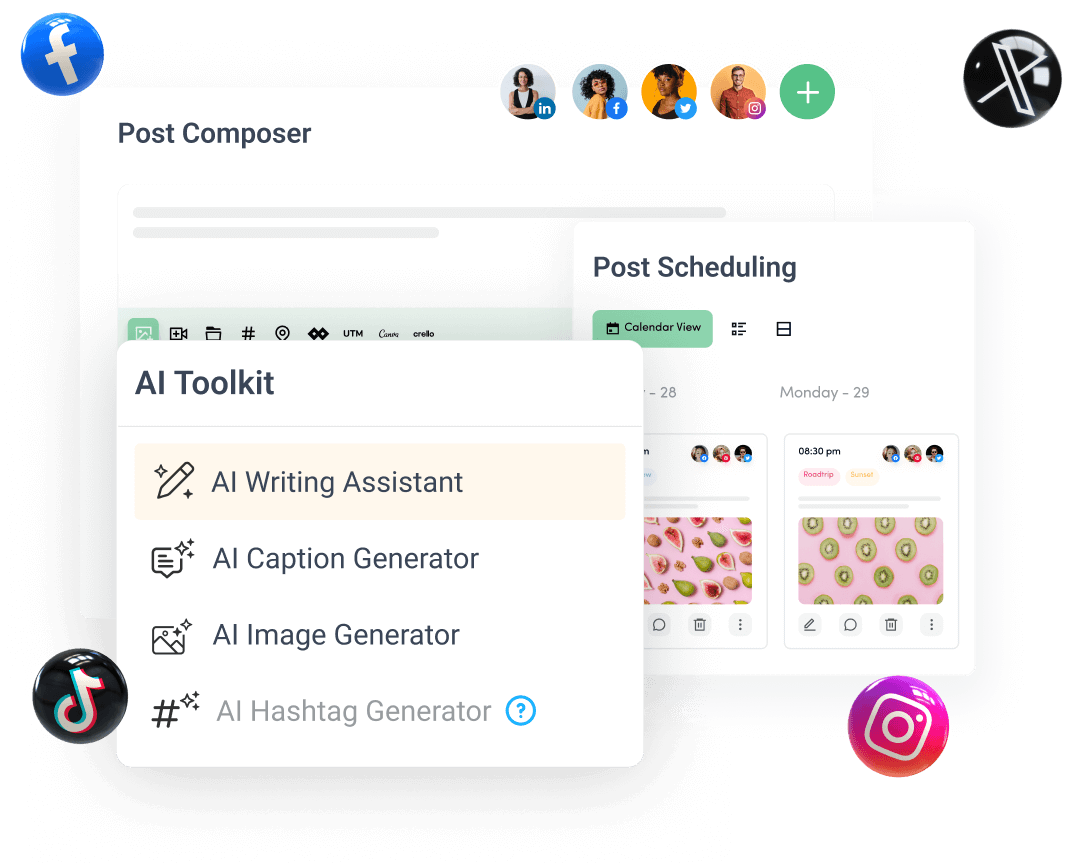
Create, plan, schedule, and publish posts on all social media networks